


|
Community & Enterprise
Easy School ManagementAdmissions, Academics, Attendance, Exams & Fees — the whole student lifecycle on one database.Students and guardians, admissions, classes and timetable, attendance, examinations and report cards, fee structures with real accounting, a parent portal, and an analytics dashboard with 51 reports.
Students & Guardians
Attendance
Examinations
Fees
Parent Portal
|
Built for
Registrars & Front Desk Class & Subject Teachers Examination Controllers Accounts Desk Principals & Owners
Eight role groups with record rules, field-level protection and multi-company support.
|

|
All in One
Enquiry to graduation, one database
|
51 Reports
Seven groups, preview + PDF + Excel
|
4 Grids
Timetable, my week, datesheet, marks
|
Real Ledger
Fees are ordinary customer invoices
|
Why This Module
Registrars, class teachers and accounts clerks run this software — not IT specialists. So anything that can be derived is derived rather than typed.
The attendance screen starts from “everyone present” and the teacher toggles the exceptions. Approved leave writes the register itself. Holidays and weekends are excluded from every percentage. Marks are validated as they are typed, and a blank is refused at submission.
Installments are a percentage of the fee card, so a concession granted in November is reflected in the January invoice with nobody recalculating anything. Bulk invoicing is idempotent, so “did somebody already run this?” is a safe question at a busy front desk.
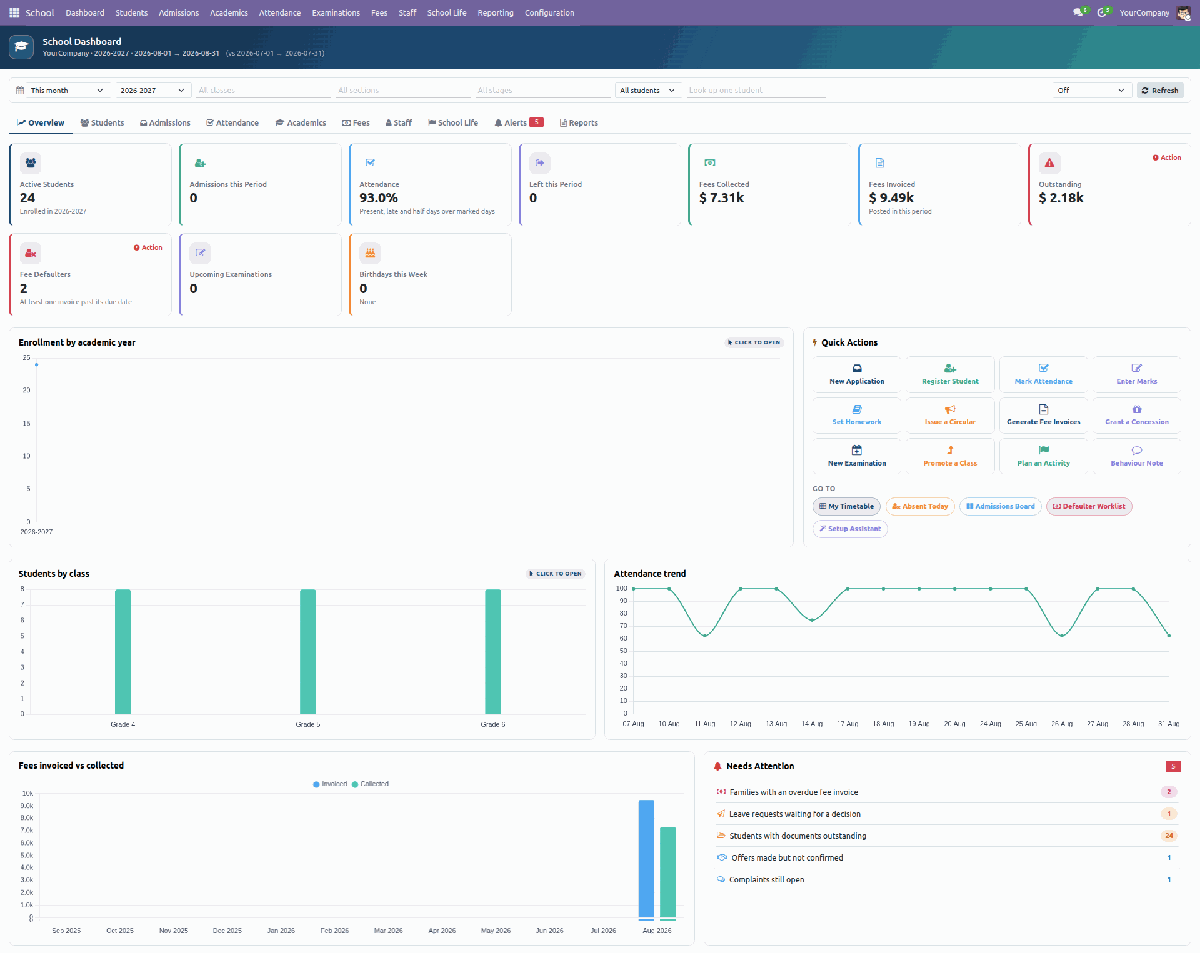
The dashboard — ten tabs, KPI tiles, charts and a Quick Actions panel. Every tile, bar and alert row drills through to the records behind it.
Students & GuardiansIdentity, placement, guardians with primary and billing contacts, siblings detected from a shared guardian, medical notes and consents, a document checklist with verification, and archiving instead of deletion. |
AdmissionsA pipeline from enquiry to confirmed place, with entrance tests, merit ranking, interviews, seat and waitlist control, an admission fee invoice, classified refusal reasons, and a one-click Confirm. |
Academic StructureAcademic years with terms, stages, grades, sections with capacity and a class teacher, subjects with electives and elective groups, and subject allocation. |
TimetableA reusable grid view beside the list, clash detection on save for teacher, room and section, substitution management that records what actually happened, and publication into the Calendar. |
AttendanceDaily or period-wise, a fast marking screen, leave requests from the portal, an academic calendar of holidays, a register lock after N days, absence notices and consecutive-absence alerts. |
ExaminationsSessions on a stage board, schedule generation that skips non-working days, a datesheet grid, candidate lists that respect elective choices, a tabulation grid with live validation, and a publication step. |
FeesFee heads as ordinary service products with real income accounts, structures per grade and year, installment schedules that must add up to 100%, concessions with an approval trail, bulk invoicing, late fees and staged reminders. |
Parent PortalA child selector, attendance, published results with downloadable report cards, the fee statement with online payment, the timetable, homework, circulars and leave requests. |
School LifeActivities with consent collection, circulars with an audience selector, homework, behaviour notes (commendations as well as incidents), and a complaint register with resolution times. |
How You Actually Use It — Step by Step
Ten jobs, in the order a school does them. Each one is a handful of clicks on a single screen.
|
1
|
Set up the school — about two minutesConfiguration → Setup Assistant. Run it once, before you enter a single child. Anything that already exists is left alone, so running it twice is harmless. Name the Academic Year, its Code, the start and end dates, and how many Terms. Set the Lowest and Highest Grade, the Sections per Grade ( Set Periods per Day, First Period Starts and Period Length — breaks are added for you. Click Set Up the School. Then add your subjects and your holidays — holidays are excluded from every attendance percentage. |
|
2
|
Add your teachers, and say who teaches whatA teacher is an ordinary Odoo employee with one box ticked, so contracts, leave and appraisals keep working with no custom code. Staff → Teachers → New. Enter the name and tick Is a Teacher — a Teaching tab appears. Fill in the Teacher Code, Qualification, Teaching Licence and the subjects they are qualified to teach. Set the Related User so their own timetable and sections resolve. Academics → Subject Allocation: section, subject, teacher, periods per week. This is the rule that decides who may mark whose register and enter whose marks. |
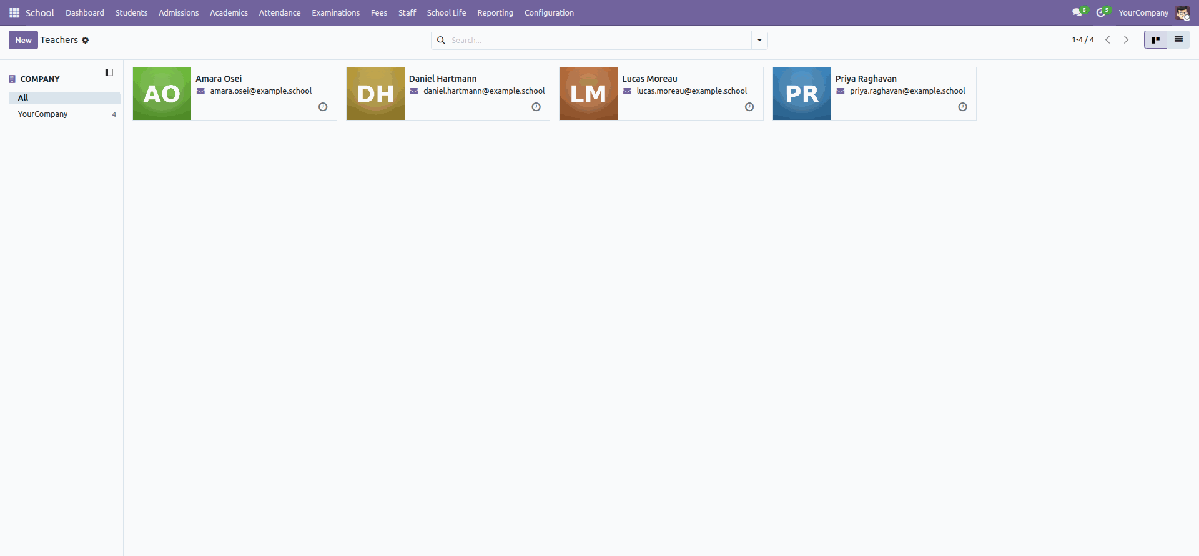
Teaching staff directory |
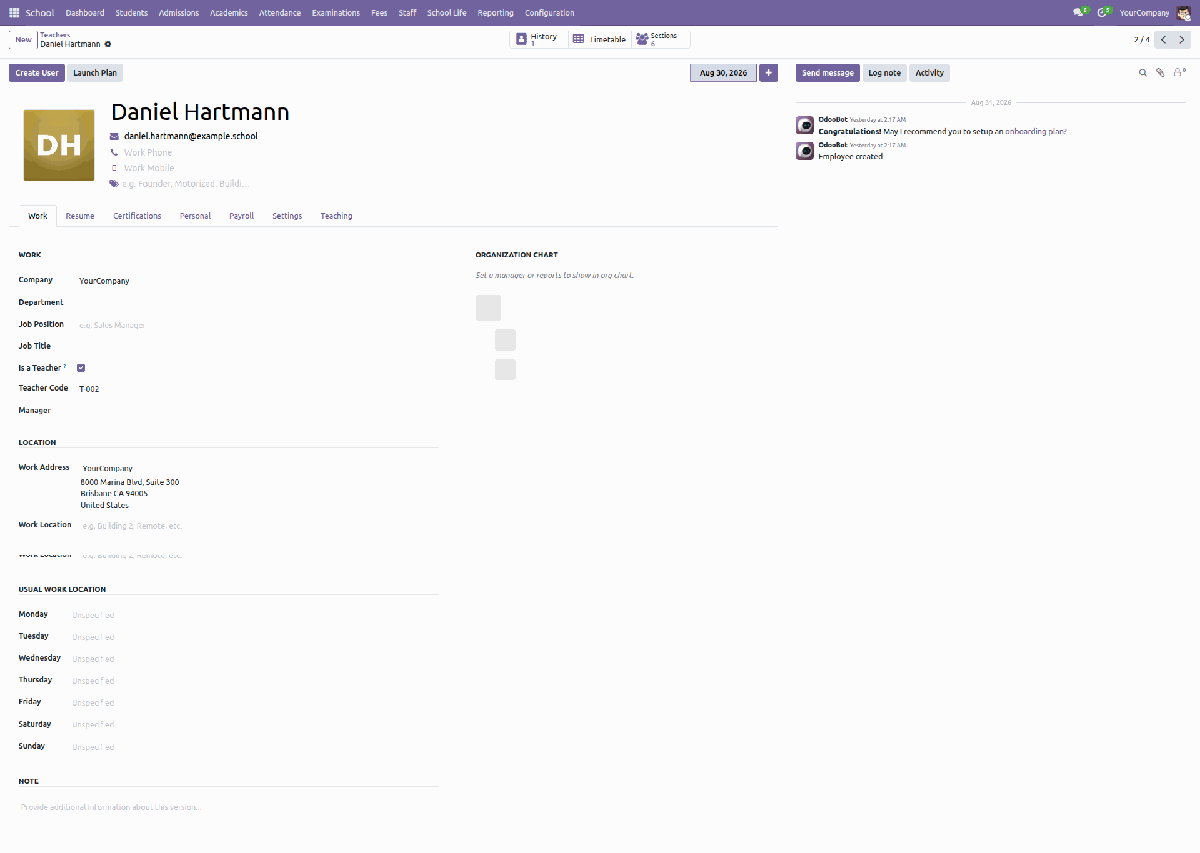
The Teaching tab on an ordinary employee |
|
3
|
Admissions — from enquiry to a confirmed placeThe buttons across the top follow the real process. Click them in order as things happen, or drag a card between columns on the board. Admissions → Applications → New: applicant name, guardian, telephone, the grade, the year and the Source. Start Review → Schedule the Entrance Test → Schedule the Interview → Offer a Place → Confirm Admission. Enter the Test Score and the Out Of figure — the Test % and the Merit Rank are worked out for you. Confirm Admission creates the guardian contact, the student with an admission number, the enrollment, the document checklist and the fee card — in one step. Refusing asks for a classified Reason, because the funnel analysis is only useful if refusals are classified. |
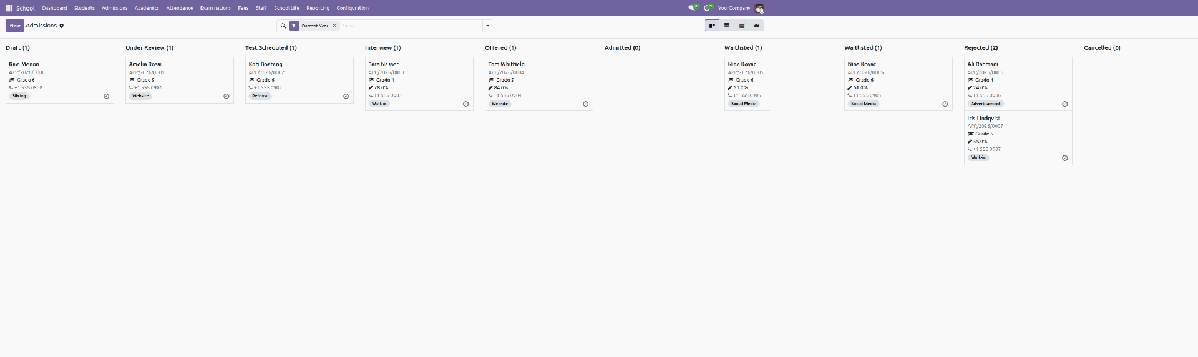
The admissions board — drag a card to move an application along
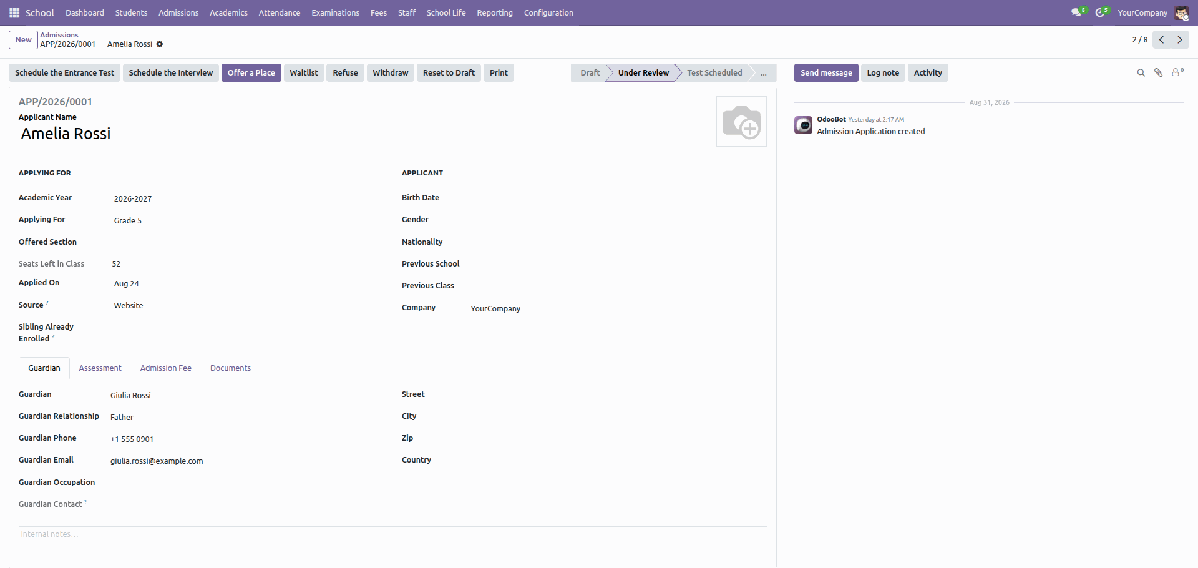
The application record — enquiry, test, interview, offer, confirm
|
4
|
The student record and its guardiansOne search box finds a child by name, admission number or guardian's name — so a parent who telephones and gives their own name still finds the child. Add each guardian with a Relationship, and mark exactly one Primary Contact and one Billing Contact. Siblings are found for you from a shared guardian — the basis of a sibling fee concession. Work the Documents tab: set the status to Received, attach the scan, then verify it. Print the ID card, the bonafide certificate or the transfer certificate. Nothing is ever deleted — a leaver is archived, so their certificate can still be issued years later. |
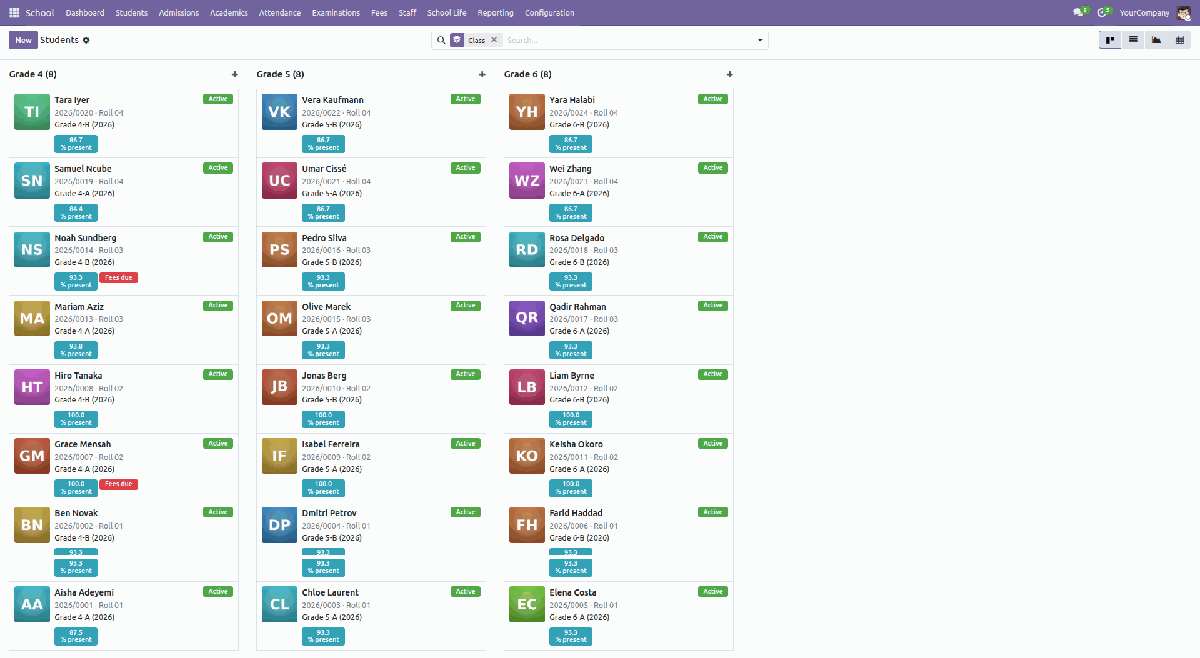
The student register — cards, list, graph and pivot, with filters for defaulters, low attendance and outstanding documents
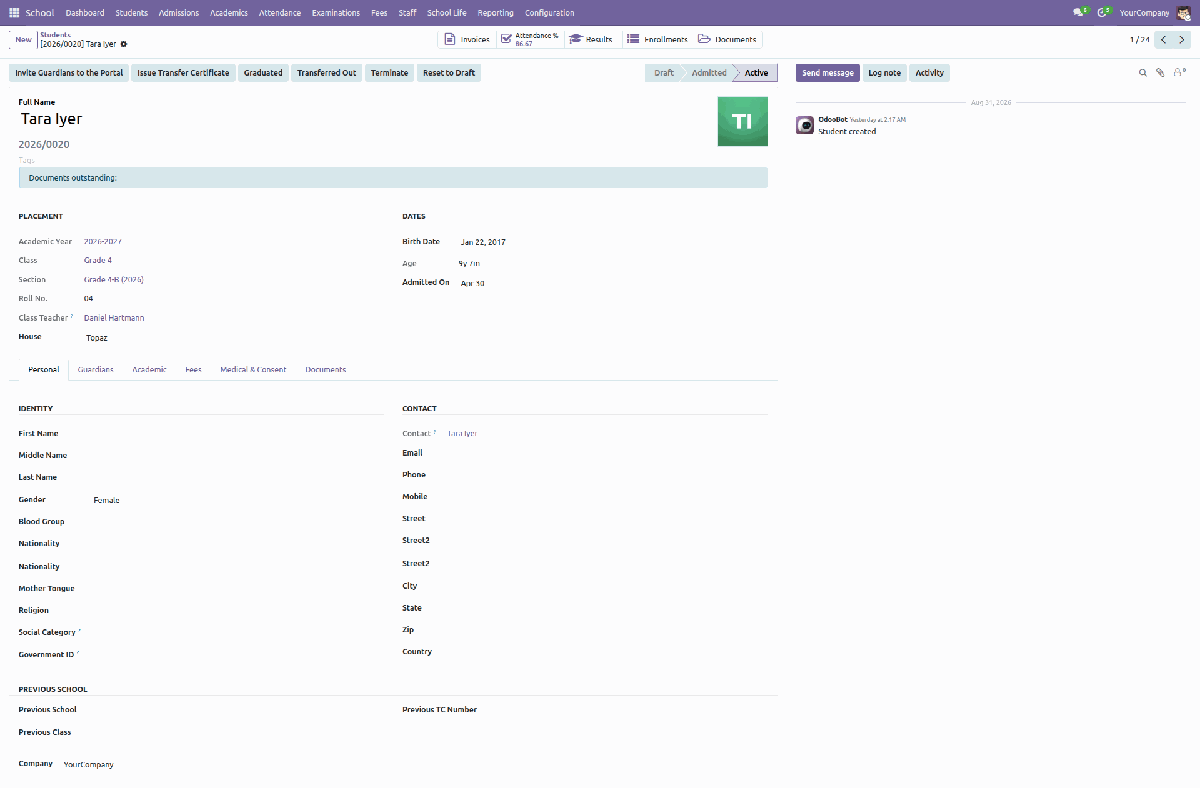
The student master record
|
5
|
Build the timetable on a gridAcademics → Timetable. The Grid and the List are the same timetable — switch with the buttons at the top right and use whichever suits the job. Choose the Section. The week appears with periods down the side and days across the top. Click a cell, pick the Subject, Teacher and Room, then Save. The counter reads “25 of 30 slots filled”. All seven days are shown. Days outside your working week are greyed and labelled Off — a hidden Friday cannot tell you that Friday is meant to be free. Clashes are refused as you save, naming the conflict. A teacher cannot be in two rooms at once, and a section cannot have two lessons at the same time. Teachers open My Timetable for their own week across every section they teach; it is read-only, because a lesson belongs to a section. |
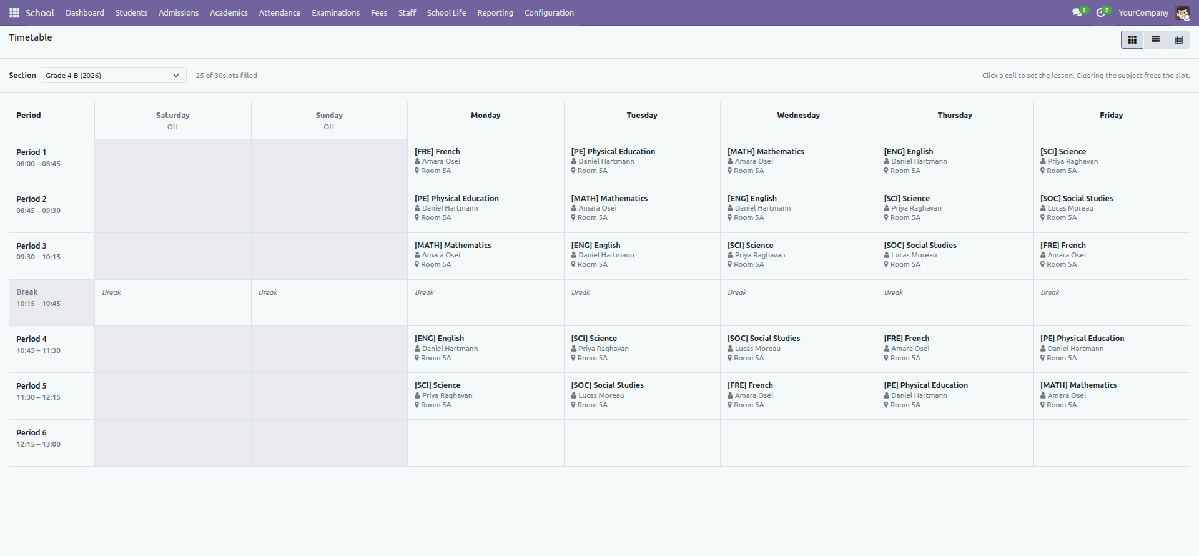
The timetable grid — off days greyed and labelled, breaks greyed, subject, teacher and room in every cell
|
6
|
Mark the register — two clicks and a saveAttendance → Mark Attendance. A class teacher arrives with their own section and today already filled in. The whole roster appears with everyone marked Present. You change only the exceptions. Pick Absent, Late, Excused or Half Day, add a reason, then Save the Register. All Present / All Absent set everyone at once; Save & Next Section jumps straight to the next section. Marking the same register twice is safe — it updates, it never creates a second copy. Approving a leave request writes the register itself, marking those days excused — including days already marked absent, because the note usually arrives late. |
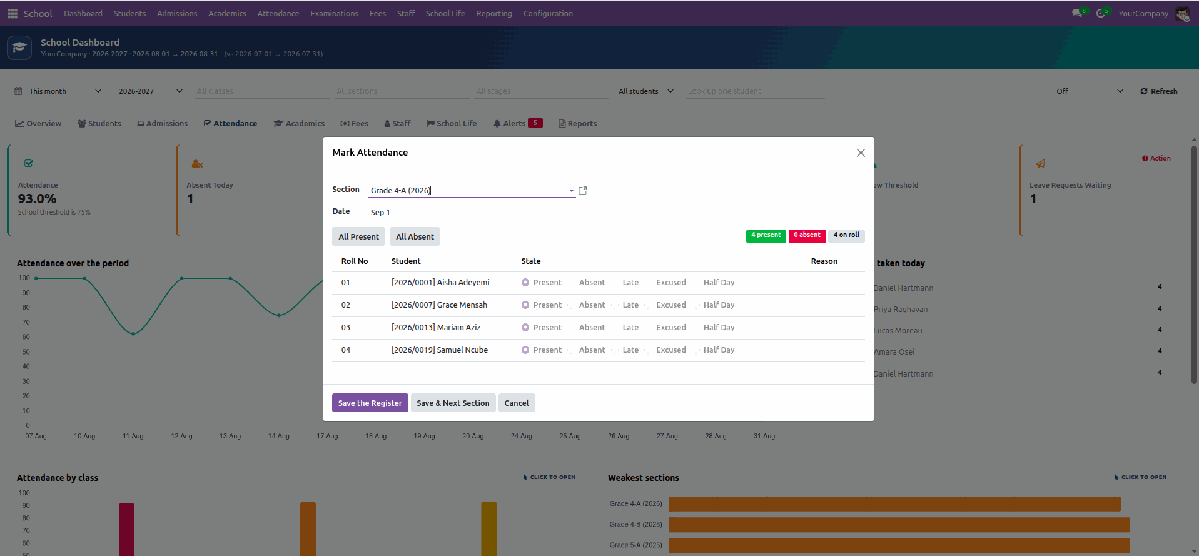
The daily register — start from “everyone present” and toggle the exceptions
|
7
|
Run an examination — six steps, in orderCreate session → generate schedule → open marks entry → teachers enter marks → controller approves → publish. Results reach parents only at the last step. Examinations → New: name, type, year, term, dates, and the grades under Classes Sitting. Generate the Schedule lays papers out day by day, skipping weekends and your holidays, with study days between them. The datesheet grid puts grades across the top and subjects down the side. Click a cell for date, times, maximum and pass mark. A subject a grade does not teach is a grey dash, not an inviting blank. Open Marks Entry creates a result row per candidate — an elective paper is only sat by the children who chose that elective. Teachers type marks paper by paper, or a whole section at once on the marks grid. A mark above the paper's maximum is refused as you type, and a blank is refused at submission. Approve is refused while any teacher still has marks in draft — and it tells you how many. Publish then builds totals, grades, GPA and ranks together, and locks the marks. |
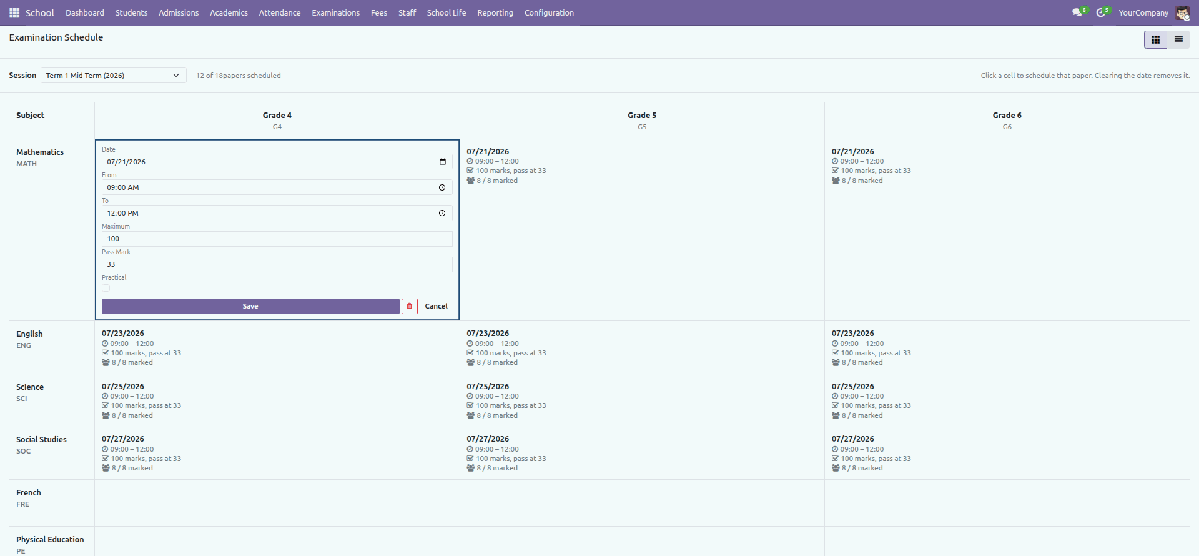
The datesheet grid — date, times, maximum and pass mark in the cell, “12 of 18 papers scheduled” at the top
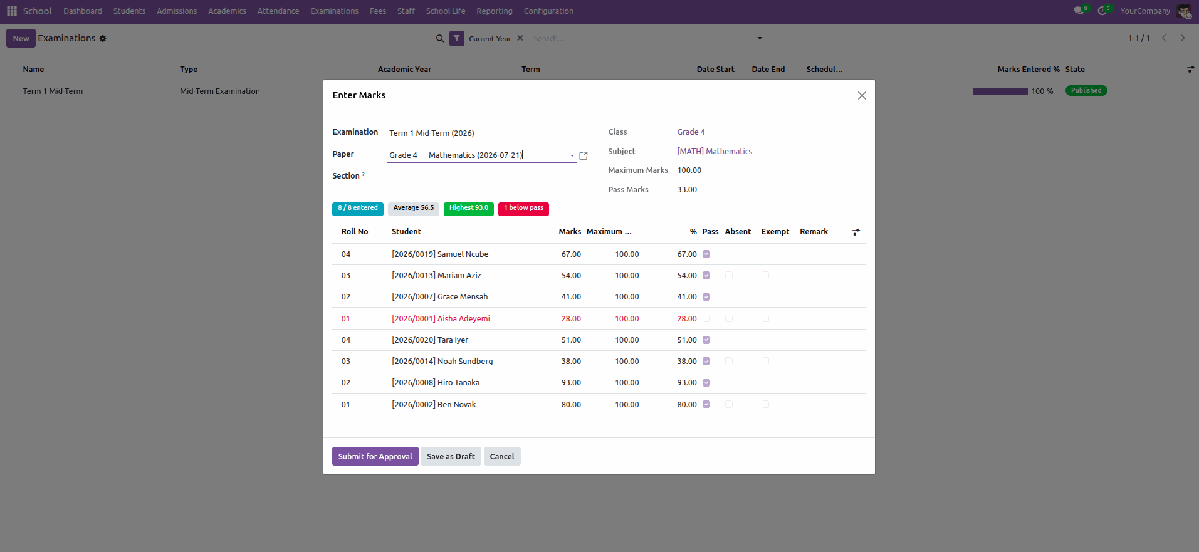
Marks entry, one paper at a time |
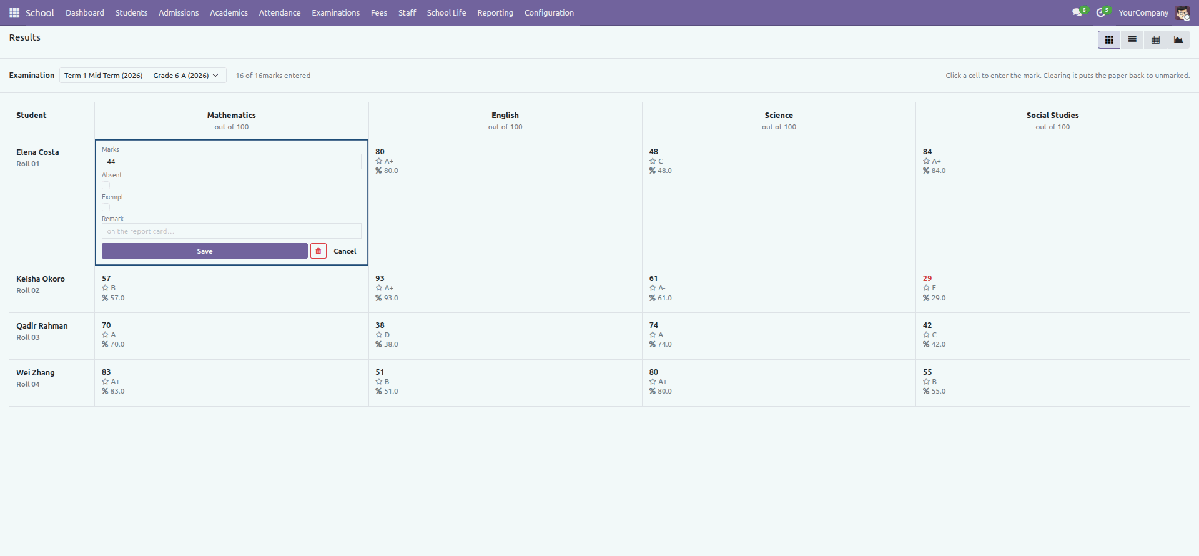
The tabulation grid — a failing mark in red, an empty cell means “not marked yet”, never a zero |
|
8
|
Fees — structures, cards, invoices, receiptsEvery fee here becomes a real customer invoice, so receivables ageing, the P&L, tax and online payment are standard Odoo with nothing extra to reconcile. A fee head is an ordinary service product with an income account — that is what puts the fee in the right place in the P&L. Build a fee structure per grade and year: add the heads with an amount and a frequency, tick Optional for things like transport. Generate Installments — one payment, per term, quarterly or monthly. They must add up to exactly 100%, or the structure cannot be activated. A fee card is created automatically when a child is admitted or promoted: gross, concession, payable, invoiced, paid and balance. Generate Invoices for a whole grade at a time, with a preview of how many students and how many already have one. Running it twice is safe — anyone already invoiced is skipped. Register Payment the ordinary Odoo way, then print a receipt that names every child the payment covers. Late fees and reminders are off until you switch them on, so installing the module never charges anybody anything. |
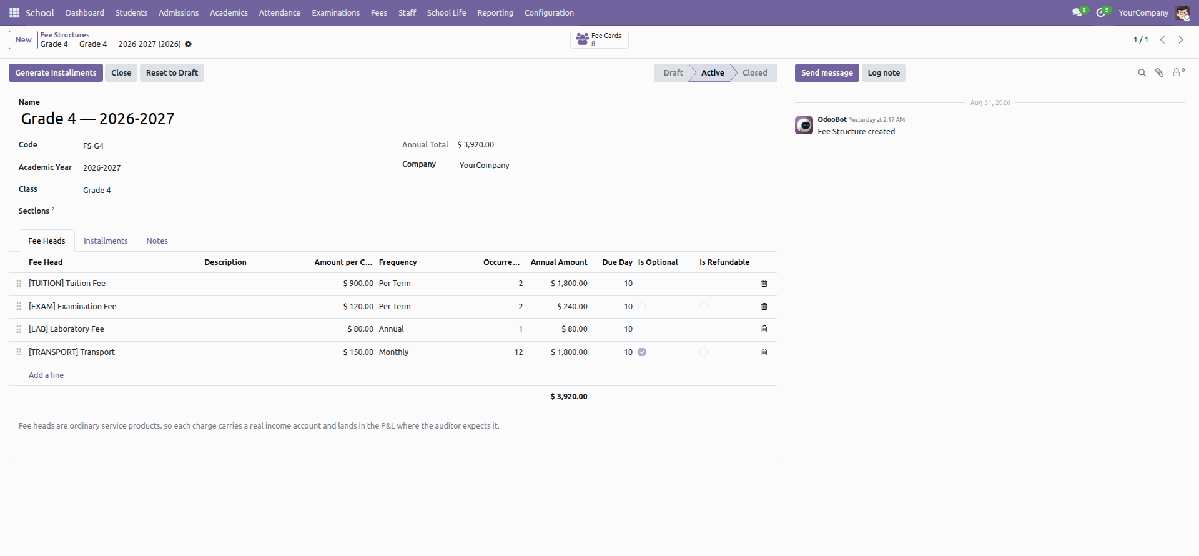
A fee structure — heads, amounts, frequency and the annual total
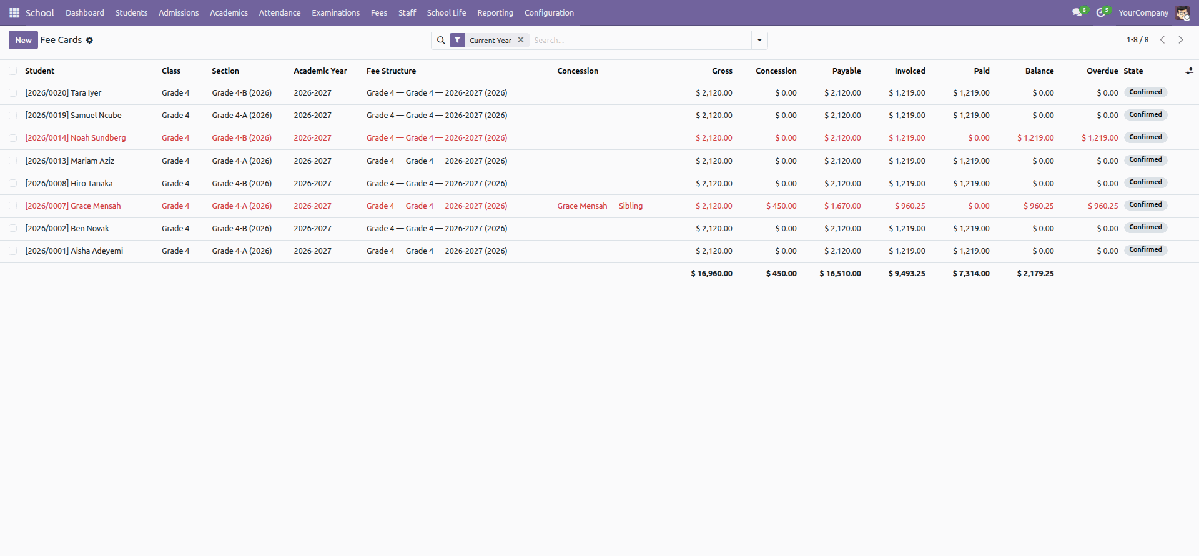
Fee cards — what each child owes this year |
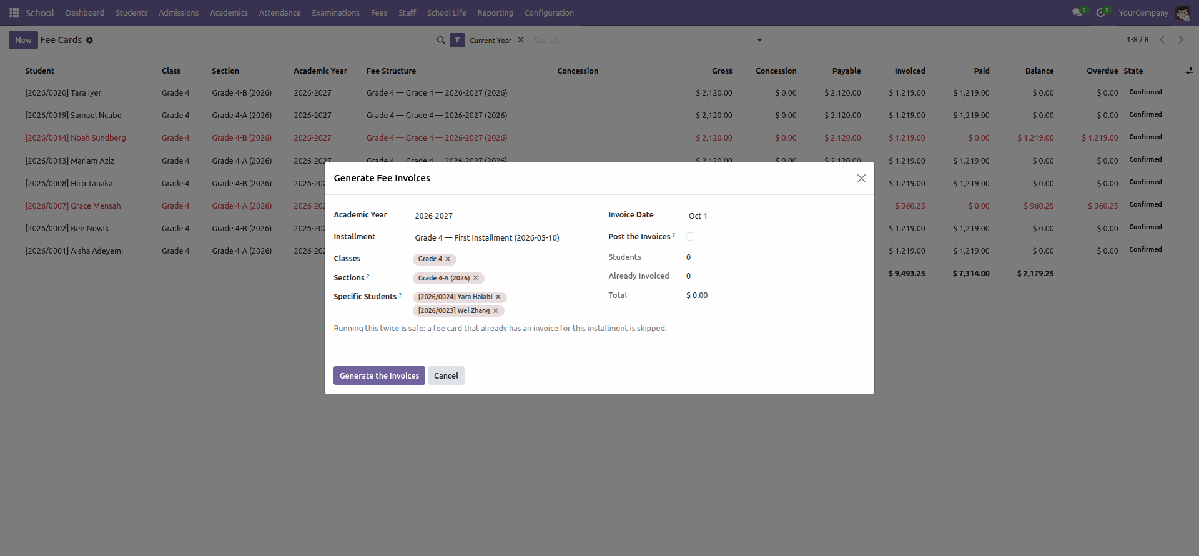
Bulk invoicing — idempotent, with a preview before you commit |
|
9
|
The end-of-year promotionOnce a year, move a whole grade up — with the evidence for each child on the same row. Set From Year, Class, To Year, Promote To and a Default Section Next Year. Every child appears with their Year %, Result, Attendance % and Balance. The Decision comes from the published year result, but it is a proposal, not a verdict — override any row to Retain, Promote with Condition or Leaving. Read the warning line: it tells you who has no section to go to, and who still owes fees. Promotion does not clear a balance. Apply the Promotion creates next year's enrollments and their fee cards in one go. |
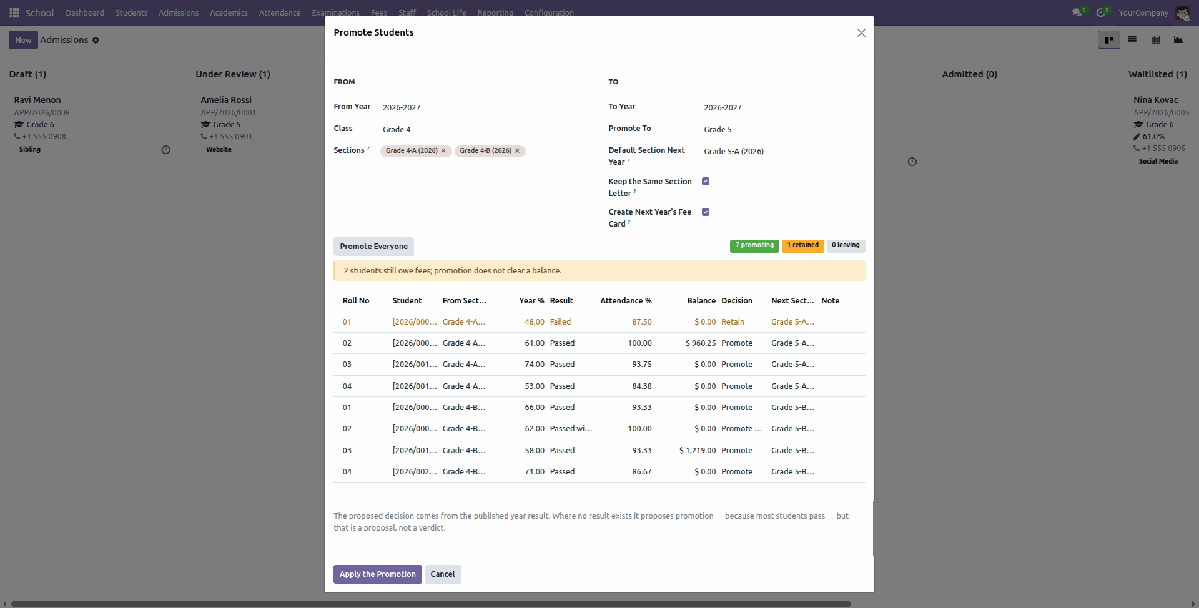
A decision per child, with the evidence on the same row — and a warning about outstanding fees
|
10
|
Answer questions — dashboard, analysis, Report CentreSet the dashboard filters once — period, academic year, classes, sections, stages, gender, or one student — and every tab and every report follows them. Ten tabs: Overview, Students, Admissions, Attendance, Academics, Fees, Staff, School Life, Alerts and Reports. You only see the tabs your role allows. Click a KPI tile, a bar, a slice or an alert row to open the records behind the number. Quick Actions launch any operation without leaving the screen — register a student, mark attendance, enter marks, generate invoices, issue a circular, promote a class. The Report Centre gives every report three buttons: Preview on screen, PDF, and Excel. All three are the same figures, so what you check on screen is what you hand to an auditor. For free-form questions, the Reporting menu gives native pivot and graph analysis of enrollment, admissions, attendance, results and fees. |
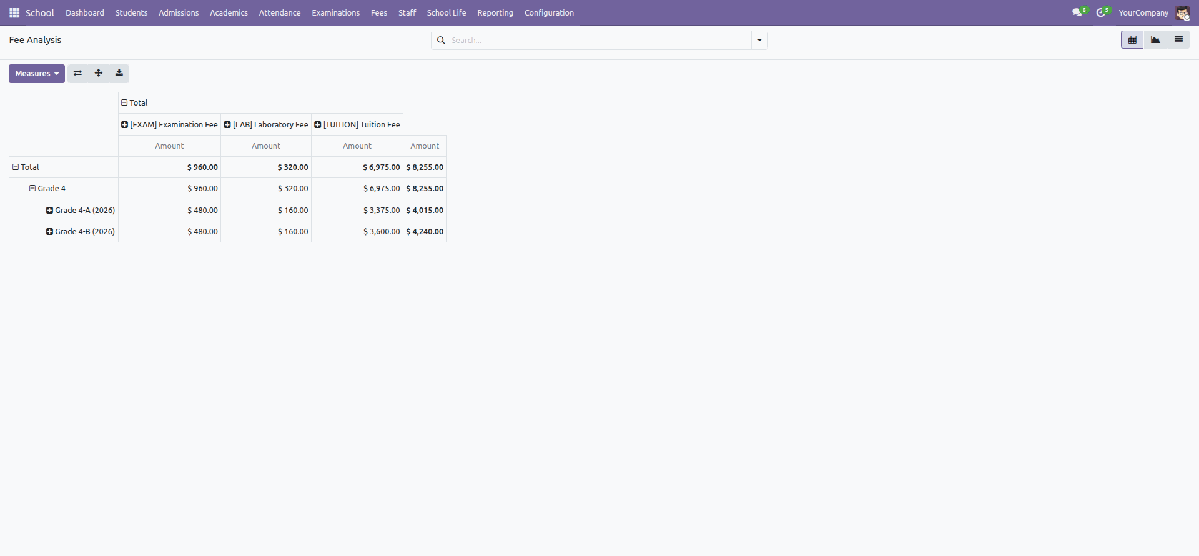
Fee Analysis — a native pivot of every fee invoice line: drag class, section, fee head, installment or month onto the rows and columns
The Parent PortalTick Portal Access on a guardian, give them an email, and click Invite Guardians to the Portal. They sign in and pick a child. A guardian can only ever see their own children. The controllers resolve the children from the signed-in person and check every id against that set — never through a URL parameter. Editing the address bar does not help. Unpublished results are invisible, and the Fees, Attendance and Homework pages can each be switched off in Settings. |
|
Eight Roles — Everyone Sees Their Own Work
Roles stack: give someone Class Teacher and they get everything Teacher and School User can do. The School Administrator role is granted automatically to every Odoo Administrator, so whoever installs the module can start work without hunting for a checkbox.
| School User | Looks things up — students, classes, timetable, school calendar. Reads almost everything; changes almost nothing. |
| Front Desk / Registrar | Enquiries and applications, admissions, student and guardian records, circulars, receipts. |
| Teacher | Marks attendance and enters marks for their own allocated sections and subjects only. Sets homework, writes behaviour notes. |
| Class Teacher | Everything a teacher can do, plus the full profile of every child in their own section and approval of their leave. |
| Examination Controller | Builds sessions and schedules, approves and publishes results, and amends a published mark — which is recorded on the record. |
| School Accountant | Fee structures, concessions, bulk invoicing, collections and the whole fee reporting suite. |
| Principal | Sees every student, every register and every report across the school, and can amend a locked register. |
| School Administrator | Full configuration: academic years, fee structures, security and the annual promotion. |
51 Reports in Seven Groups — Preview, PDF and Excel
Every report honours the dashboard's current period, class, section and student filters. Preview on screen, then download the identical figures as PDF or as a spreadsheet.
Students & EnrollmentStudent register, class strength, demographics, enrollment trend, document status, siblings, leavers, guardian directory, birthdays. |
AdmissionsApplication register, funnel by source, entrance merit list, refusal analysis, waiting list, seat availability. |
AttendanceDaily register, monthly sheet, defaulter list, attendance by class, absence analysis, leave register, register-marking compliance. |
ExaminationsTabulation sheet, result summary, toppers, failure list, grade distribution, subject analysis, marks entry status, exam schedule. |
Fees & CollectionsCollection summary, day book, outstanding by class, ageing, defaulters, collection vs expected, revenue by fee head, concessions, installment status, fee cards. |
Staff & TimetableStaff directory, teacher workload, subject allocation matrix, substitution log, section timetable. |
Activities & ConductActivity register, consent status, homework log, behaviour register, complaint register, circular log. |
||
Printed Documents
Open a record, or tick many rows in a list, and use Print. Three hundred ID cards come out as one PDF.
|
Report card Consolidated tabulation sheet Hall tickets, with eligibility checked |
Student ID cards, several to a sheet Transfer certificate Bonafide certificate |
Fee receipt and fee card Application form Section timetable |
Your Policy, Not OursAdmission number format, working days and the day the week starts on, attendance mode and threshold, register lock, consecutive-absence alerts, hall-ticket rules, late fees, reminder schedule and which portal pages are on — all settings, not code. |
Secure by DesignRecord rules stop a teacher writing another section's register or another subject's marks. Field-level protection on medical notes, identifiers and guardian income. Multi-company rules throughout. |
Built on Odoo, Not Beside ItStudents and guardians are contacts. Teachers are employees. Fees are customer invoices settled with payments. Receivables ageing, the P&L, tax, follow-ups and online payment are Odoo's own tested code paths — nothing here forks them. |
Multiple Language SupportShips with English, Bangla, Arabic (RTL), Chinese (Simplified), French, Russian and German translations for multilingual school offices. |
Built to Fit Your Odoo
| Edition: Community & Enterprise |
Dependencies: Contacts, Employees, Accounting, Calendar, Portal, Products |
Category: Services / Education |
License: OPL-1 |
No Enterprise dependency. Installing this module pulls in Accounting, Employees and the portal, which is where the invoices, the staff records and the parent pages actually live. Excel exports use the xlsxwriter Python package; without it the route degrades with a message instead of an error, and the PDF still works.
Deliberately not included: transport routing, hostel, library circulation, alumni management, an LMS, biometric or RFID device integration, an SMS gateway and a public website admission form. Each is a module in its own right, and a partial version is worse than none.
Certificate wording, grading scales, statutory report formats and identifier labels ship as editable data precisely because they are jurisdiction-specific. Review them against your own education authority's requirements before relying on them.
Support & Developer Details
For installation help, customization, additional dashboard widgets, custom school reports or implementation support, contact the maintainer.
| Name: Abdullah Al Arafat |
Mobile/Whatsapp: +8801712192445 |
Email: imbipul9@gmail.com |
Highlights
- Student and school records • Administrative workflows • Daily operations • Education reporting