
|
Odoo 15-19 Community and Enterprise
Easy Inventory & Shelf ManagementWarehouse heat-map dashboard, shelf planning and inventory reports for Odoo.Manage stock from two focused screens: a KPI-driven Shelf Dashboard and a visual Floor Plan that shows every bin, rack slot or shelf in its physical position. |
Built for
Warehouse Managers Inventory Operators Auditors Planners
Built on standard Odoo Inventory data with no core modification.
|
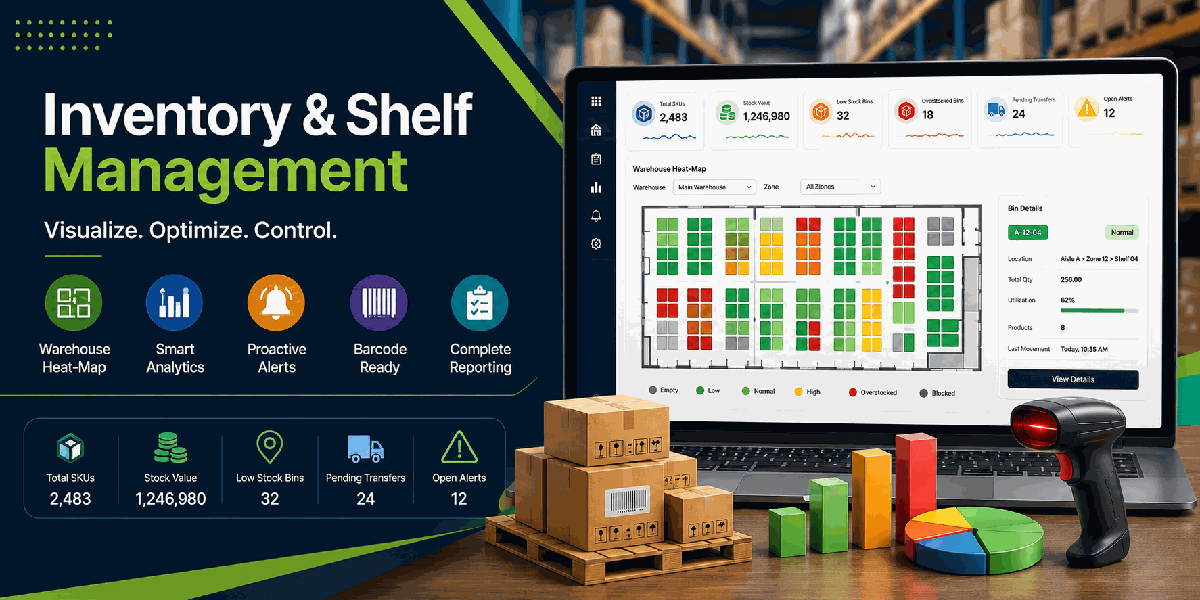
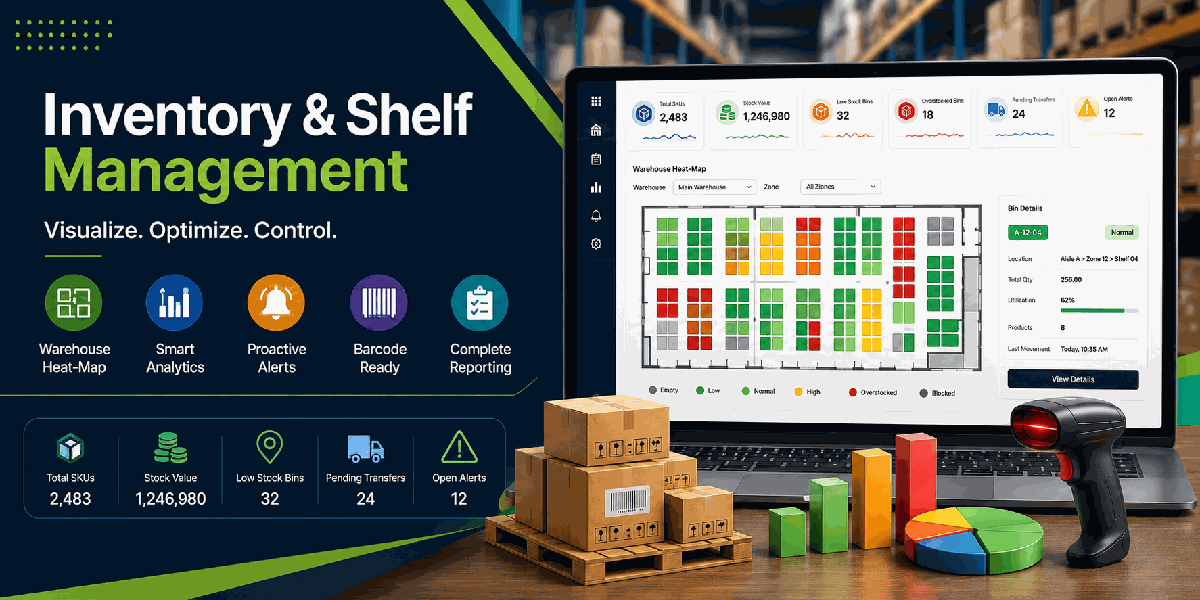
The dashboard gives warehouse users a single place to review stock KPIs, bin status, alerts and the visual warehouse floor plan.
|
2 Screens
Shelf Dashboard and Floor Plan
|
Heat Map
Colour-coded bin fill status
|
6 Reports
Preview plus PDF and XLSX export
|
Alerts
Low, overstocked, blocked and expiry alerts
|
Why This Module
Warehouse teams often need to inspect stock levels, bin capacity, alerts, transfers, lots and valuation from several different Odoo screens.
Easy Inventory & Shelf Management turns that data into a live operational dashboard and a visual floor plan that makes shelf problems visible immediately.
Shelf DashboardTrack total SKUs, stock value, low-stock bins, overstocked bins, pending transfers and open alerts from one screen. |
Visual Floor PlanDraw zones, place bins in real physical positions and read fill level through colour, percentage and visual fill height. |
Barcode SearchScan a location barcode, product barcode or internal reference to jump to matching bins, highlight results and open the detail panel. |
Operational ReportsPreview Stock Moves, ABC Analysis, Expiry/Lot Tracking, Dead Stock, Inventory Valuation and Reorder reports. |
Smart AlertsRaise and track low-stock, overstocked, blocked-bin and approaching-expiry alerts, with optional Odoo activities. |
Role-Based AccessManager, Warehouse Operator and Auditor roles control layout editing, quick actions, reports and configuration. |
First-Time Setup Flow
1. Create ZoneCreate one floor or warehouse area from Inventory configuration. |
2. Assign BinsAssign internal locations to the zone from the editable bin list. |
3. Set CapacitySet capacity and reorder points so the heat map can calculate fill status. |
4. Position BinsDrag bins, drag handles to resize, rotate and snap to a grid until the plan matches the real warehouse. |
5. Give AccessAssign Manager, Operator or Auditor permissions to each user. |
Create a Zone
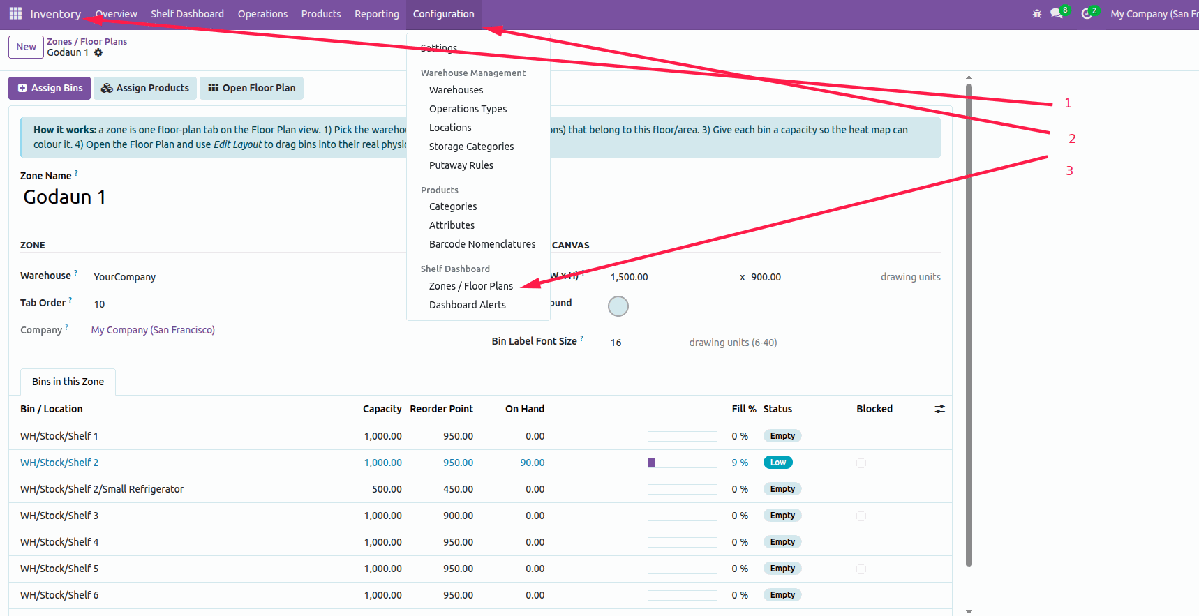
Managers create a zone for each warehouse area or floor. The selected warehouse and floor background colour define where the zone appears on the Floor Plan screen.
Assign Bins to the Zone
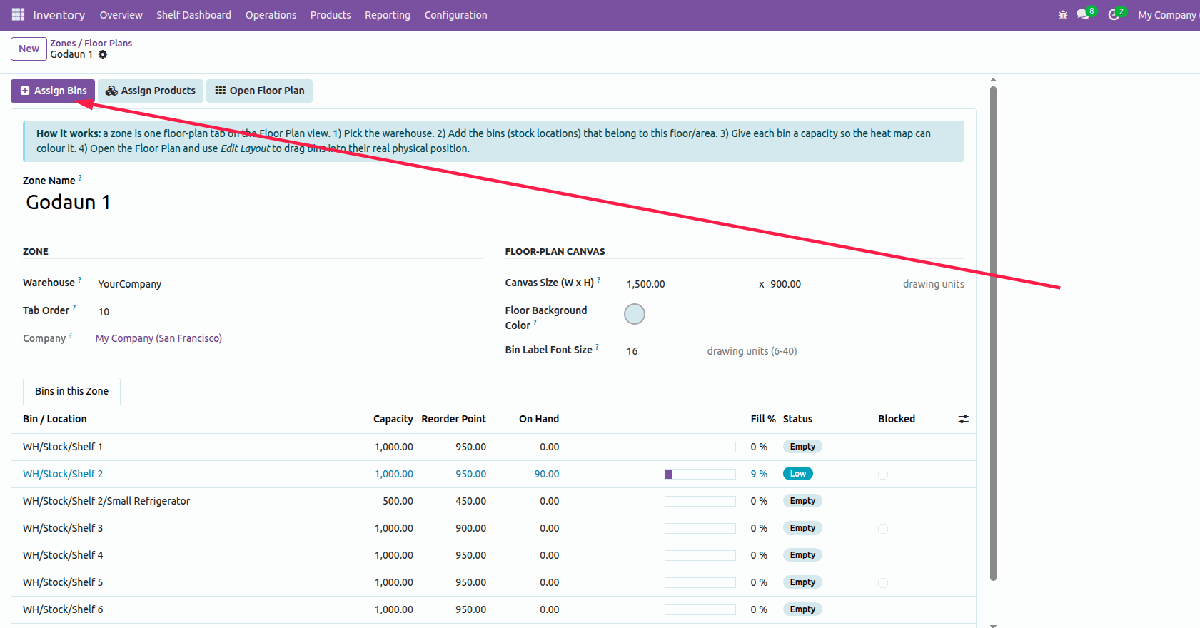
The Assign Bins wizard lists internal locations for the warehouse so each shelf, rack slot or bin can be connected to the correct dashboard zone.
Set Capacity and Reorder Points
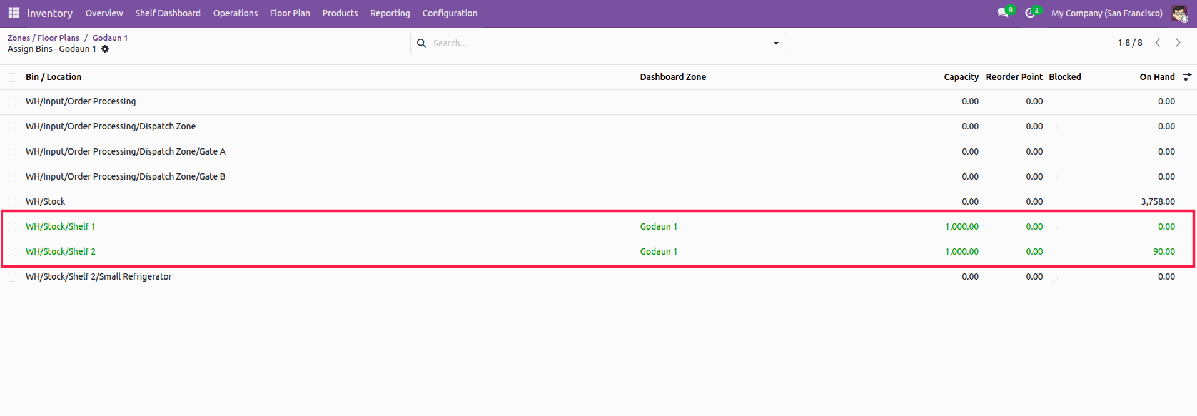
Capacity is used to calculate bin fill percentage and heat-map colour. Reorder points help the dashboard identify replenishment candidates.
Position the Bins on the Map
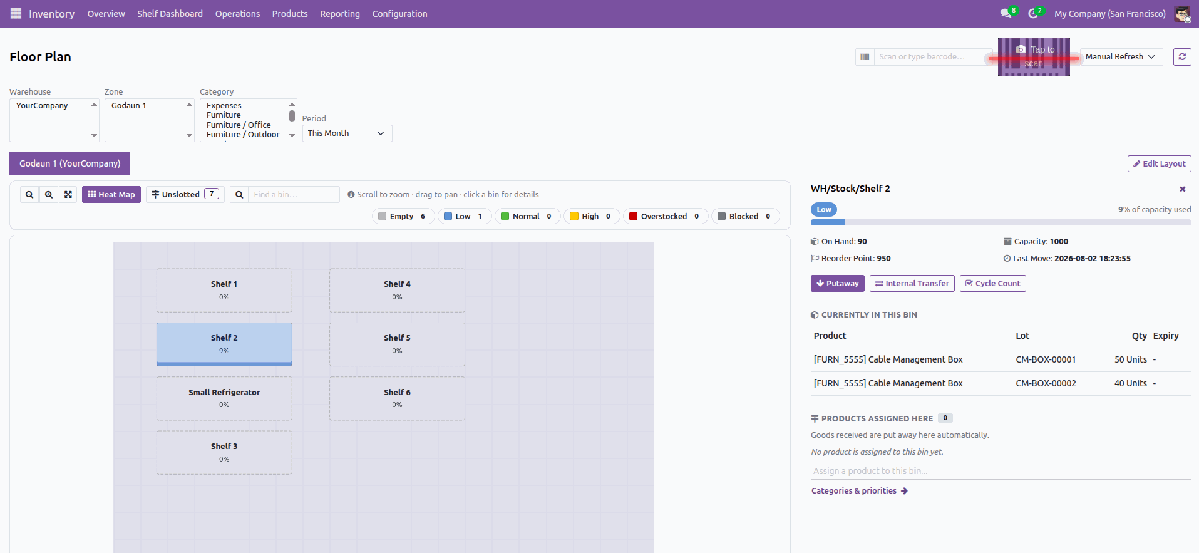
In layout edit mode, managers can drag, resize and rotate bins until the digital floor plan matches the physical warehouse arrangement.
Read Stock Like a Warehouse MapEach bin is drawn as a rectangle, coloured by status and filled from the bottom according to quantity on hand divided by capacity. Click a bin to view products, quantities, lots, expiry dates, reorder point, last movement and quick actions. |
|
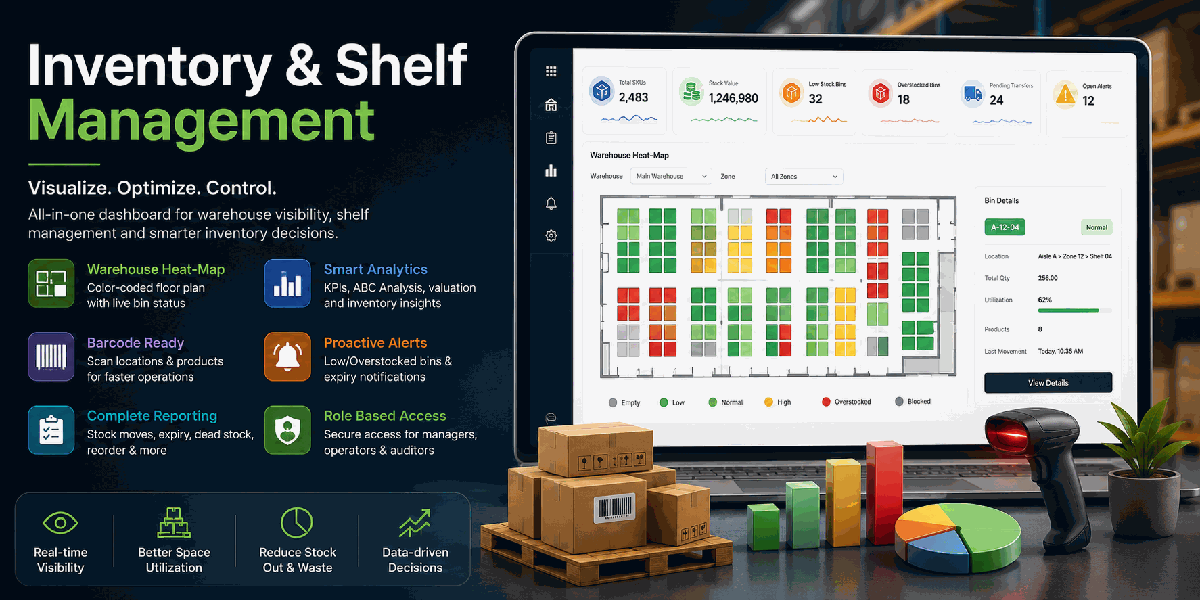
The module combines a KPI dashboard with a floor-plan heat map, letting teams move from warehouse-level status to exact bin details without leaving the Inventory app.
Find and Filter BinsUse zone tabs, legend chips with live counts, bin search, fit-to-screen, zoom and pan to navigate large warehouse layouts quickly. |
Quick Actions from a BinLaunch Putaway, Internal Transfer or Cycle Count from the selected bin while keeping standard Odoo Inventory operations intact. |
Slot Products to the Right Bin
Assign products or whole categories to bins using standard Odoo putaway rules. Receipts can then be put away into the planned bin automatically, and the Floor Plan can flag products sitting in the wrong place.
Assign Many Products by Zone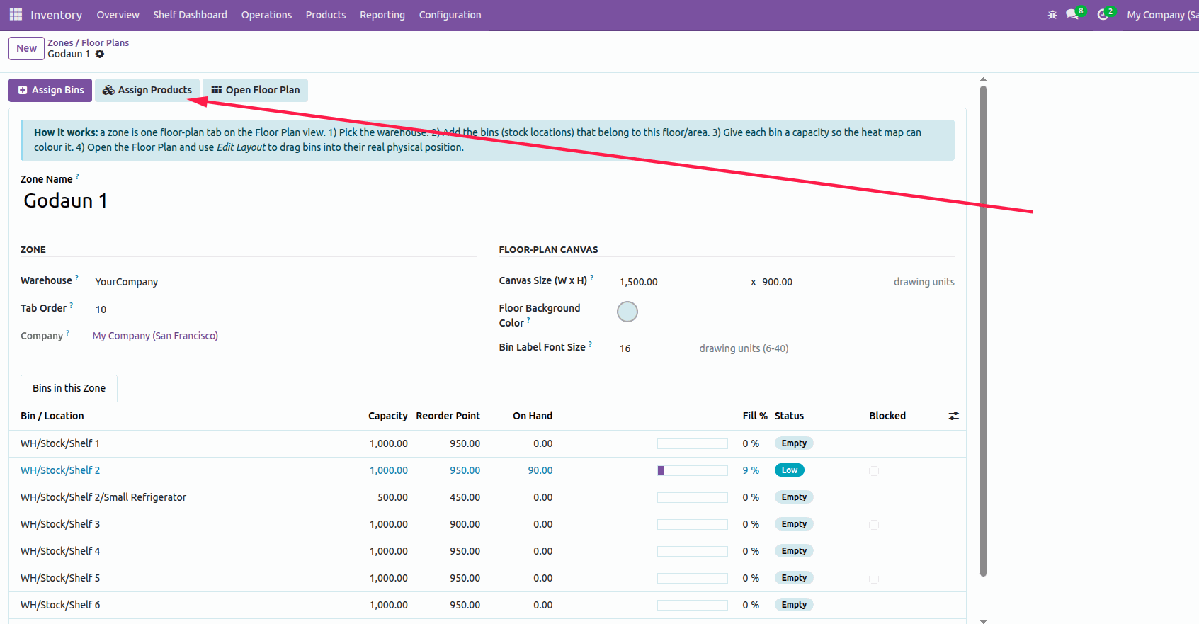
Use the zone-level Assign Products screen to map a whole aisle at once. Each row can target either a specific product or a product category. |
Assign from the Bin Panel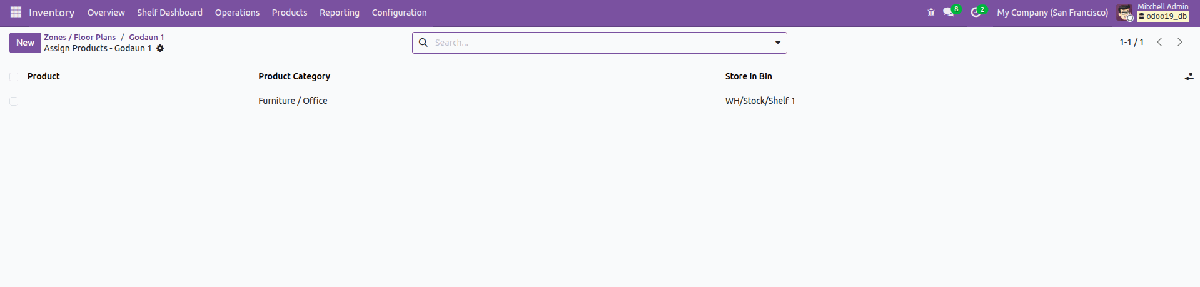
Managers can slot a product from the selected bin, review products already assigned there, remove an assignment, or open category and priority rules. |
Reports with Preview and Export
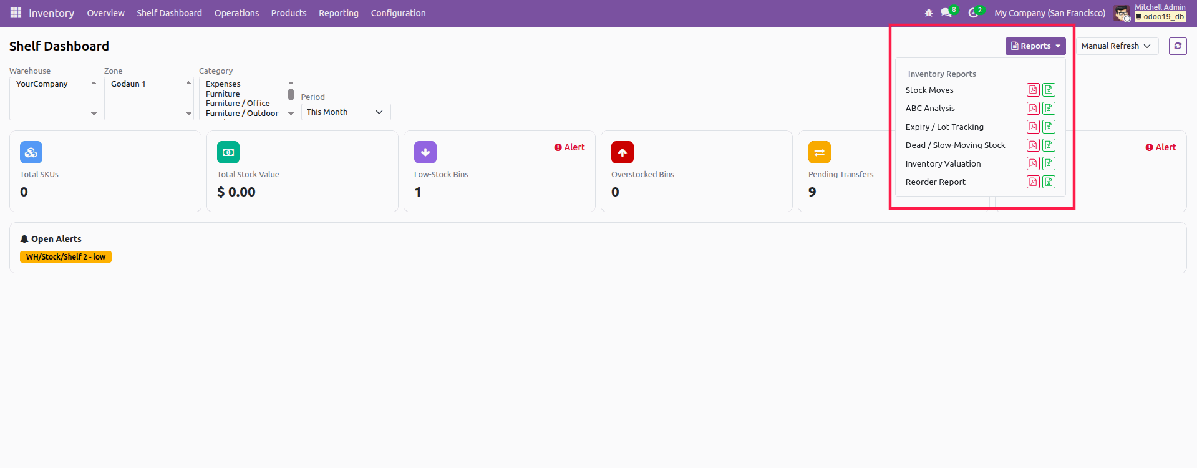
The report library supports on-screen previews and direct PDF or XLSX export for stock moves, ABC analysis, expiry tracking, dead stock, valuation and reorder planning.
Inventory Alerts
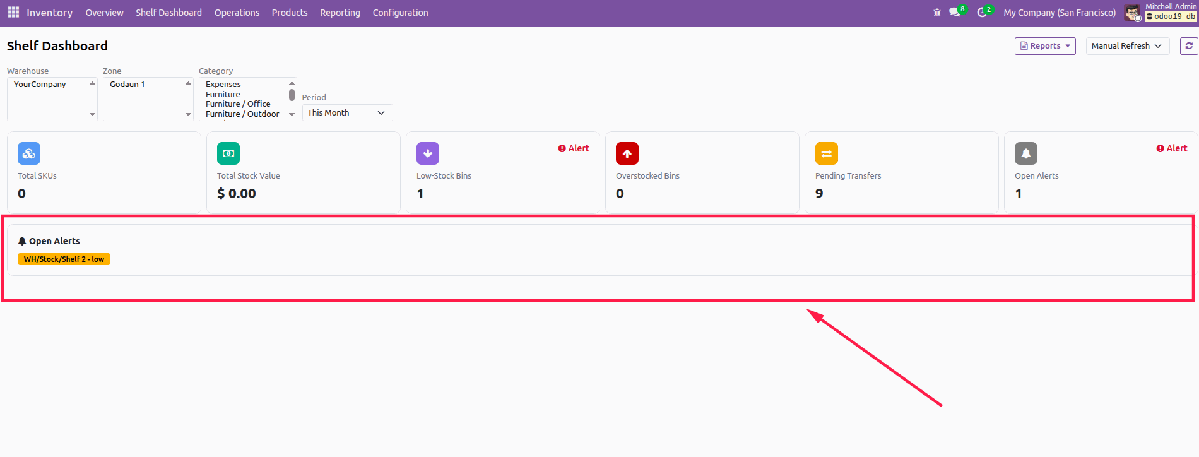
Alerts make low-stock bins, overstocked bins, blocked locations and approaching lot expiry visible to managers, with acknowledge and resolve actions.
User Roles
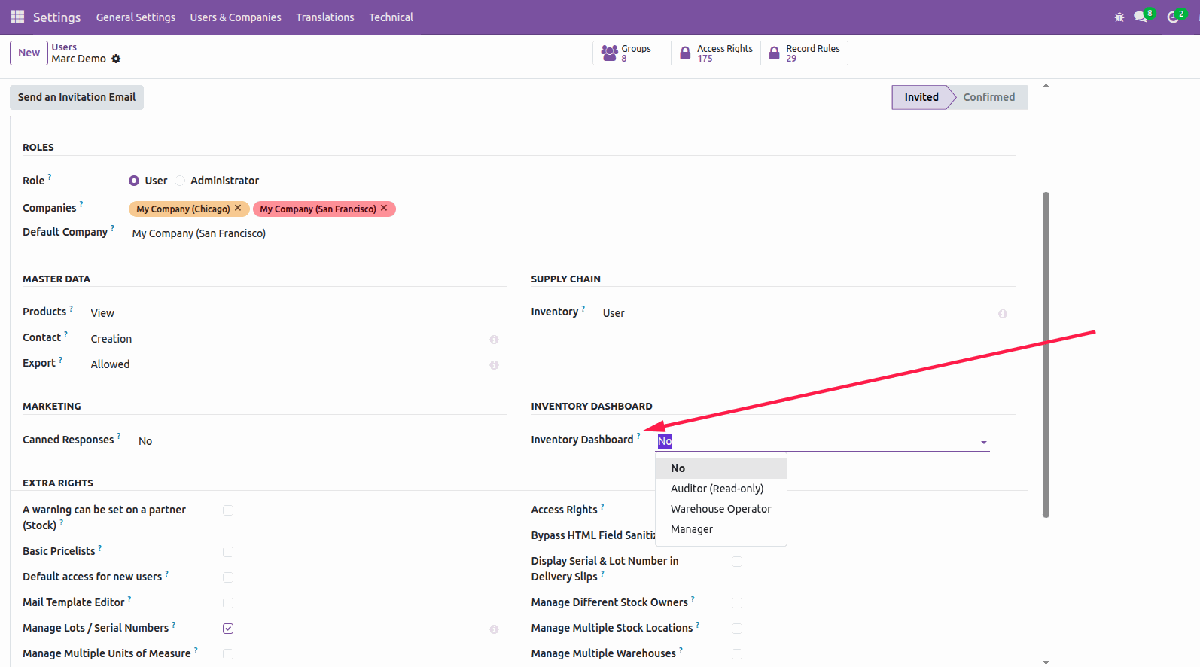
The Inventory Dashboard access field controls whether users can manage layouts and settings, perform warehouse actions, or view reports in read-only auditor mode.
What You Get
|
Total SKU and stock value KPIs Low-stock and overstocked bin counters Pending transfer and open alert visibility Warehouse, zone, category and date filters Manual and automatic refresh options |
SVG warehouse floor-plan heat map Layout editor: drag, resize handles, rotate, snap, auto-arrange Slotting: assign products to bins, built on Odoo putaway rules 7 languages: English, Bangla, Arabic (RTL), French, German, Chinese, Spanish Unslotted-bin and misplaced-product visibility Bin detail panel with products and lots Location and product barcode lookup Putaway, transfer and cycle-count quick actions |
Stock Moves report ABC Analysis report Expiry/Lot Tracking report Dead/Slow-Moving Stock report Inventory Valuation and Reorder reports Hourly alert sync and daily KPI snapshots |
Settings ReferenceConfigure lot expiry alert days, the dead or slow-moving stock threshold, and whether new dashboard alerts also create Odoo activities for managers. |
Automatic MonitoringAn hourly scheduled action syncs low, overstocked, blocked and expiry alerts. A nightly snapshot stores warehouse KPI history for fast dashboard trends. |
Built to Fit Odoo Inventory
| Version: Odoo 15-19 |
Edition: Community |
Dependencies: Inventory, Barcodes, Web |
License: OPL-1 |
The module uses standard Odoo Inventory records and is multi-company and multi-warehouse safe. Excel export requires the Python package xlsxwriter.
Complete User Manual Included
The manual covers setup, user roles, the Shelf Dashboard, Floor Plan navigation, bin quick actions, barcode scanning, reports, alerts, settings and troubleshooting.
Open User Manual PDFSupport & Developer Details
For installation help, customization, dashboard extensions, custom reports or implementation support, contact the maintainer.
| Name: Abdullah Al Arafat |
Mobile/Whatsapp: +8801712192445 |
Email: imbipul9@gmail.com |