


|
Odoo 19 Community & Enterprise
Easy Hospital Management with AIFront Desk, Beds, Clinical, Billing, Staff & Payroll — one patient, one lifetime history.Every visit is an encounter: opened at the front desk, served by clinical staff, billed and collected by accounts, closed when the service is done. Cabins, wards, ICU and theatres on a live board, a self-contained payroll, and a dashboard with 39 reports.
Front Desk
Beds & Theatres
Clinical
Billing
Payroll
AI Assist
|
Built for
Reception & Registration Doctors & Nurses Cashier & Accounts HR & Payroll Officers Hospital Owners & Managers
Seven role groups with record rules, field-level protection and multi-company support.
|

|
All in One
Registration to payroll, one database
|
39 Reports
Five groups, preview + PDF + Excel
|
Live Bed Board
Cabin, ward, bed, ICU, theatre, chamber
|
Real Ledger
Bills are ordinary customer invoices
|
Why This Module
Receptionists, nurses and cashiers run this software — not IT specialists. So the front desk needs six fields to register a patient, and anything that can be derived is derived rather than typed.
There is no “inpatient” and “outpatient” split to get wrong. An admitted patient is simply a visit that also has a bed. Assigning the bed creates the charge line, and a nightly job grows it day by day, so a nine-day stay never needs a manual quantity edit.
Zero, partial and full payment are all valid states, because that is how a hospital counter really works. What is not negotiable is who may touch the money: the front desk can see every amount and change none of them.
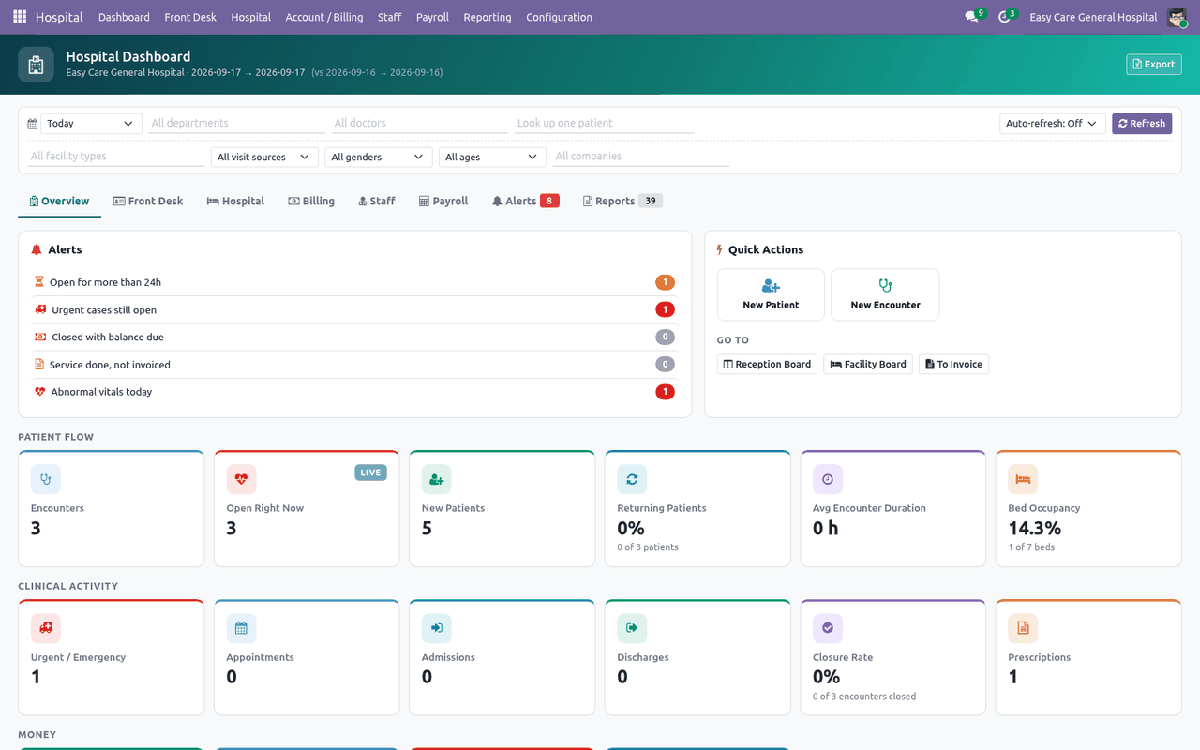
The dashboard — eight tabs, KPI tiles, charts, an alert board and role-aware Quick Actions. Every tile drills through to the records behind it.
Patients & Front DeskA lifetime patient record with its own ID and barcode card, allergies that raise a red banner on every visit, a six-field registration form, a drag-and-drop Reception Board and a live waiting queue. |
EncountersOne visit, one record: services, bed, prescriptions, vitals, diagnoses, invoices and payments all hang off it. Six clear states, configurable board columns, and a duplicate-visit guard you can set to warn or block. |
AppointmentsCalendar booking per doctor with slot length, daily caps and roster-aware validation. One-click Check In opens the visit, links the appointment and adds that doctor's consultation fee. Reminders and no-shows are automatic. |
Beds, Cabins & TheatresEvery cabin, room, ward, bed, ICU bed, operation theatre and chamber on one board, grouped by building and floor. Housekeeping by drag or hover-button, admit history, transfer and discharge wizards, and an OT calendar. |
Prescriptions & VitalsA prescription pad with symptoms, advised tests, dosage, frequency, route and timing — quantity worked out for you — beside a live preview of the printed document. Vitals compute BMI and flag anything outside your own reference ranges. |
Billing & CollectionTo Invoice work list, one invoice per visit, deposits and advances, credit notes, a patient ledger and an oldest-first settlement wizard that clears several invoices with one amount. Daily collection by cashier and method. |
Staff & RosterHospital roles on ordinary Odoo employees, specialties, consultation fees and commission, licence expiry reminders, duty shifts that may cross midnight, and a drag-and-drop roster that overlap checks refuse to break. |
Attendance & PayrollLateness, early leave and overtime measured against the roster, not guessed. Contracts, salary rules and structures ship ready to run; payslips pull worked days, absence, overtime and doctor commission by themselves. |
AnalyticsFive pivot and graph analyses (encounters, revenue, occupancy, staff productivity, payroll), eight printed documents, and a Report Centre of 39 reports that each preview on screen and download as PDF or Excel. |
Easy Hospital Management AI Assist — Four Drafts, Never an Autopilot
Four optional, self-contained AI features draft or narrate things a clinician would otherwise write from scratch. Every one is a suggestion a person reviews — two of them require an explicit confirm click before anything is written to the record. Off by default; a Hospital Manager configures a provider and switches it on.
Discharge Summary DraftOn the encounter, Generate AI Draft reads the visit's diagnoses, prescriptions and vital-sign history and drafts a discharge summary. It is never written to the real Discharge Summary directly — Send to Discharge Wizard pre-fills the existing discharge dialog so a clinician edits and confirms it first. |
AI Suggest TestsOn a prescription, the doctor-only AI Suggest Tests button matches recorded symptoms against your own diagnostic test catalogue — a closed set, never a made-up test — and opens a confirm-first checklist. Nothing is added to the prescription until the doctor ticks and confirms. |
AI Vitals Trend NoteOn the patient's Medical tab, Generate AI Vitals Trend narrates the direction of temperature, pulse, blood pressure, SpO2 and BMI across recorded readings in plain language — a note to skim, not a clinical finding. |
Ask the DashboardA free-text box on the dashboard — "show today's billing" — that the AI resolves to a real tab and real filters only. It never invents or restates a figure; every number you then see is the dashboard's own normal, already-correct rendering. |
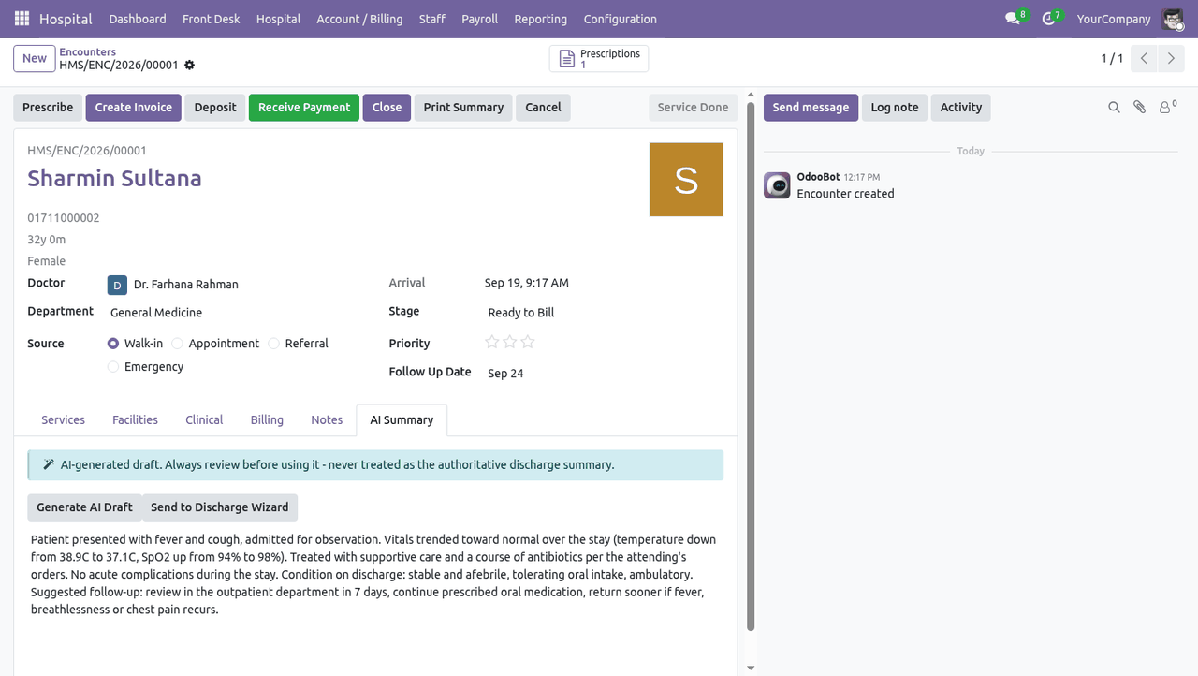
A generated discharge draft, on the encounter |
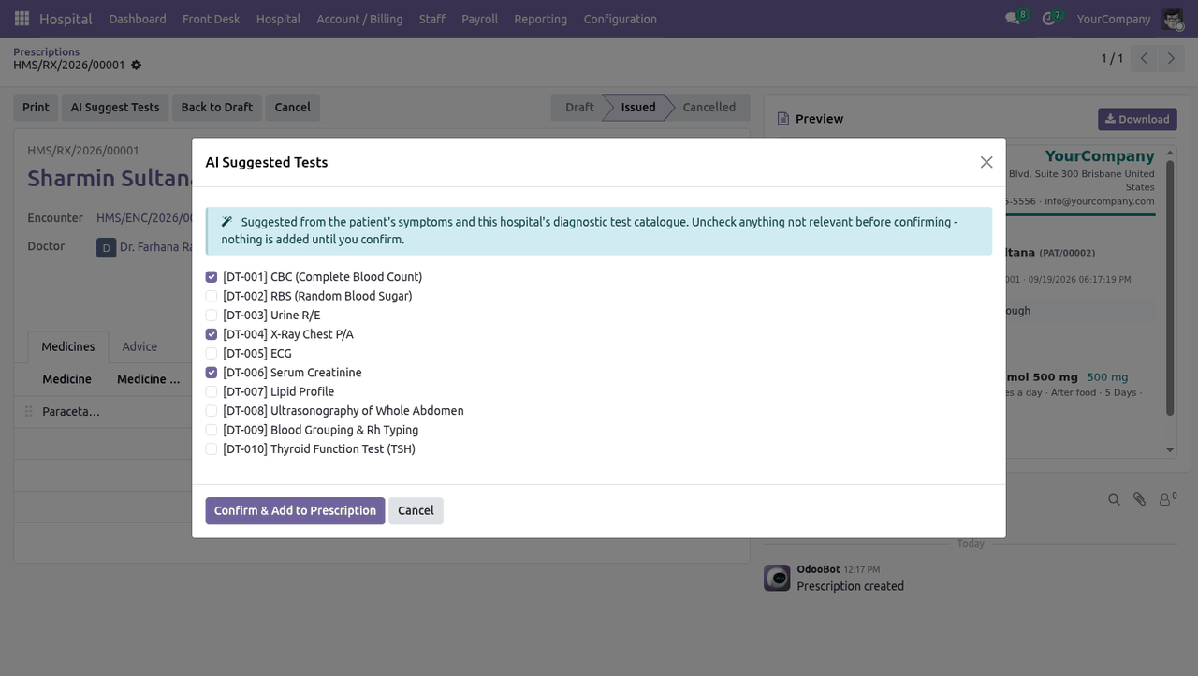
Suggested tests, confirm-first |
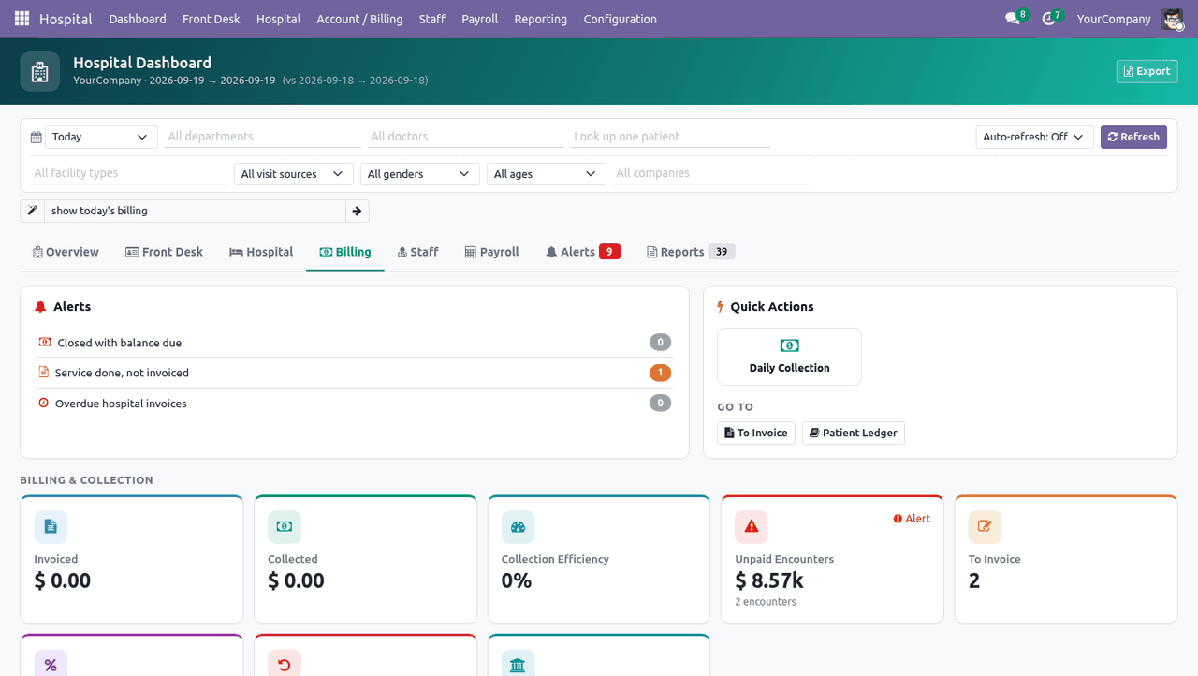
"show today's billing" → the Billing tab |
Provider and data policy, on your terms. Local Ollama is the default provider — nothing leaves your network. OpenAI and Anthropic are supported too, but a cloud provider will not receive patient data until you explicitly enable it on that provider. An API key is write-only: paste it once and it never displays again, not even to a Hospital Manager. Every AI call, whichever feature and whichever provider, is written to an append-only usage log that nobody can edit or delete from the screen.
How You Actually Use It — Step by Step
Ten jobs, in the order a hospital does them: three to set up, seven you repeat every day.
|
1
|
Set your hospital policy — once, before the first patientConfiguration → Settings. These switches decide how money and clinical alerts behave, so they are worth five minutes on day one. Bed Billing Day Rule: calendar nights in your own timezone, or every started 24-hour block. Allow Closing With Outstanding and an Outstanding Threshold above which only a manager may close a visit. Auto-invoice on Service Done, the hospital invoice journal, and oldest-first or manual settlement. Vital sign reference ranges — temperature, pulse, respiration, blood pressure, SpO2 and blood sugar. Anything outside them is flagged in red. |
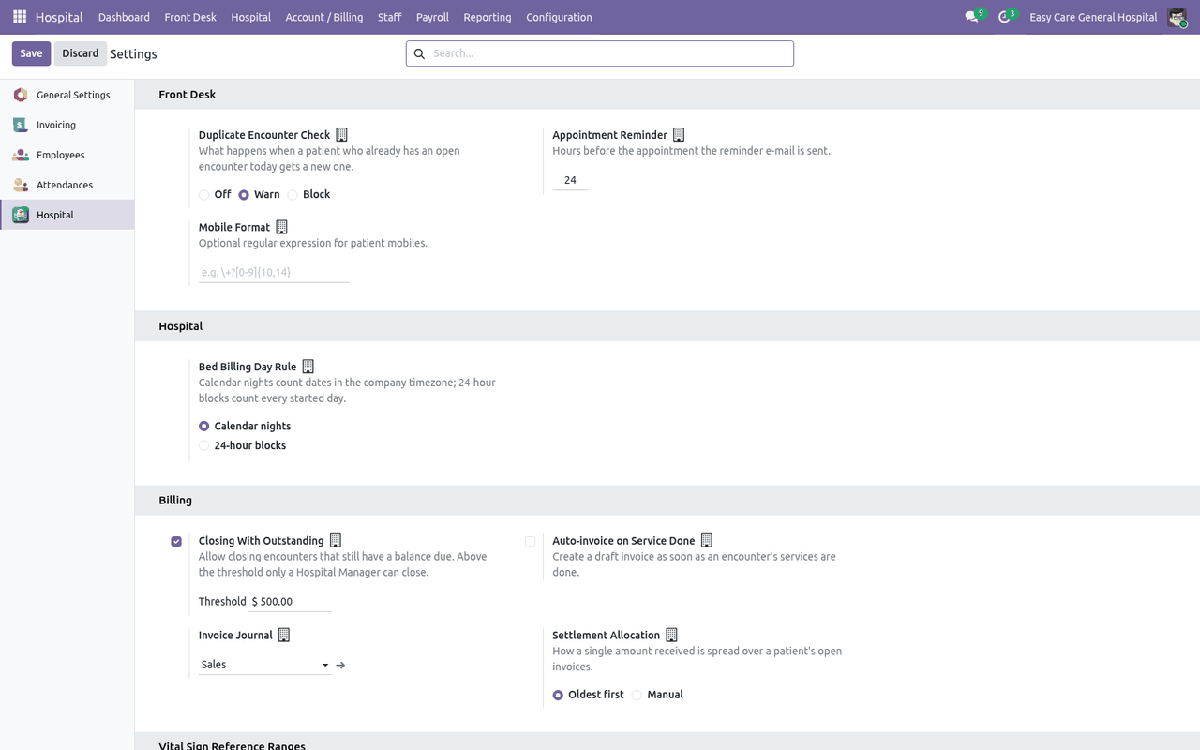
Your policy, in one screen
|
2
|
Type in your building, and price itSeven facility types ship ready (ward, ward bed, cabin, private room, ICU, operation theatre, consultation chamber). You add your real rooms under them. Configuration → Departments: General Medicine, Surgery, Paediatrics, Emergency — each with an optional analytic account. Configuration → Facilities: create the ward first, then each bed inside it. Give every place a code, a building and a floor — the board groups by them. Set the Charge Service, the Charge Amount and the Billing Unit (per day, per hour, per use). Tick oxygen, air conditioning, TV or attached bath. Configuration → Hospital Services: fifteen common services ship with indicative prices — replace them with your own consultation, dressing, injection, investigation and theatre tariff. |
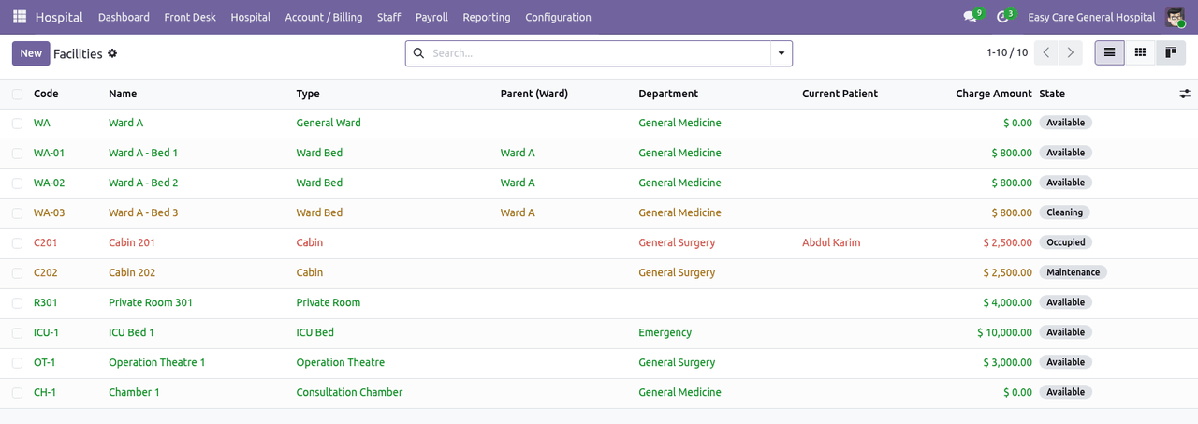
Your wards, beds, cabins and theatres |
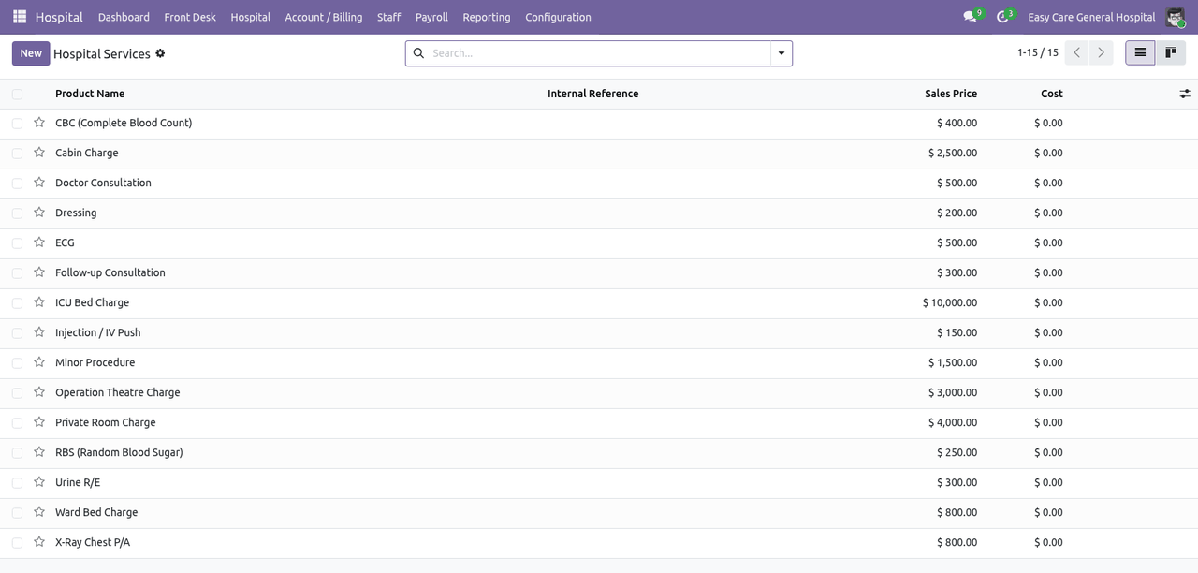
The charge catalogue |
|
3
|
Add your staff, then roster themStaff are ordinary Odoo employees with one box ticked, so contracts, leave and attendance keep working with no custom code. Staff → Staff → New. Tick Hospital Staff and choose the Hospital Role — doctor, nurse, operator, ward boy, receptionist, accountant, administrator. Set the Related User. Without it “my encounters”, attendance and payroll cannot find the person. For doctors: qualification, specialties, licence and expiry, appointment slot, daily patient cap, consultation fee and commission %. Staff → Shifts, then Staff → Roster. This is the rule that decides when a doctor can be booked, and the baseline every overtime and absence figure is measured against. |
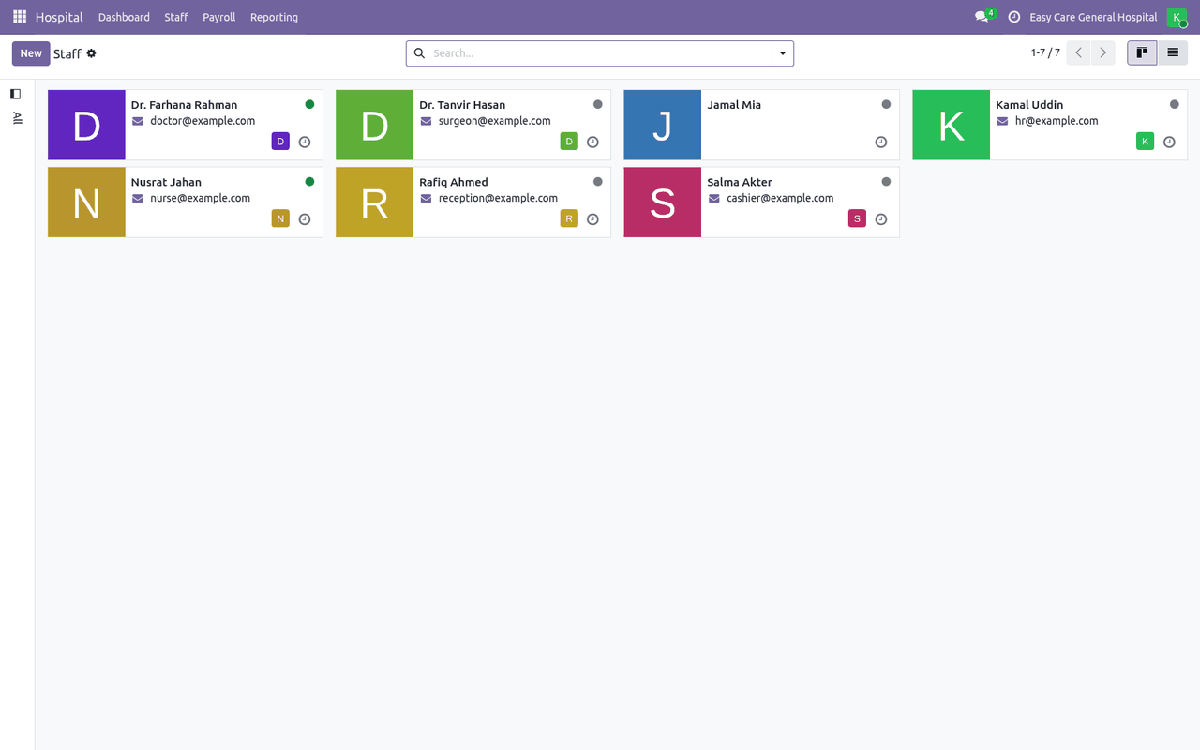
Staff directory |
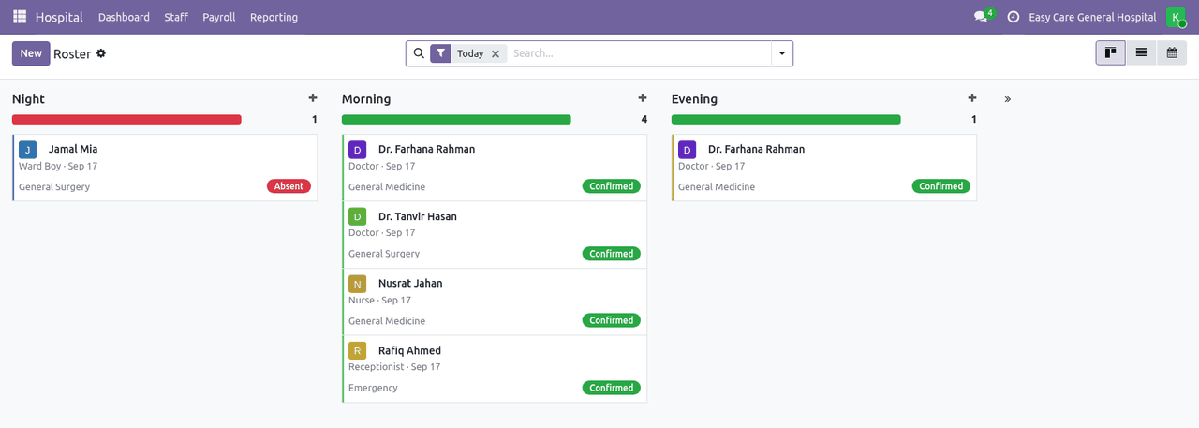
The duty roster — drag to move a shift |
|
4
|
Register the patient — six fieldsFront Desk → Patients → New. A patient is registered once and keeps that identity for life; the patient ID is generated and never changes. Required: name, mobile and gender. Everything else can follow later. Add the date of birth and the age fills itself; a future date is refused, and an optional mobile-format rule stops half-typed numbers. Record allergies once — they come back as a red banner on every future visit and prescription. Search by name, patient ID or mobile so the same person is never registered twice. Print Card gives them a barcoded patient card. |
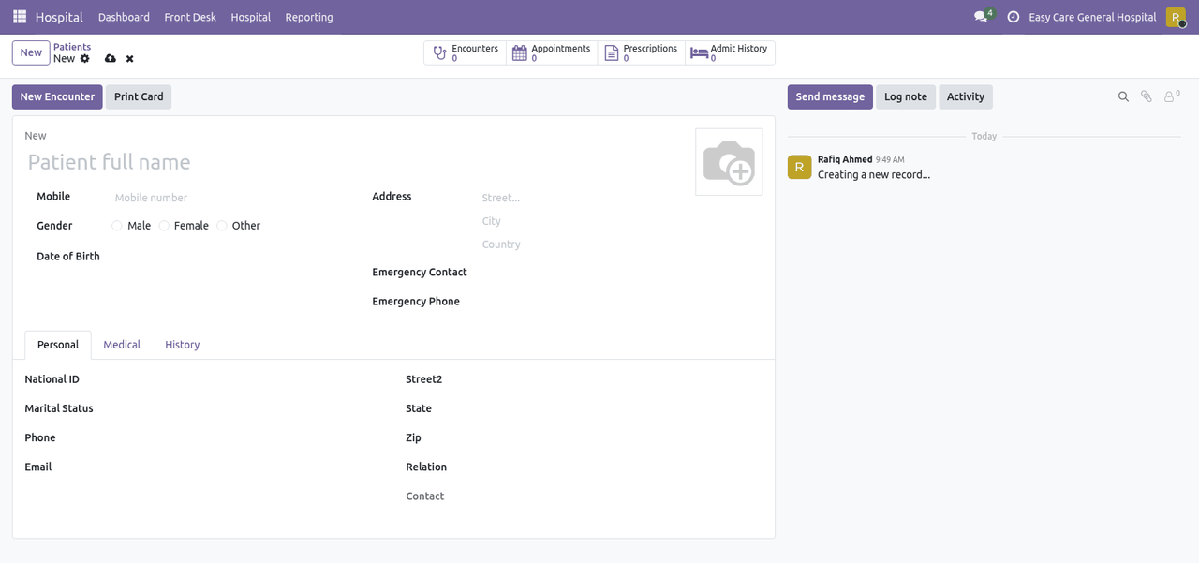
Registration — six fields, no training needed |
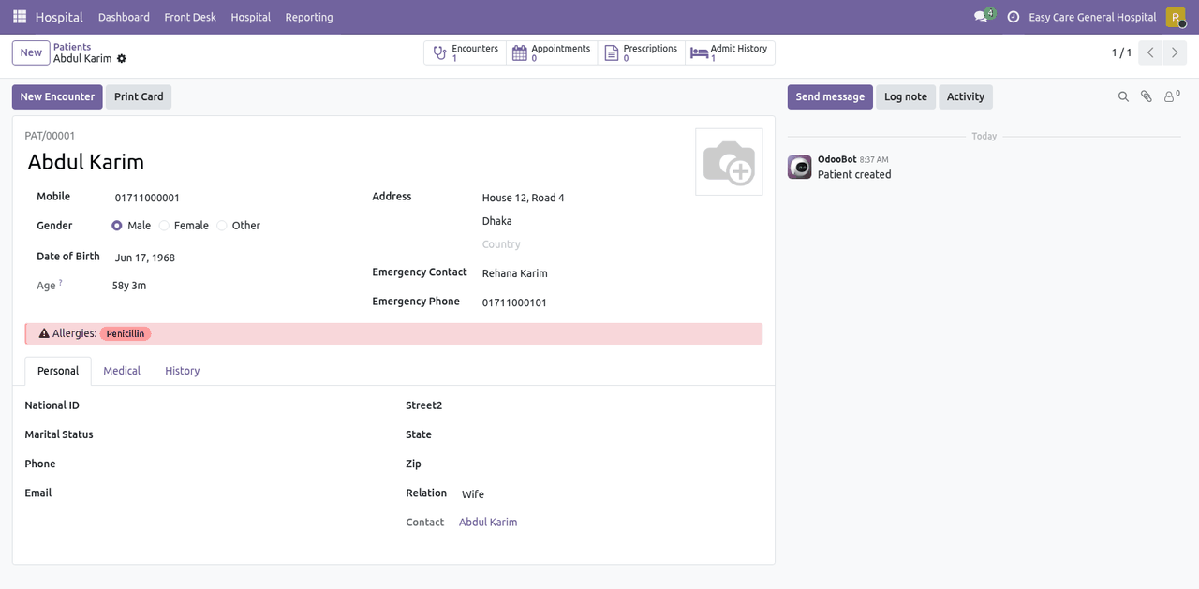
One lifetime record, with the whole history on it |
|
5
|
Open the visit, and run the boardFront Desk → Reception Board. One card per visit, one column per stage: Waiting, With Doctor, In Procedure / Admitted, Ready to Bill, Done. Open a visit from the patient (New Encounter), from the board, or by checking in an appointment. Pick the doctor, the department, the source (walk-in, appointment, referral, emergency) and the priority, then click Register. Add services on the Services tab. Price comes from the service, the doctor's own fee or the patient's pricelist; tick Complimentary to make a line free. Drag the card to the next column as the patient moves — the visit's state follows the column, so nobody does the work twice. |
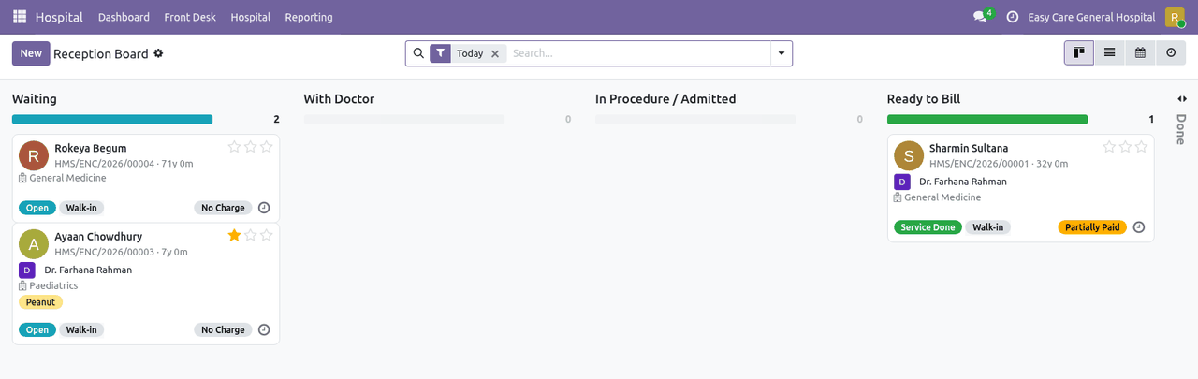
The Reception Board — today's hospital at a glance
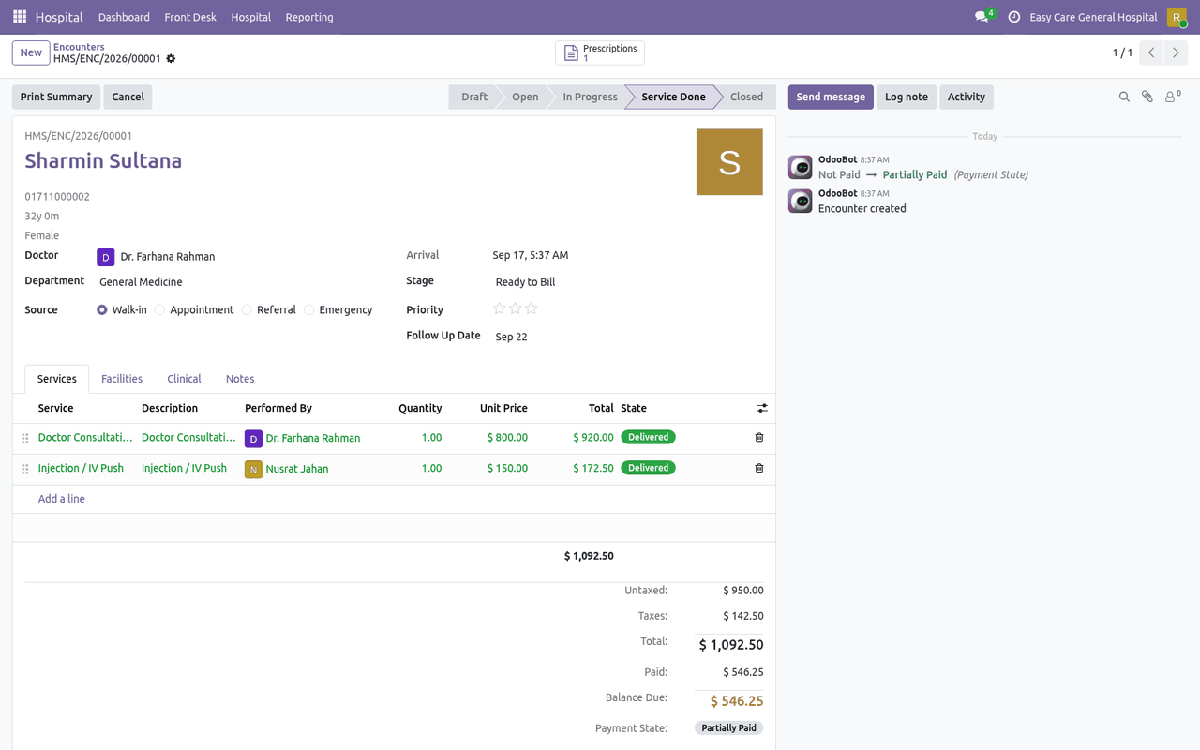
The visit — services, facilities, clinical, billing |
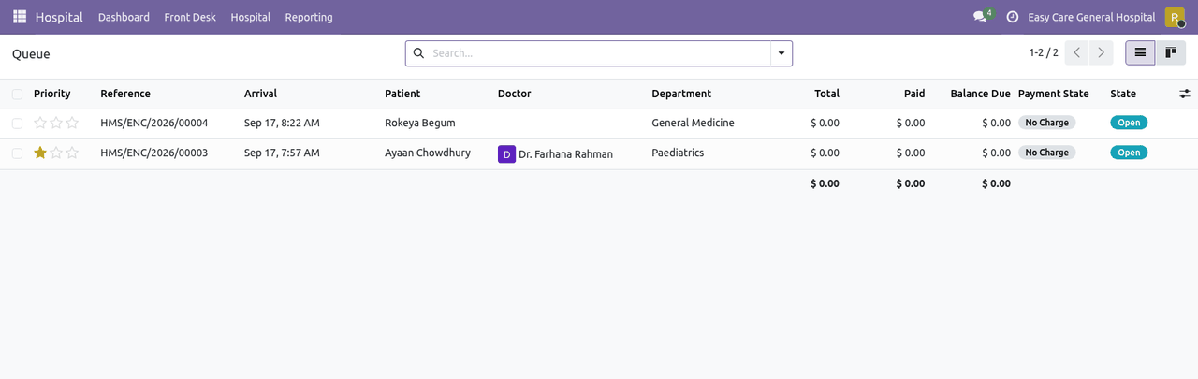
Who is still waiting |
|
6
|
Book and check in appointmentsFront Desk → Appointments opens on a calendar, one colour per doctor. Click a free slot to book. Duration comes from that doctor's appointment slot; drag to move, stretch to resize. Double booking is refused, booking outside the doctor's roster is refused, and going over their daily cap warns you. Check In opens or finds today's visit, links the appointment, adds the doctor's consultation fee and lands you on the encounter. Reminder e-mails go out on your own lead time; appointments still unconfirmed two hours after their end are marked No Show overnight. |
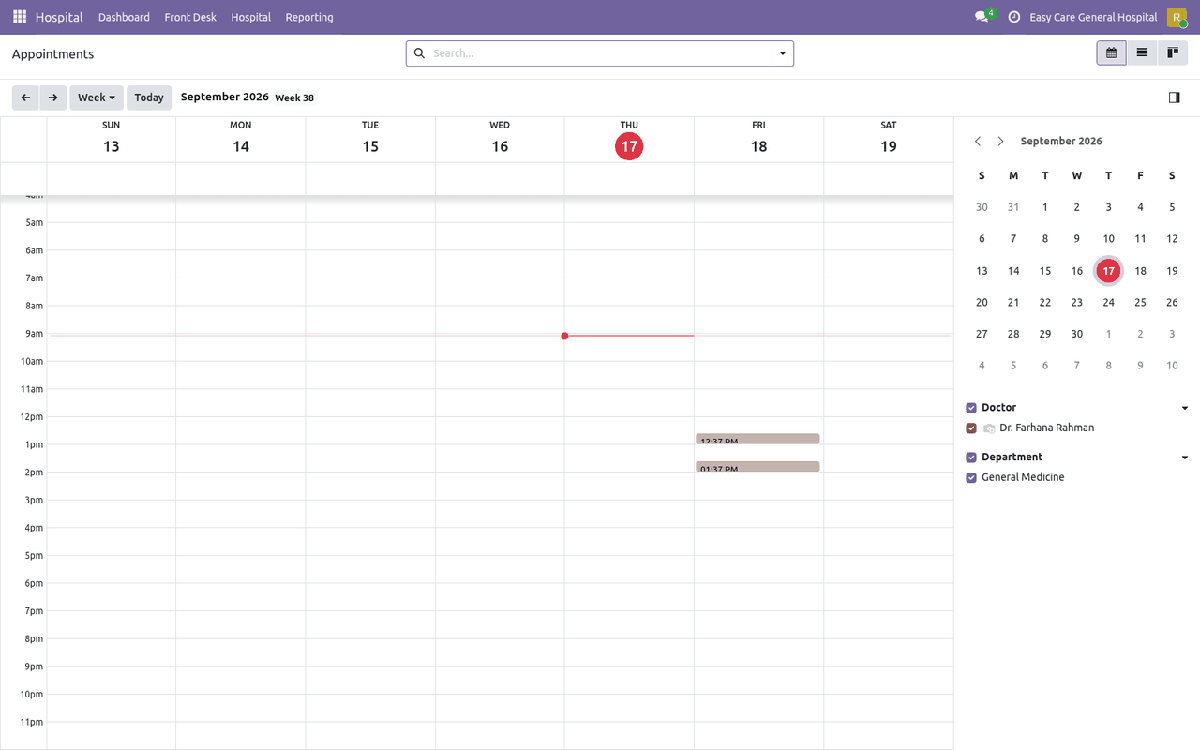
The appointment calendar
|
7
|
Admit, transfer and dischargeOn the visit, click Assign Facility. Only free, occupiable places are offered, and a place under maintenance is refused. Assigning creates the stay, turns the bed red on the board and adds the bed charge to the bill automatically. Tick Reserve to hold a bed before the patient arrives. A nightly job grows the billed days of every open stay, so long stays never need a manual quantity edit. Transfer closes the old stay, opens the new one and adjusts both charges; the reason is written into the visit's history. Discharge asks for the time, the discharge type and the summary, closes the stay, delivers running services and prints the summary. The bed moves itself to Cleaning. |
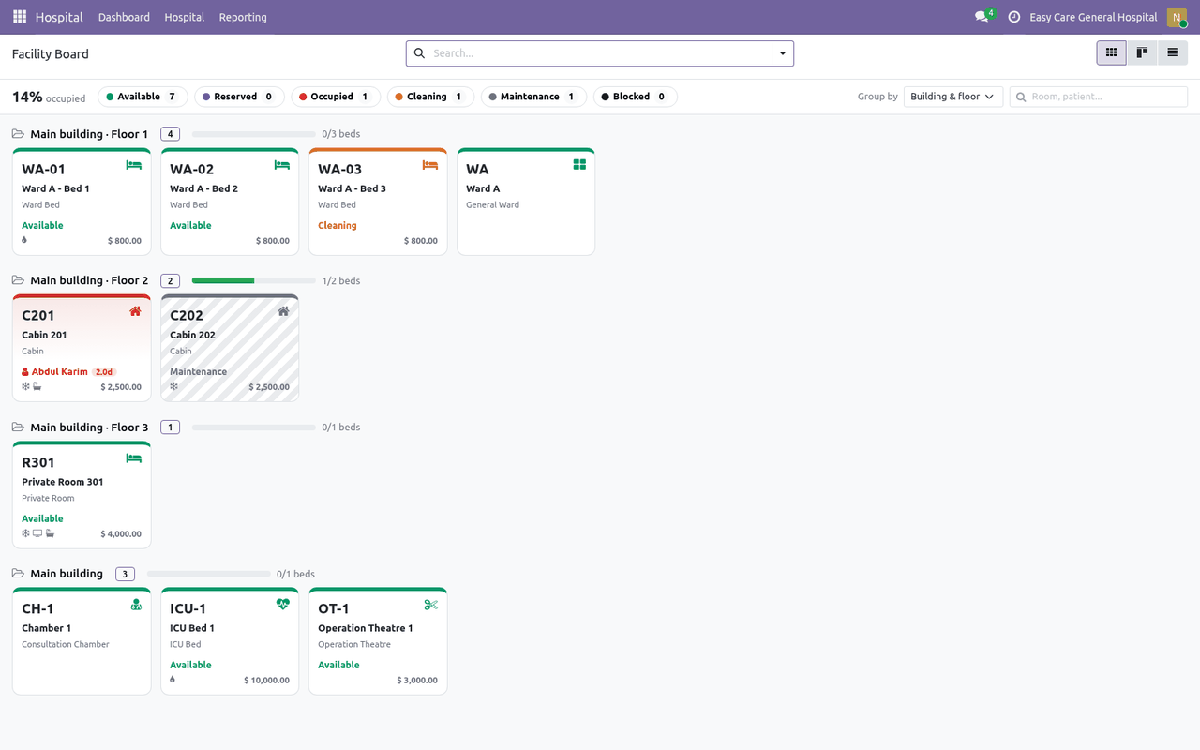
The Facility Board — occupancy rate, status filter chips, patient and day count per tile
|
8
|
Clinical work — vitals, diagnoses, prescriptionNurses record observations, doctors diagnose and prescribe. Both work on the same visit, and neither has to hunt for the patient's history. Vitals: temperature in °C or °F, pulse, respiration, blood pressure, SpO2, sugar and pain score. BMI is calculated; out-of-range values raise a red Out of Range banner naming each one. Prescribe from the visit: symptoms, advised diagnostic tests, medicines with dosage, frequency, duration, route and timing — the quantity is worked out from frequency × duration. A live preview of the printed prescription sits beside the form and redraws as you type, so what you see is exactly what prints. Mark each service Started then Delivered. When the last one is delivered and no bed is occupied, the visit moves itself to Service Done. |
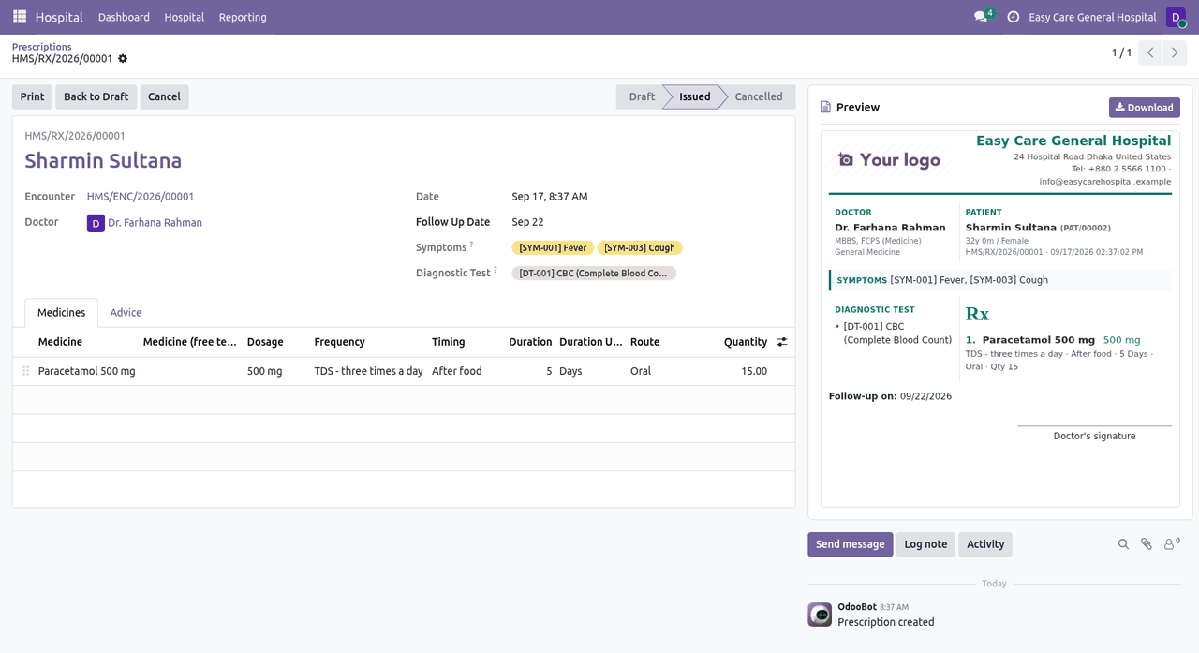
The prescription pad, with the printed document live beside it
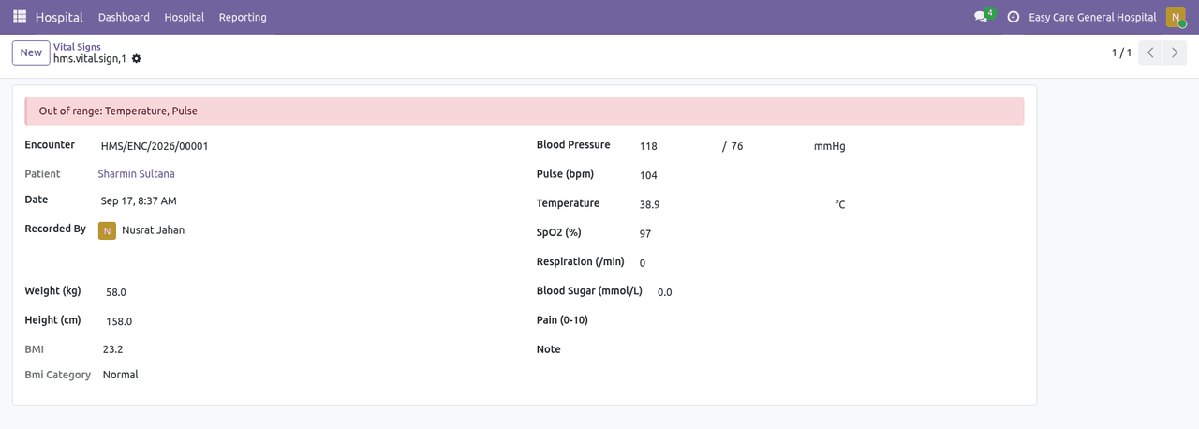
Vitals, checked against your own ranges |
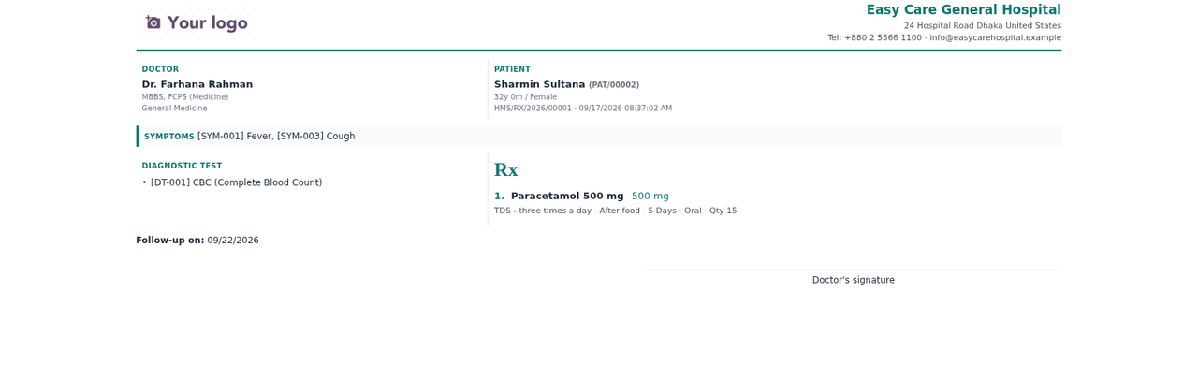
What the patient takes home |
|
9
|
Invoice, collect, settle, closeAccount / Billing → To Invoice is the cashier's work list: every visit with chargeable services not yet invoiced. Invoice one visit or a batch of them. One invoice per visit keeps each visit's paid and due figures exact. Receive Payment settles a patient's whole balance across several invoices in one amount, oldest first or split by hand. Overpayment is refused and pointed at a deposit instead. Deposits and advances taken before there is an invoice are applied to that visit's invoice automatically when it is posted. Close checks the visit: no service still running, no bed still occupied, and the balance within your policy. Over the threshold, only a manager may force it. At the end of the shift, print Daily Collection grouped by cashier, payment method or day, and hand it in with the cash. |
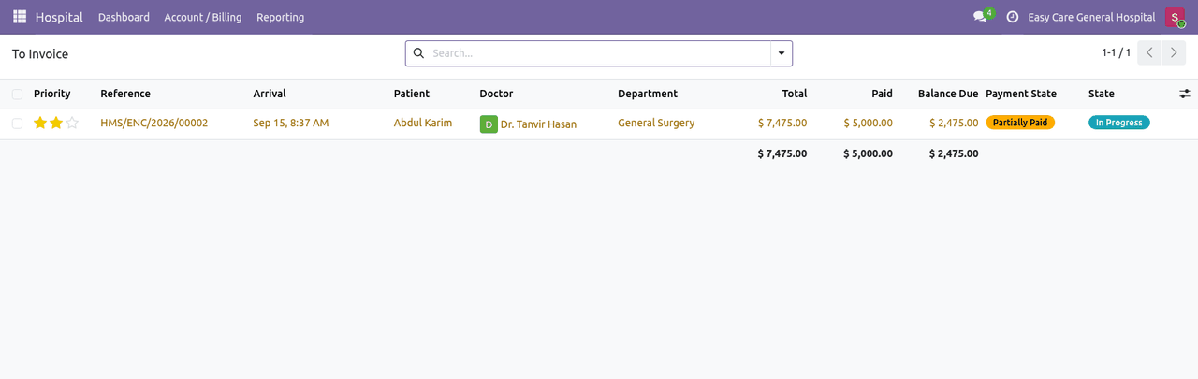
The cashier's work list |
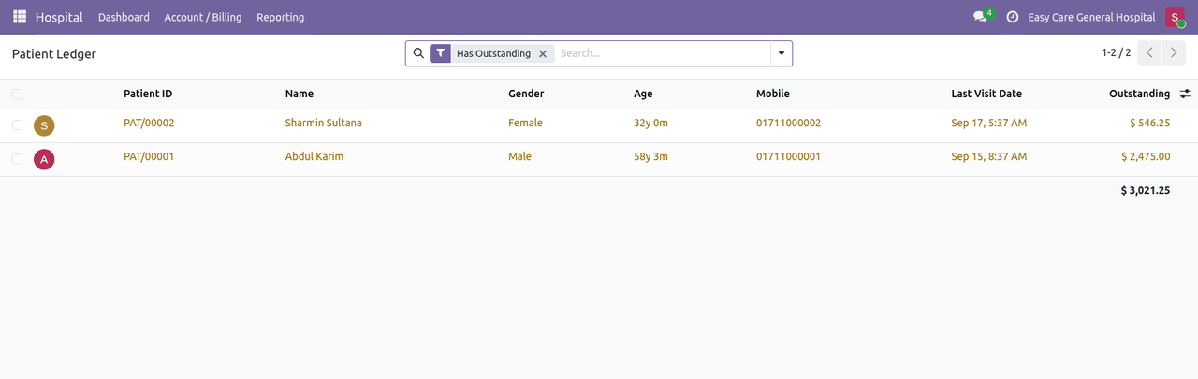
Who owes what |
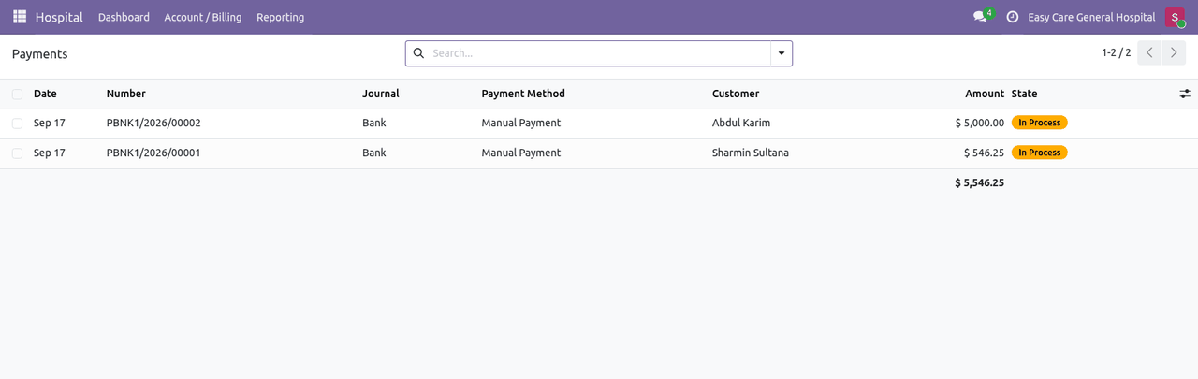
Every payment, with the cashier who took it |
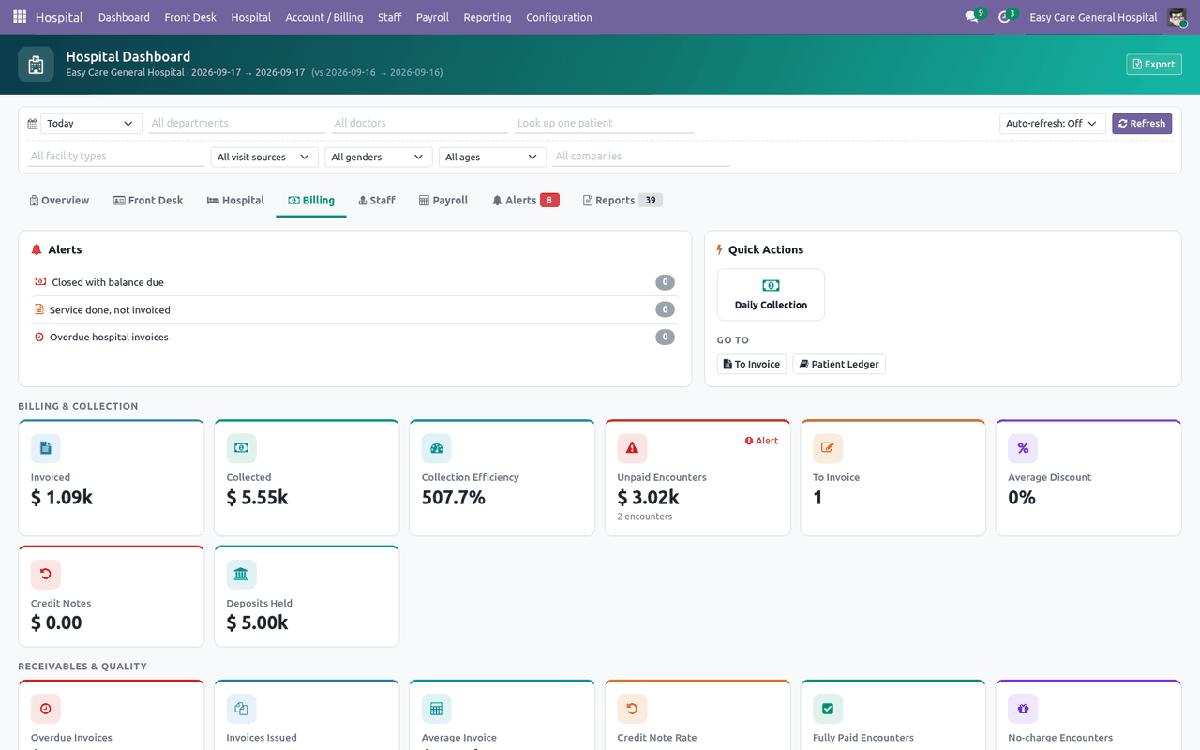
Billing at a glance |
|
10
|
Run the month's payrollPayroll → Generate Payslips. A complete salary structure ships ready to run: basic, allowances, overtime, doctor commission, gross, absence deduction, net. Pick the period and, if you like, one department. Everybody with a running contract is filled in for you. Confirm, and the batch is created and every payslip is computed — worked days, absence, overtime, lateness and commission pulled from attendance, the roster and delivered services. Check, then Verify → Confirm → Mark Paid. Print the payslips; post journal entries too if your accountant wants them. Every employee can read their own payslips and nobody else's — enforced by record rules, not by hiding a menu. |
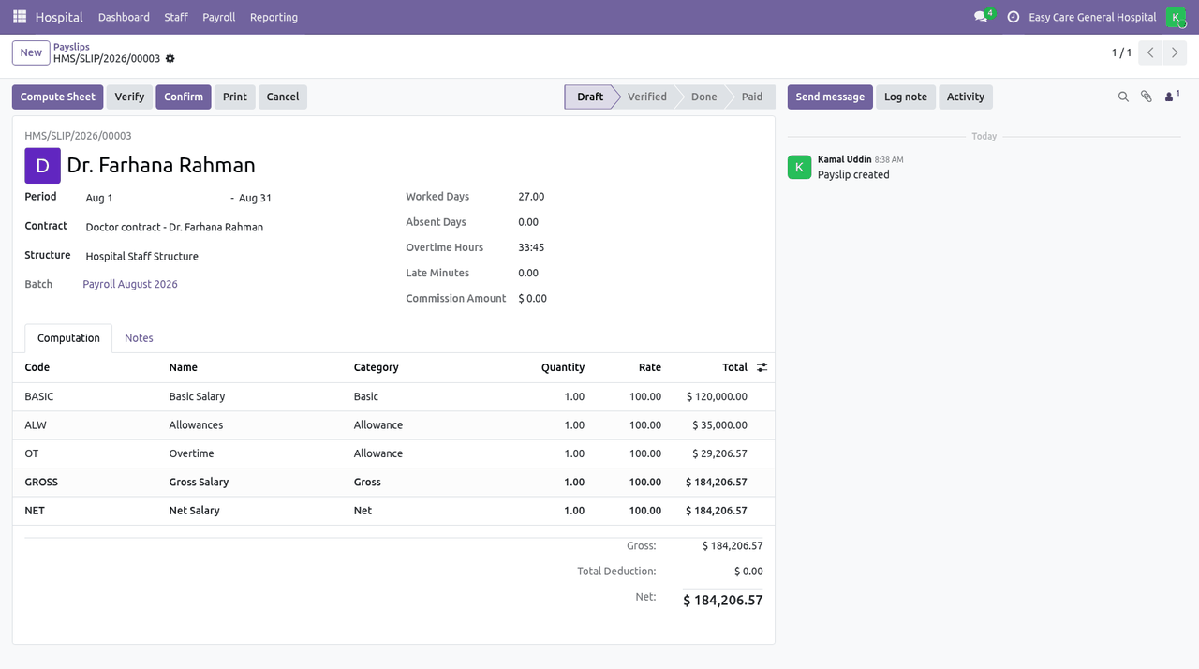
A payslip — the inputs at the top are collected, not typed
Seven Roles — The Front Desk Never Touches Money
Tick a role on a user and they get exactly that job's menus. The Hospital Manager role stacks all of them and adds configuration. Amounts on a visit are read-only computed figures, and a non-billing user who tries to change one is refused even through an import.
| Receptionist | Registers patients, opens visits, books and checks in appointments, assigns beds, runs the board and the queue. Cannot invoice or take a payment. |
| Nurse | Records vital signs, delivers services, admits, transfers and discharges, and runs housekeeping on the bed board. |
| Doctor | Consults, diagnoses and prescribes on their own and unassigned visits, so a walk-in waiting for a doctor is still reachable. Prescriptions are read-only for everyone else. |
| Billing Officer | The only role that invoices and receives money: invoices, payments, deposits, credit notes, settlement, the ledger and the daily collection. |
| Staff Officer | Staff records, specialties, shifts, the duty roster and attendance corrections. Sees no patient money. |
| Payroll Officer | Contracts, salary rules and structures, payslips and batches. Sees no clinical data. |
| Hospital Manager | Everything above, plus Configuration, force-closing a visit over the outstanding threshold, booking outside a doctor's roster, and all reporting. |
39 Reports in Five Groups — Preview, PDF and Excel
Every report honours the dashboard's current period, department, doctor, patient, facility type, gender and age filters, and shows only what your role is allowed to see. Preview on screen, then download the identical figures as PDF or as a spreadsheet.
Front Desk & Patients (8)Encounter register, patient register, demographics by gender and age, appointment register, appointment summary by doctor, no-show and cancellation list, waiting time by department, patient statement of account. |
Hospital & Clinical (10)Admit register, facility utilisation, daily bed census, operation theatre register, discharge register, long stay (over 7 days), diagnosis frequency, prescription register, abnormal vitals register, department activity. |
Billing & Collection (10)Invoice register, payment register, daily collection by cashier and method, outstanding and ageing by patient, service revenue, revenue by department and service, doctor consultations and revenue, credit notes, deposits, discounts and complimentary. |
Staff & Attendance (6)Staff directory, attendance summary, roster coverage, late arrival register, overtime register, licence register. |
Payroll (5)Payroll register, payroll cost by department, contract register, salary rule summary, net pay sheet. |
Plus 5 Live AnalysesEncounter, revenue, occupancy, staff productivity and payroll analysis as pivot tables and graphs you can re-slice yourself and export. |
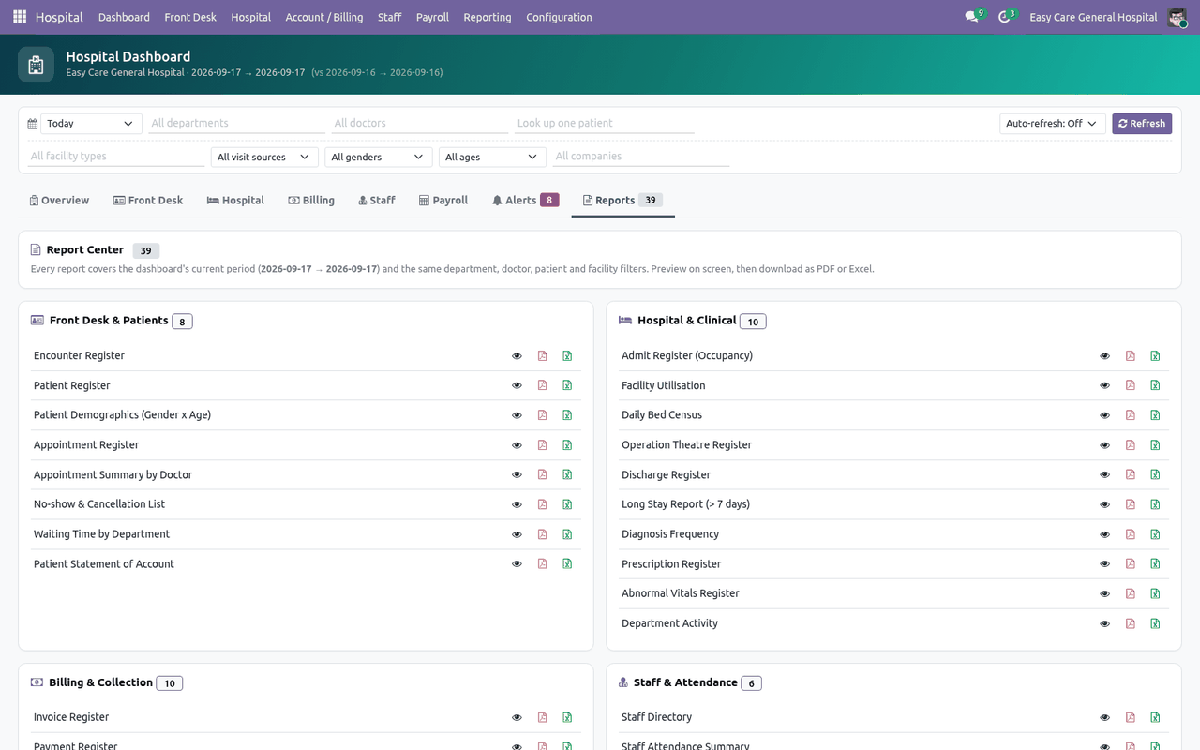
The Report Centre |
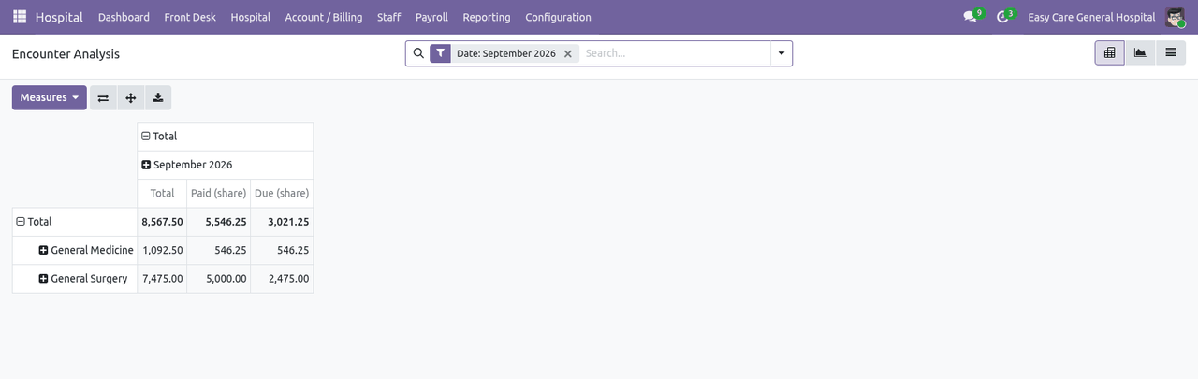
Encounter Analysis as a pivot table |
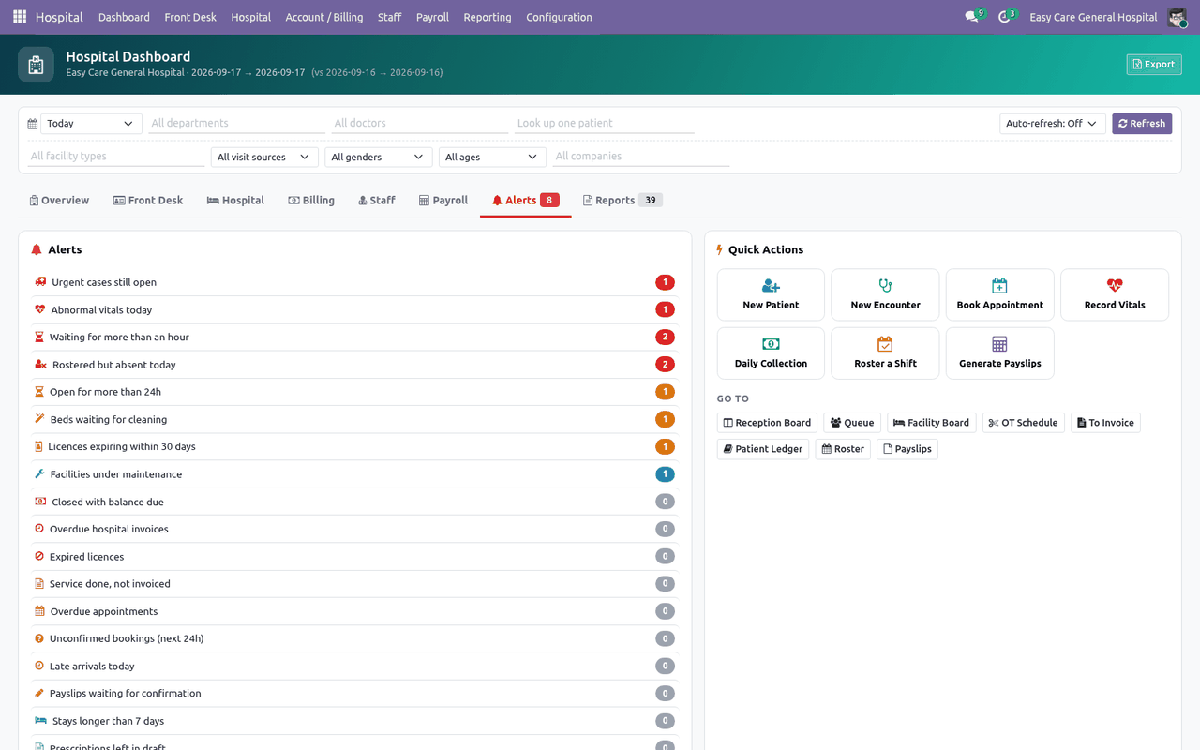
The Alert Board — What Needs You Right Now
A red badge on the dashboard counts everything that is slipping: visits open more than 24 hours, urgent cases still open, visits closed with a balance due, services done but not invoiced, abnormal vitals today, licences about to expire and more. Every row opens the records behind it.
Printed Documents
Open a record, or tick many rows in a list, and use Print. The layout is drawn without relying on a patched wkhtmltopdf, so headers and columns come out right on an ordinary server.
|
Patient card, with barcode Encounter / discharge summary Prescription |
Appointment slip Occupancy sheet for a stay Occupancy statement for a period |
Daily collection sheet Payslip Any of the 39 reports, as PDF or Excel |
Your Policy, Not OursBed-day rule, closing with outstanding and its threshold, auto-invoicing, settlement order, duplicate-visit handling, reminder lead time, mobile number format, every vital sign reference range, and whether payslips post journal entries — all settings, not code. |
Secure by DesignRecord rules keep a doctor on their own visits and every employee on their own payslip. Fees, commission and licence data are HR-only fields. Salary rule code runs in a restricted sandbox with no database access. Multi-company rules throughout. |
Built on Odoo, Not Beside ItPatients are contacts. Staff are employees. Hospital bills are ordinary customer invoices settled with ordinary payments. Receivables ageing, the P&L, taxes, follow-ups and online payment are Odoo's own tested code paths — nothing here forks them, and there is no parallel ledger. |
Less Typing, Fewer MistakesBed charges create and grow themselves. Check-in adds the consultation fee. Prescription quantities come from frequency and duration. BMI, ages, waiting time, lateness, overtime and commission are all derived. Deposits reconcile themselves when the invoice is posted. |
Built to Fit Your Odoo
| Edition: Community & Enterprise |
Dependencies: Accounting, Employees, Attendances, Products, Units of Measure, Discuss |
Category: Services / Hospital |
License: OPL-1 |
No Enterprise module is required. Payroll, appointments and the boards are built in this module, so Odoo 19 Community is enough. Installing it pulls in Accounting, Employees and Attendances, which is where the invoices, the staff records and the check-ins actually live. Excel export uses the xlsxwriter Python package; the PDF works either way.
Deliberately not included: pharmacy stock and dispensing, laboratory result entry, radiology reporting (PACS), insurance and TPA claim processing, a patient portal, and biometric or RFID device integration. Each is a module in its own right, and a partial version is worse than none. The hooks are there: medicines are products, investigation is a service type, and every patient carries a contact record.
Vital sign reference ranges, diagnosis and procedure codes, discharge types and document wording ship as editable data precisely because they are clinic- and jurisdiction-specific. Review them against your own medical and regulatory requirements before relying on them.
Support & Developer Details
For installation help, customization, additional dashboard widgets, custom hospital reports or implementation support, contact the maintainer.
| Name: Abdullah Al Arafat |
Mobile/Whatsapp: +8801712192445 |
Email: imbipul9@gmail.com |
Highlights
- Patient and appointment workflows • Healthcare administration • Connected operational records • AI-assisted capabilities