

|
Odoo 19 Community
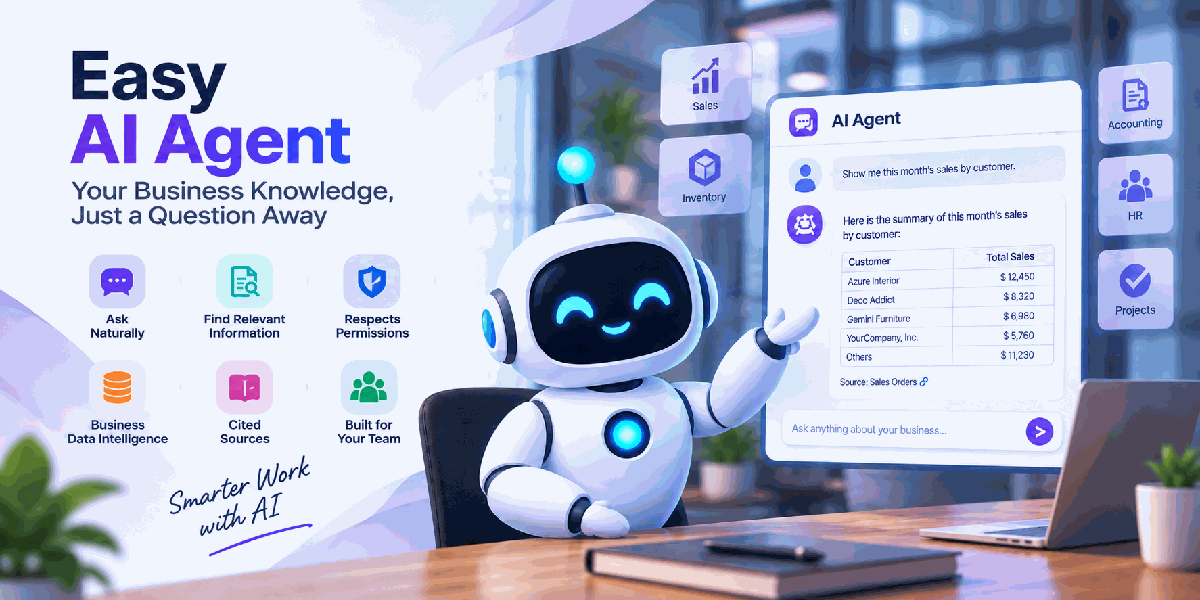
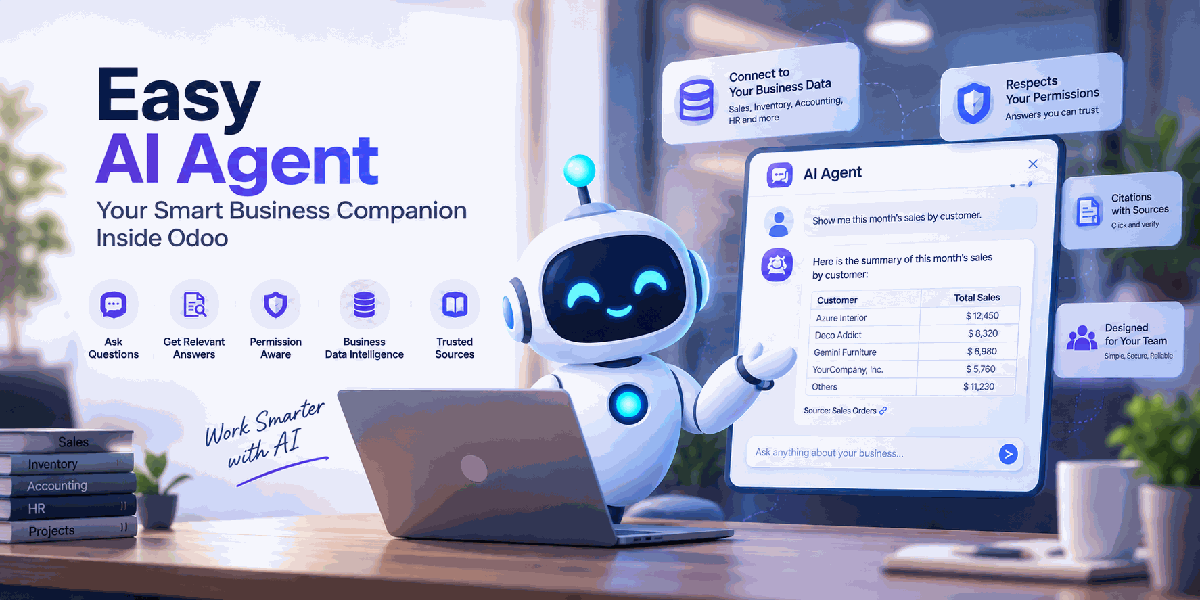
Easy AI AgentAsk your Odoo data questions in plain language — answered only from records the user may open, with links to every source.A permission-aware agent inside the Odoo backend. It retrieves indexed records, filters them with the asking user's access rights, and answers with citations. Counts, totals, rankings and lists are computed by Odoo itself, not guessed by the AI. With an AI Agent Role, users can also create and update records from the chat — every change is previewed and saved only after the user confirms it.
Ollama (local)
OpenAI
Anthropic
Citations
Audit Log
Create & Update
|
Built for
Sales & Purchase Teams Accounting Staff Managers & Owners Odoo Administrators Auditors
Three role groups, AI Agent Roles for record changes, record rules on conversations and an append-only audit log.
|
|
You Confirm
Read-only without a role; changes saved only after Confirm; never deletes
|
Your ACLs
Access rules applied before the AI sees data
|
3 Providers
Ollama, OpenAI and Anthropic
|
Same DB
Vectors in PostgreSQL, no extra service
|
Why This Module
A chatbot that can read the whole database is a data leak waiting to happen. Here, similar records found by the search are only candidates: every record ID is checked with an ordinary ORM search as the asking user before any text reaches a language model. If a user cannot open a record in Odoo, the agent cannot use it for them.
Language models are bad at arithmetic, and small local models are worse. So for “how many”, “total”, “highest” and “top customer” questions, the model only describes the search. Odoo validates it, runs it with the user's rights and writes the table, count or total itself — with a “How I searched” line underneath.
An agent that writes to your ERP on its own is a risk too. Here, a change request only produces a proposal: it is checked against the user's AI Agent Role, access rights and record rules, shown field by field (current → new), and saved — as that user — only when they press Confirm.
It refuses questions that are not about your data, says plainly when a record type is not available, and withholds a free-text answer that contains numbers not found in the retrieved records.
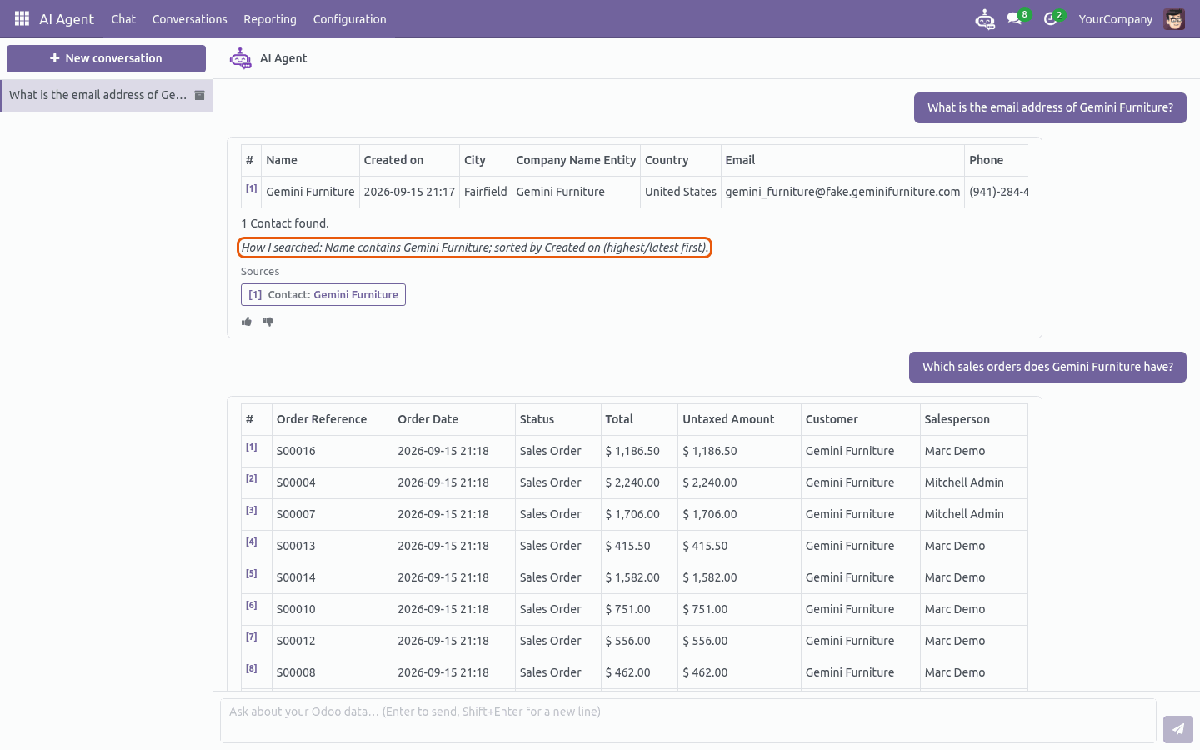
The full-screen chat — tables written by Odoo, [1] [2] citations, the “How I searched” line and a button per source record.
Chat EverywhereA full-screen chat with a conversation list, a side panel from the top bar on every screen, streaming answers, live progress, example questions and 👍/👎 feedback. |
Answers With SourcesEvery answer cites the records it used. One click on a source button opens the real record, so users can check any figure themselves. |
Structured QuestionsCounts, totals, top-N by customer or salesperson and filtered lists. Query plan for local models, Tool calling for cloud models, or Retrieval only. |
Knowledge SourcesChoose the models, a domain and the fields to index. Sources for Contacts, Products, Sales, Purchase, Invoices, CRM, Project and Inventory are created on install when those apps exist; Employees is created switched off. |
Hybrid RetrievalVector similarity plus PostgreSQL full-text search. pgvector with an HNSW index when available, an optional numpy fallback for small databases. |
AttachmentsOptionally index the text of files attached to indexed records, using Odoo's own attachment text extraction ( |
Always Up to DateChanged records are picked up every minute, nightly or manually per source. An index monitor shows coverage, stale chunks and the last error. |
Restricted FieldsMark fields that must never leave your server; they are redacted for cloud providers. Optional scrubbing of e-mails, phone and bank numbers. |
Usage, Cost & AuditEvery provider call and every refusal is logged. A usage report shows calls, tokens, latency and estimated cost; a daily token cap per user keeps spend under control. |
Create & Update From Chat“Change the phone of Gemini Furniture to …” or “Create a sale order for Azure Interior with 3 Desk Organizer” becomes a change card — fields and document lines, with current and new values and Confirm / Discard buttons. Works with tool calling and with the Ollama query plan mode. |
AI Agent RolesPer group or user: which models, create and/or update, which fields, and which records may be updated (for example only quotations). A role never grants more than the user's own access rights. |
Record Changes ReportEvery prepared change with user, role, fields and outcome: saved, discarded, failed or expired. Validated again at confirmation, locked against double clicks, never editable. |
How You Actually Use It — Step by Step
Ten steps: six for the administrator, four for everyone. A beginner-friendly user manual (Markdown and PDF) ships in the module's doc folder.
|
1
|
Give people accessSettings → Users & Companies → Users. The main Administrator receives the AI Agent Administrator role automatically. Open a user, go to Access Rights and set AI Agent to User or Administrator. For someone who only reviews what was sent to AI providers, set AI Agent Audit to Auditor. Save, and ask the user to reload the page so the menu and the top-bar icon appear. |
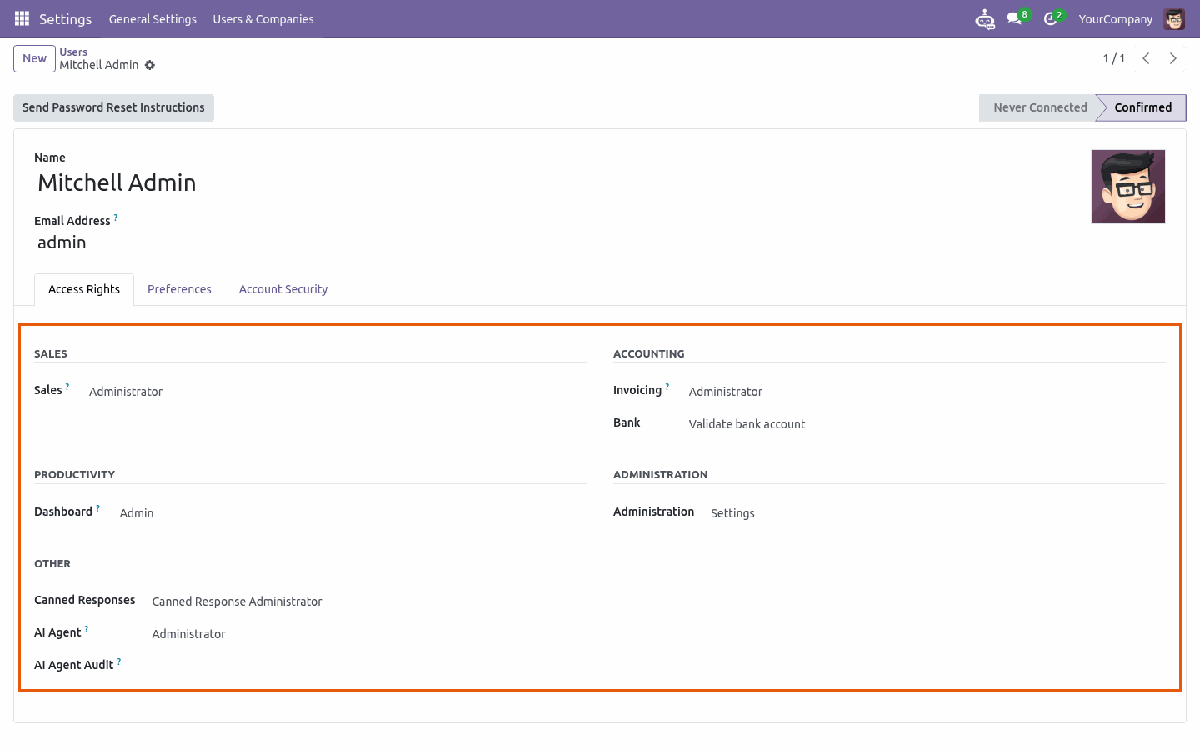
Access rights on the ordinary user form
|
2
|
Add a provider — the form adapts to your choiceAI Agent → Configuration → Providers → New. Pick Ollama, OpenAI or Anthropic and only the fields that provider needs are shown. Ollama: Base URL and Timeout are filled in. On Save the installed models are loaded from your server; if only one model of a kind exists, it is selected for you. Ollama defaults are tuned for a CPU: Keep-alive 30m, Timeout 300 s and Structured Questions: Query plan. Opening the chat warms the model up in the background. OpenAI / Anthropic: paste the API key — it is never shown again — or reference it as Anthropic offers no embeddings, so pair it with an Ollama or OpenAI Embedding Provider. Tick the default boxes and click Test Connection. |
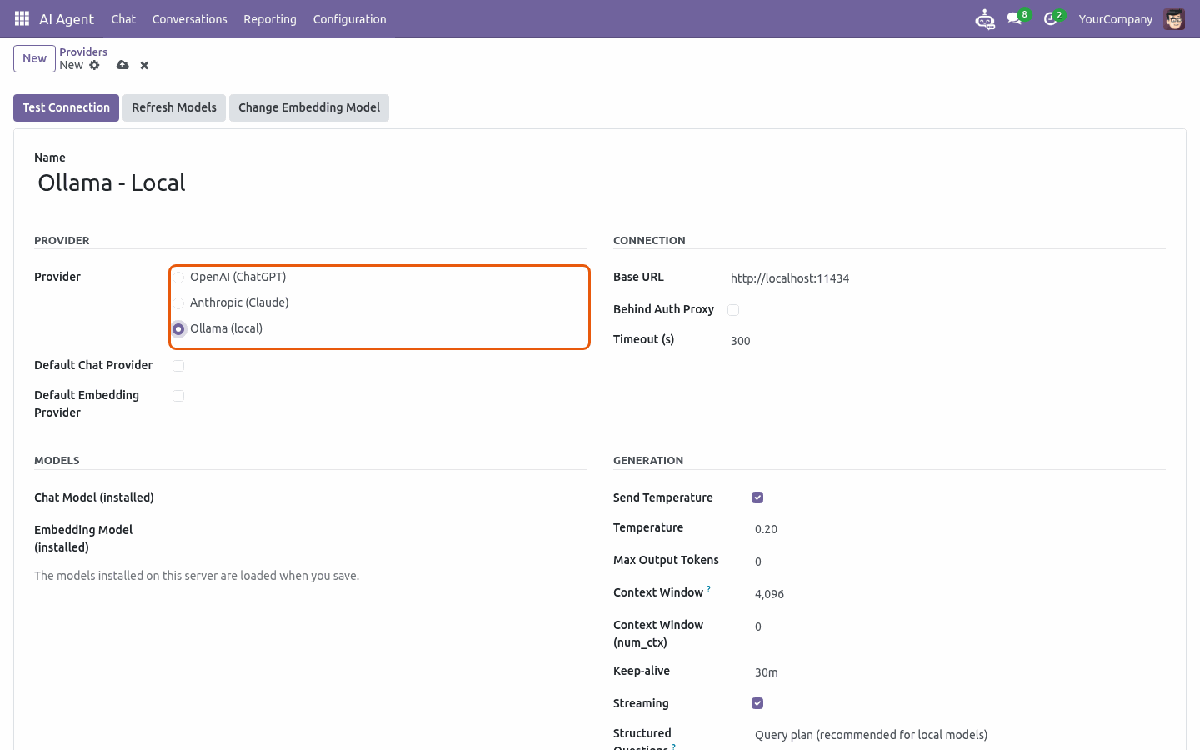
A new Ollama provider |
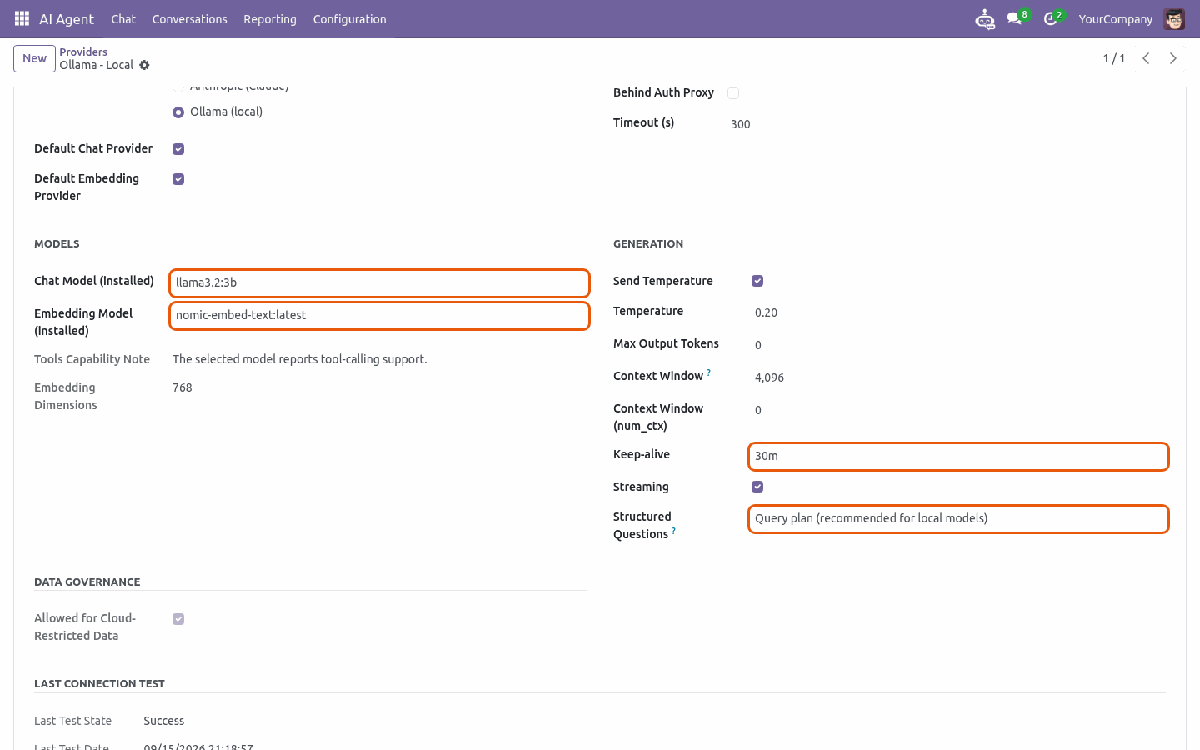
Installed models loaded, Query plan selected |
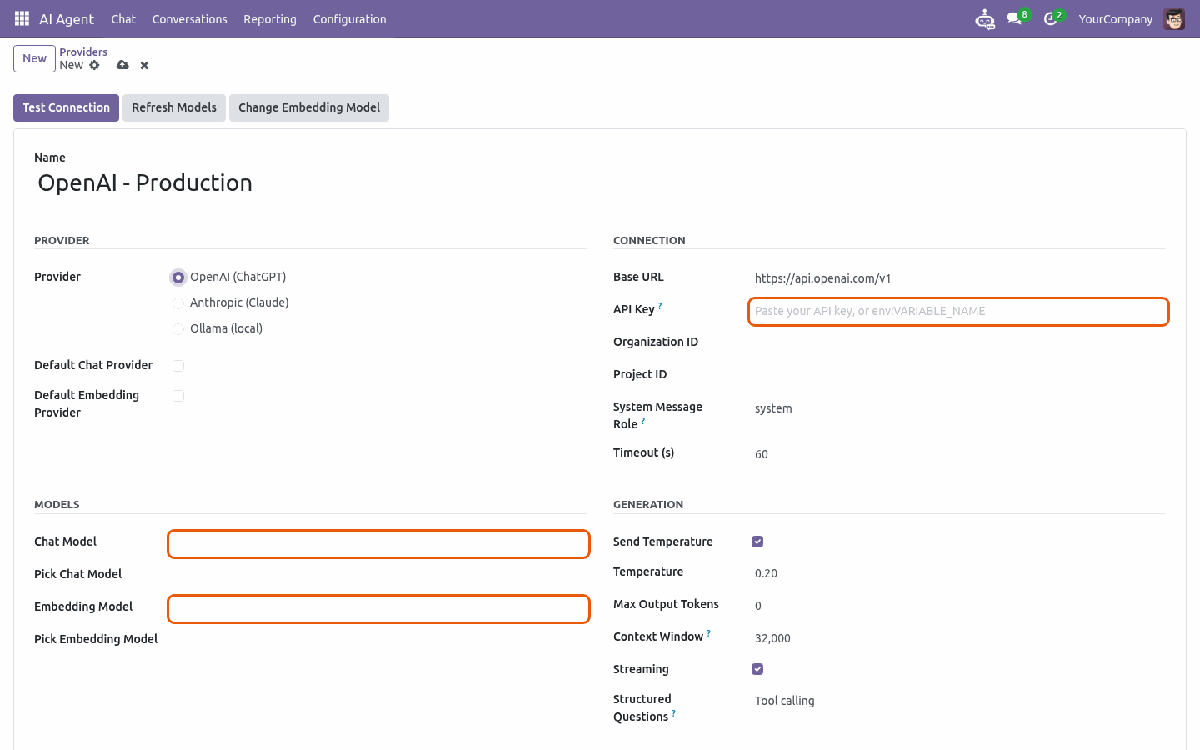
OpenAI |
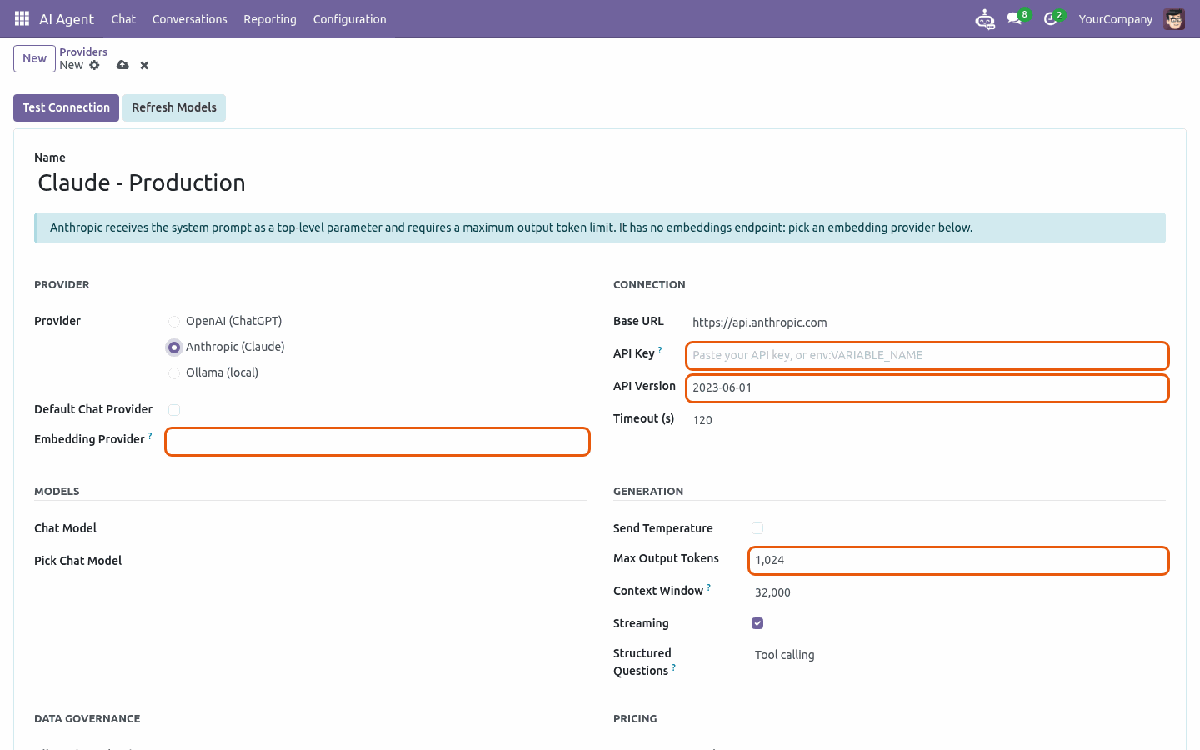
Anthropic, with a separate embedding provider |
|
3
|
Check the settingsAI Agent → Configuration → Settings. The defaults are a sensible start. Vector Backend tells you whether pgvector is in use. Without it, tick numpy Fallback for small databases. Retrieval: Top-K Chunks, Similarity Threshold and the vector / keyword weights. Safety: Grounding Verifier, PII Scrubbing, Store Full Prompts — all off until you switch them on. Limits: Daily Token Cap per user and retention days for conversations and the audit log. |
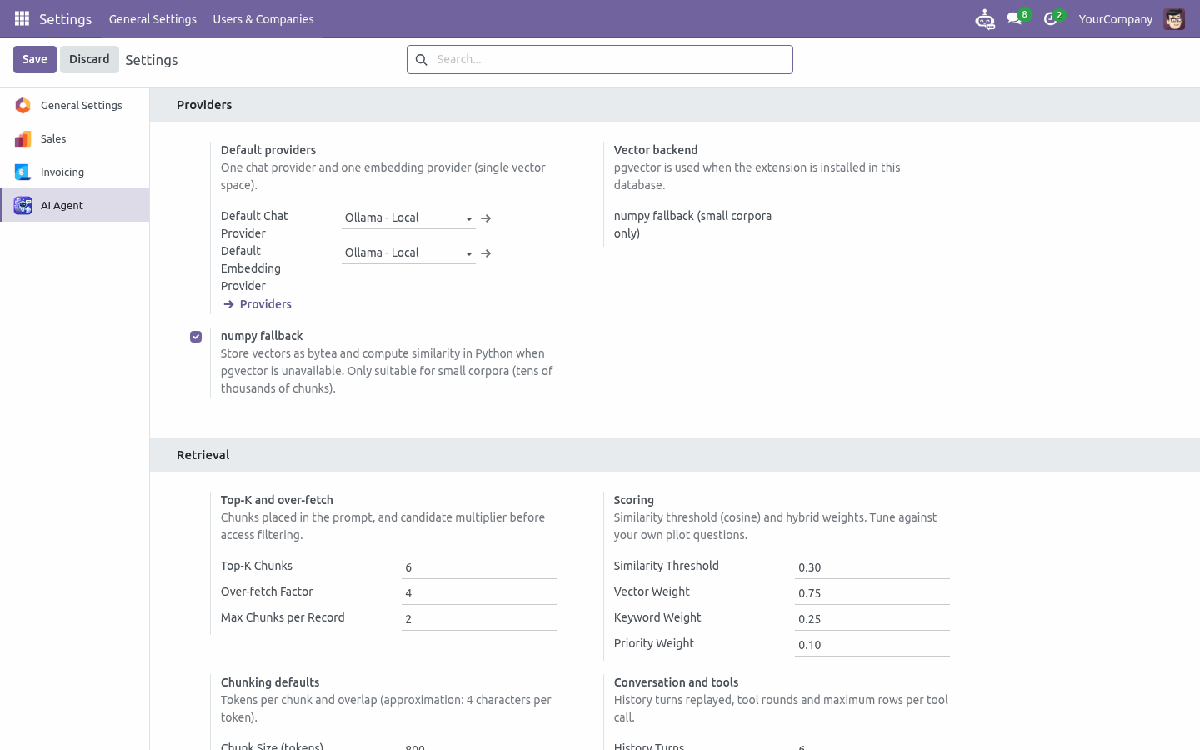
Settings — every policy is a setting, not code
|
4
|
Choose what the agent can readAI Agent → Configuration → Knowledge Sources. A source is a model plus the fields the agent may read. Adding a source gives nobody extra rights. Pick the Model and the Trigger mode: every minute, nightly or manual. Add the Indexed Fields and an optional Domain. For counts and rankings, key fields such as status, amounts, date, customer and salesperson are used automatically. Add Restricted Fields that must never go to a cloud AI. Fields protected by user groups (for example salaries) are refused. Keep Allow Structured Queries ticked, and tick Index attachments if files should be read too. |
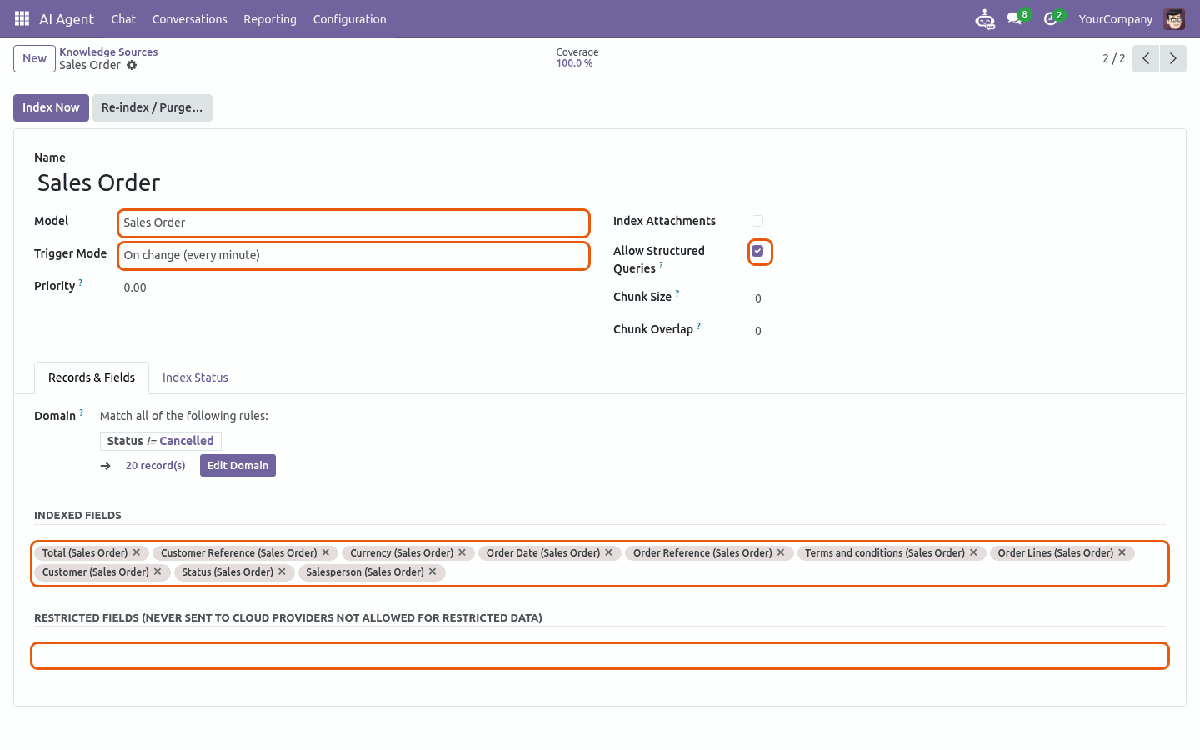
A knowledge source — model, fields, restricted fields and trigger
|
5
|
Build and watch the indexAI Agent → Configuration → Index Monitor. Indexing runs in the background; nobody has to wait on a screen. Follow Eligible and Indexed Records, Chunks, Stale and Coverage (%). A line turns red with the Last Error. Index Now reprocesses only changed records. Re-index / Purge… offers a full re-index, a purge and an ANN index rebuild. Changing the embedding model is guarded: a dedicated wizard explains the impact and rebuilds everything, so incompatible vectors are never mixed. |
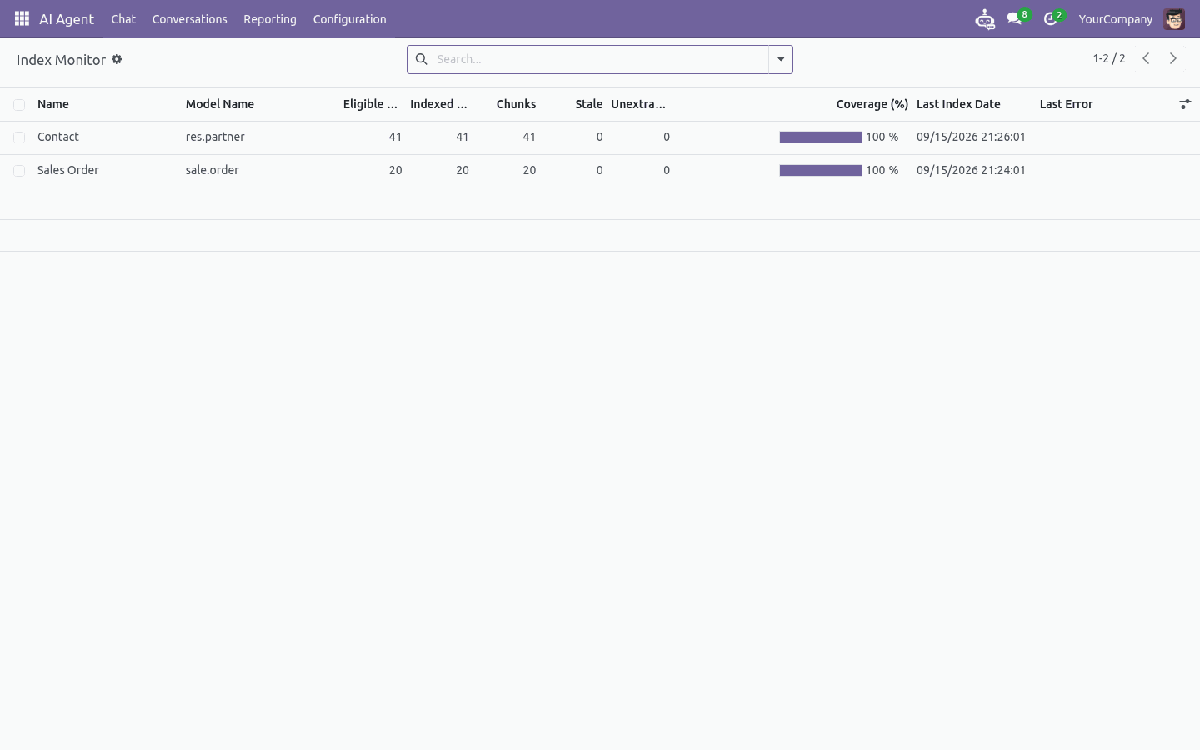
The index monitor |
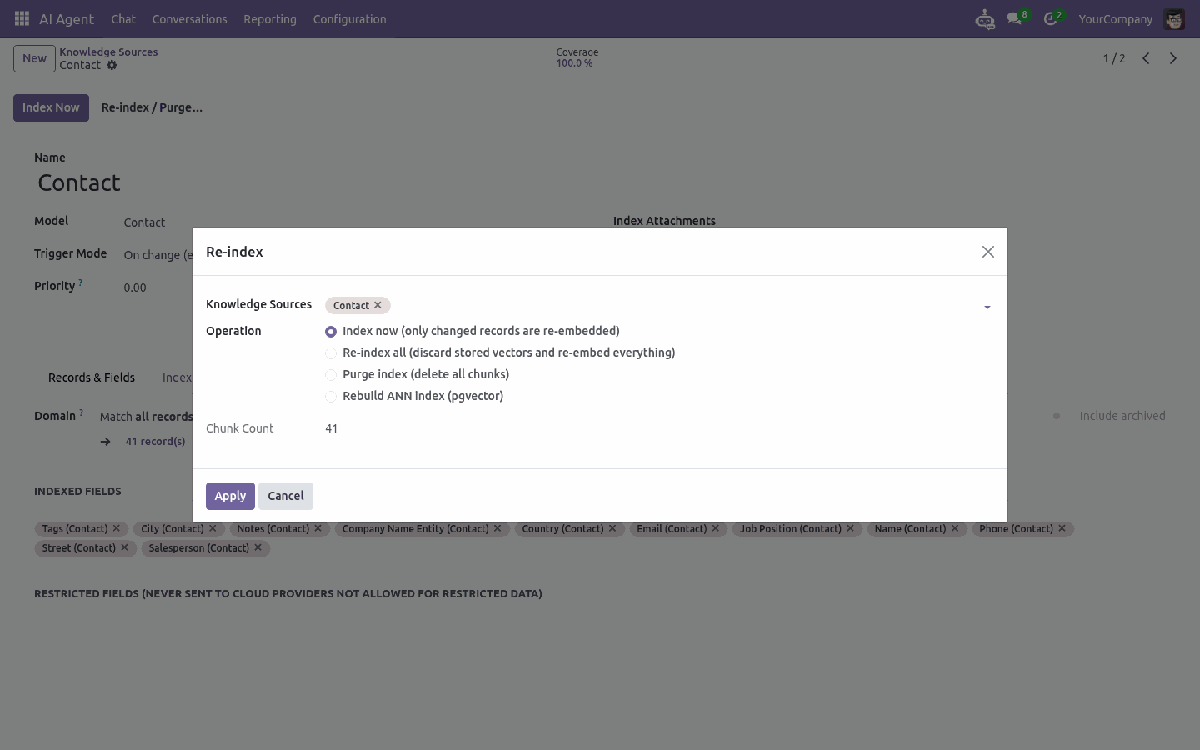
Re-index, purge or rebuild |
|
6
|
Let people change records (optional)AI Agent → Configuration → Roles. Skip this step to keep the agent read-only. Name the role and choose the Groups (for example Sales / User) or single Users who get it. Add a permission line per model: Create, Update, the Allowed Fields and, for a document's lines, the Allowed Line Fields (for example Product and Quantity). Read-only, computed and related fields cannot be chosen; technical and security models are refused. Limit updates with Updatable Records, for example only quotations. The user's record rules still apply on top. In Settings, Record changes sets how long a prepared change waits for Confirm (60 minutes by default). |
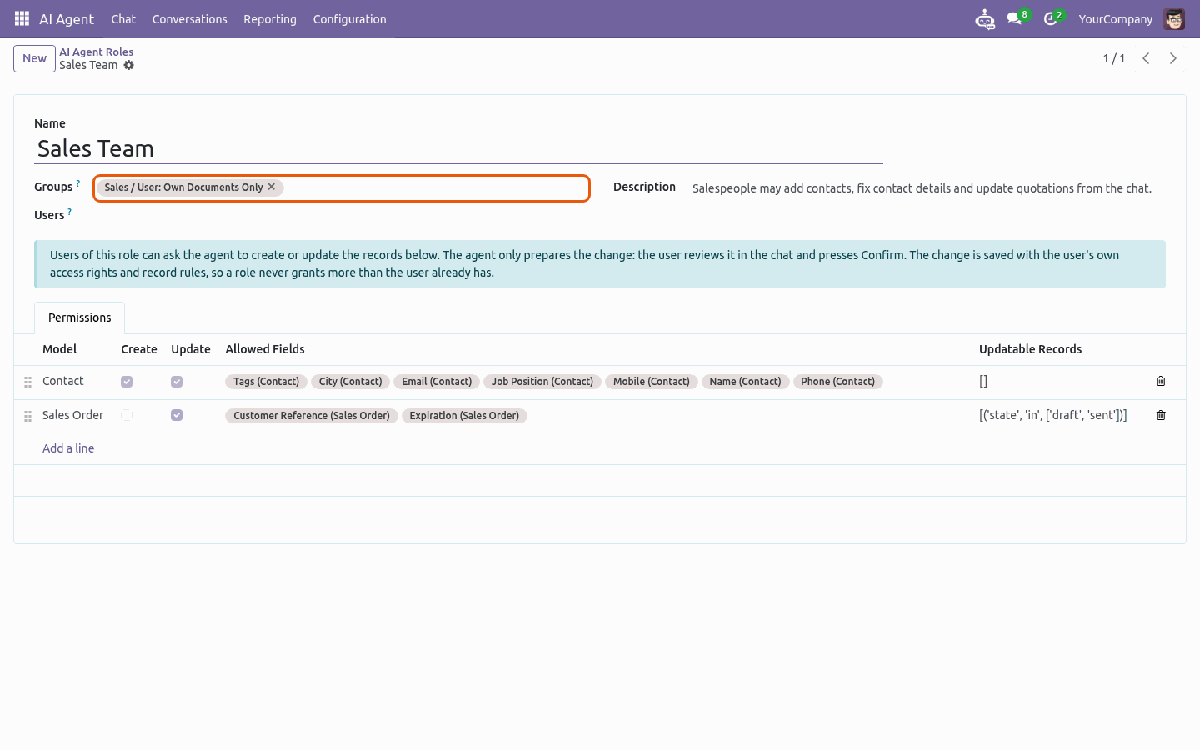
A role: groups, models, operations and allowed fields |
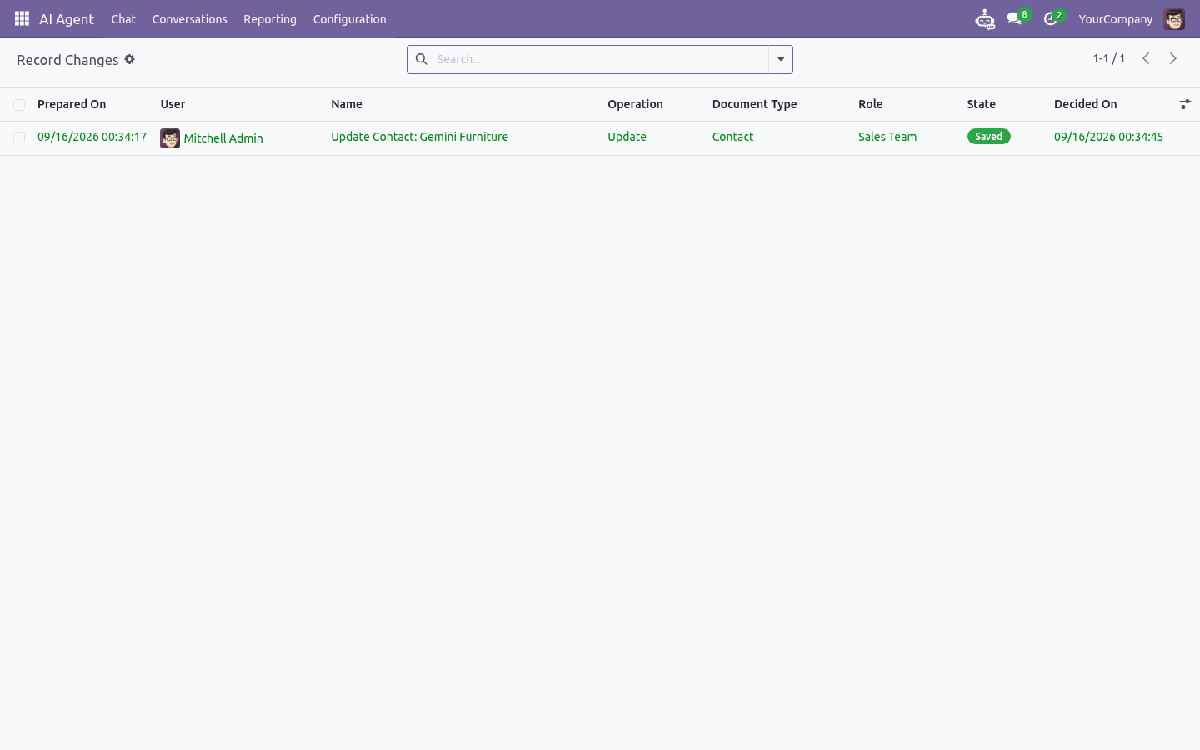
Reporting → Record Changes |
|
7
|
Ask a questionAI Agent → Chat. Type a question and press Enter. A status line shows what is happening: thinking & working, asking the model, querying Odoo data, composing the answer. The chat always scrolls to the newest message. “What is the email address of Gemini Furniture?” — a lookup with a citation. “How many quotations do we have?”, “Show the highest sales order”, “Who is our top customer last month?” — computed by Odoo in the user's time zone. Read the How I searched line: it shows the filters and sorting used, so a misunderstood question is obvious at a glance. Conversations are saved; follow-up questions keep the context. Start a new conversation when the topic changes. |
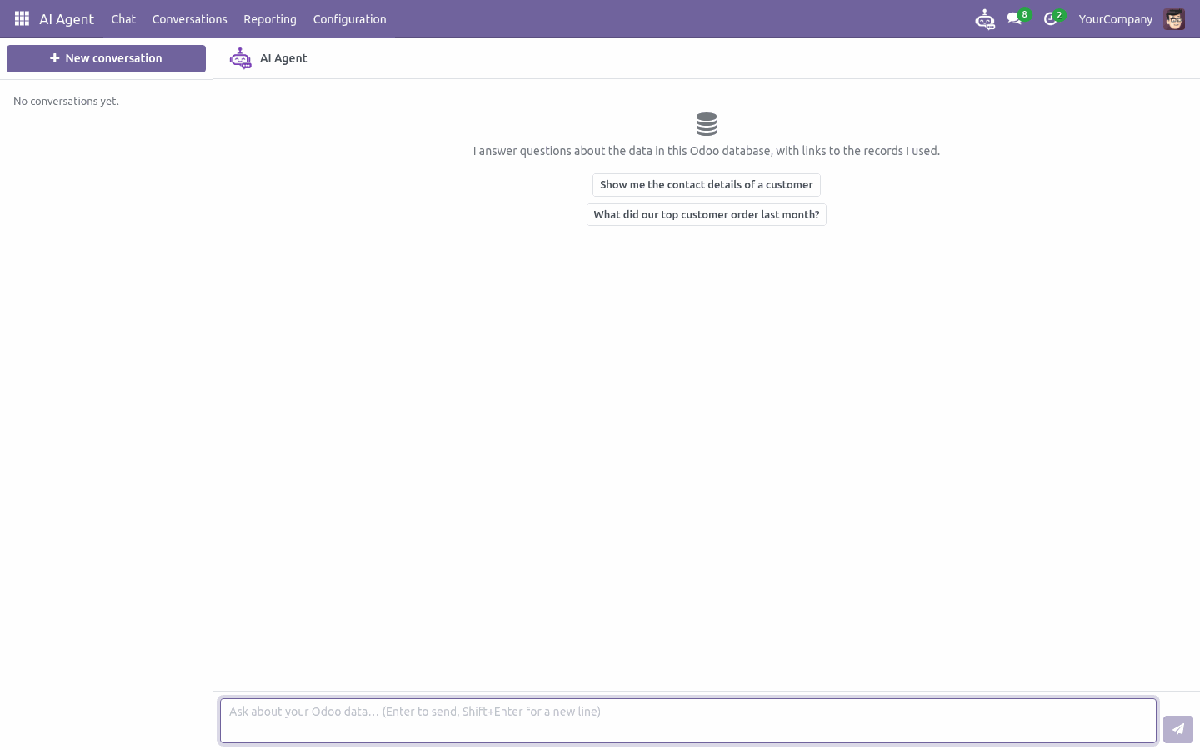
First visit — click an example question to start
|
8
|
Ask from any screen, or about one recordNo need to leave the work you are doing. Click the robot icon in the top bar: the chat slides in as a side panel on every screen. On a record of an indexed model, open ⚙ Actions → Ask AI about this record. The chat opens focused on that record, for example “Summarise this customer”. Questions about the outside world are refused, and record types that are not indexed get a clear “I don't have access to…” message. |
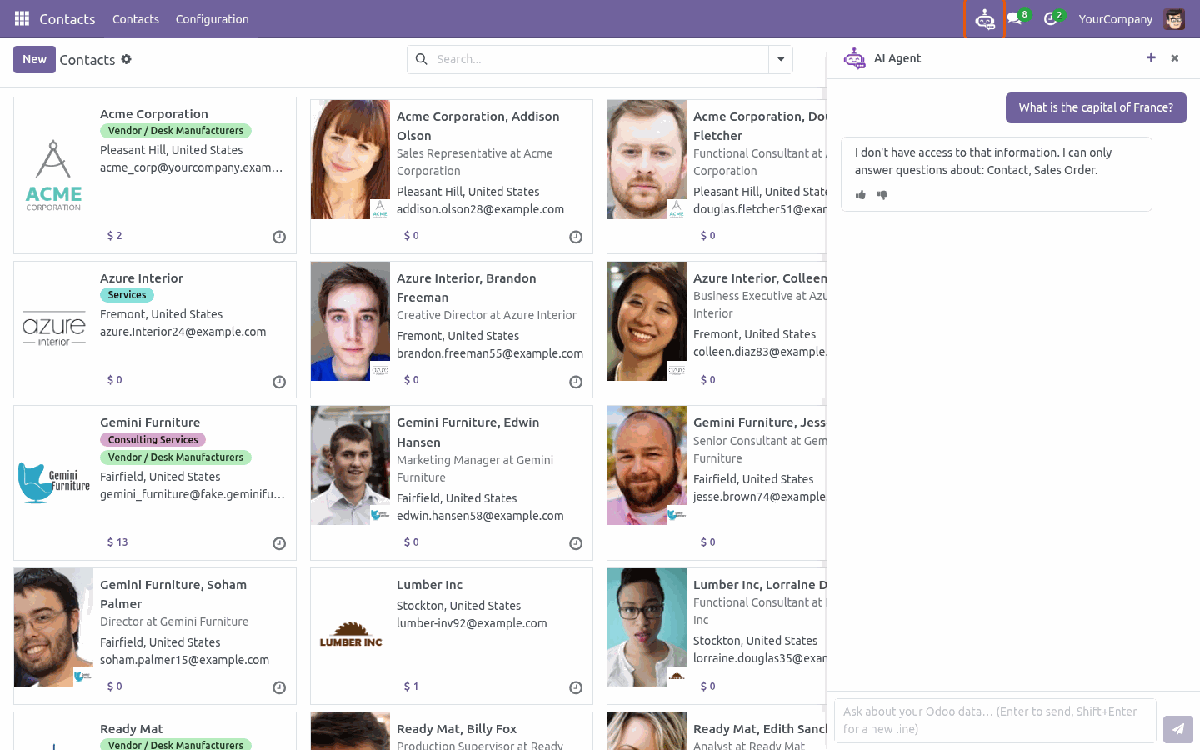
The side panel, declining an off-topic question |
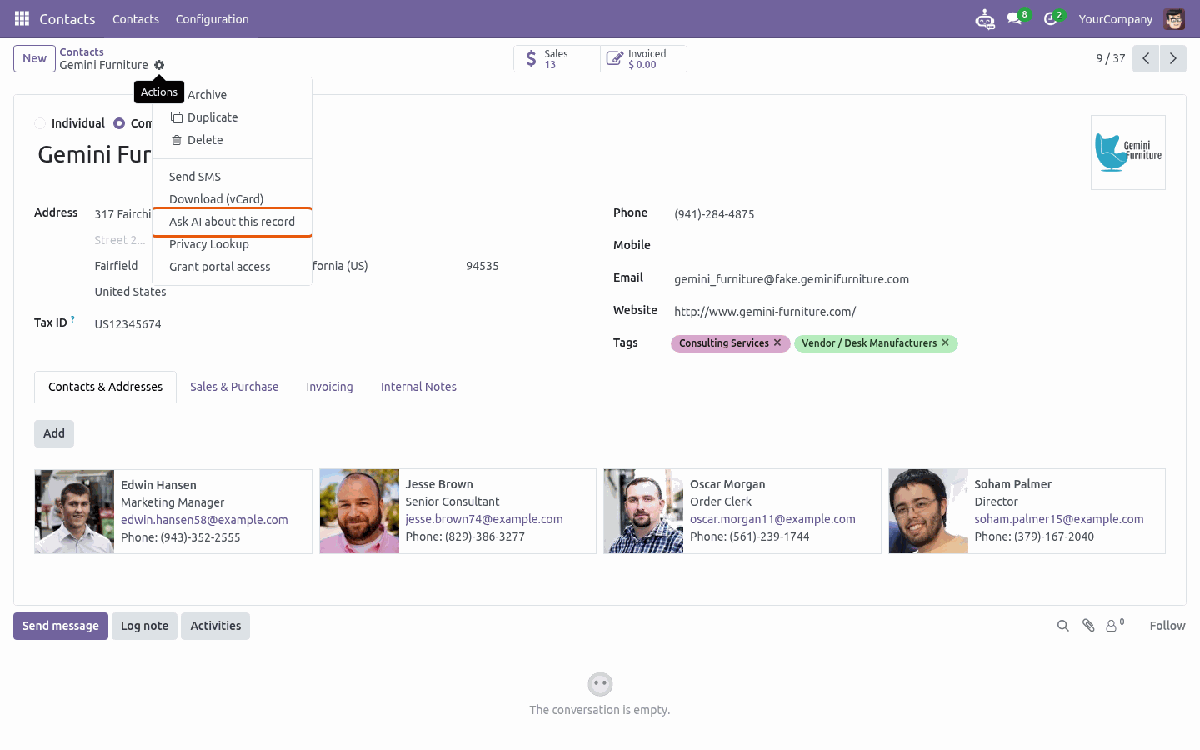
Ask AI about this record |
|
9
|
Create or update a record from the chatFor users with an AI Agent Role. Start the message with an action word such as Create, Change or Set. “Change the phone of Gemini Furniture to +32 470 12 34 56” — a change card shows the field, its current value and the new value. Confirm saves it with the user's own rights; Discard drops it. The change is validated again at that moment. The answer text is fixed, so the model can never claim a change was saved. Values not written in the message are left out. “Create a sale order for Azure Interior with 3 Desk Organizer and 5 Desk Pad” — the card lists one row per order line; prices and taxes are computed by Odoo on confirmation. Not possible from the chat: deleting records, confirming or cancelling documents, and changing lines that already exist. |
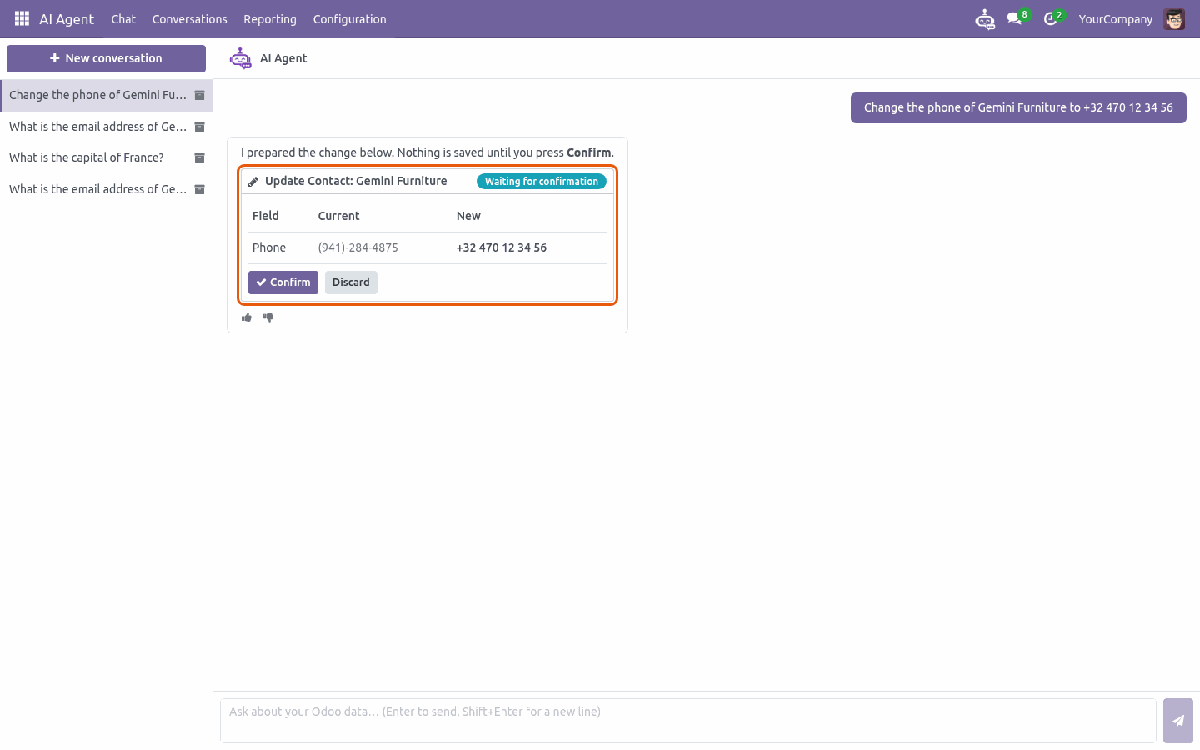
The change card, waiting for confirmation |
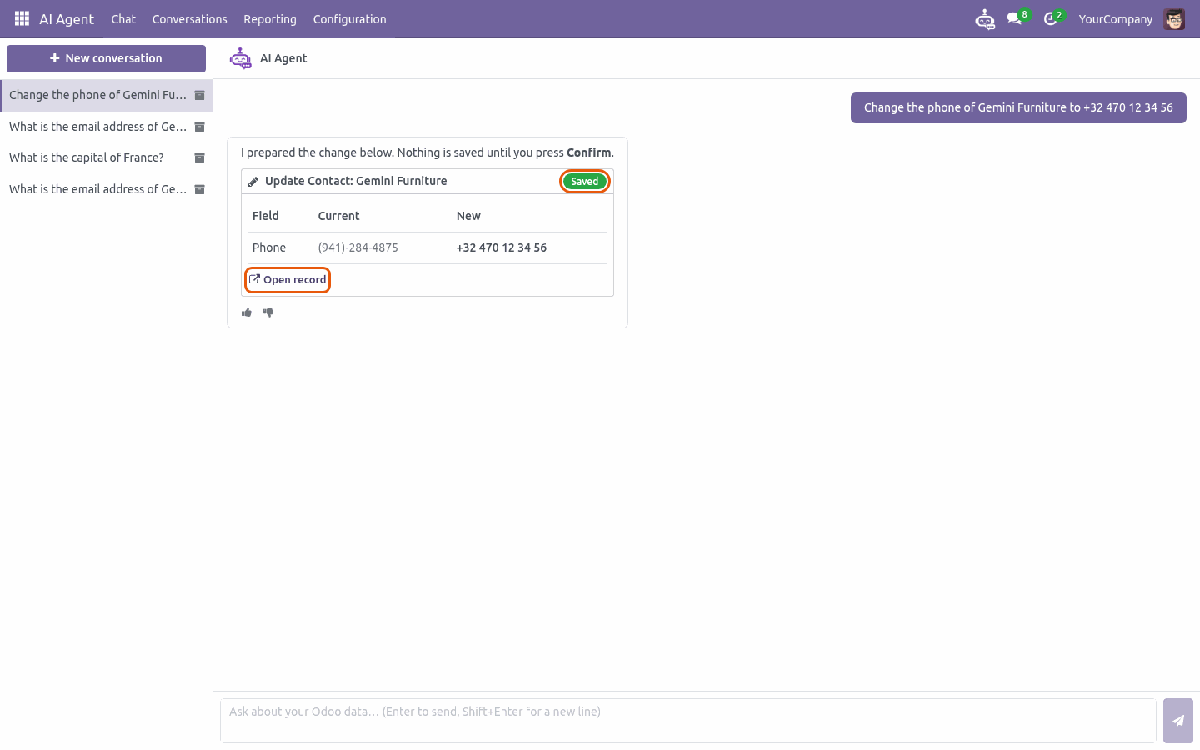
Saved after Confirm, with a link to the record |
|
10
|
Keep an eye on usage, cost and data flowAI Agent → Reporting. Visible to administrators and auditors. Usage & Cost: calls, tokens in and out, average latency and estimated cost from the prices you enter, by provider, user or day. Audit Log: every provider call and refusal, append-only. The Sent to External Provider filter shows exactly what left your server — with Ollama only, it stays empty. Answer Feedback: every 👍/👎 with the user's comment, to find the questions the setup handles badly. Record Changes: every change prepared by the agent, with user, role and outcome. |
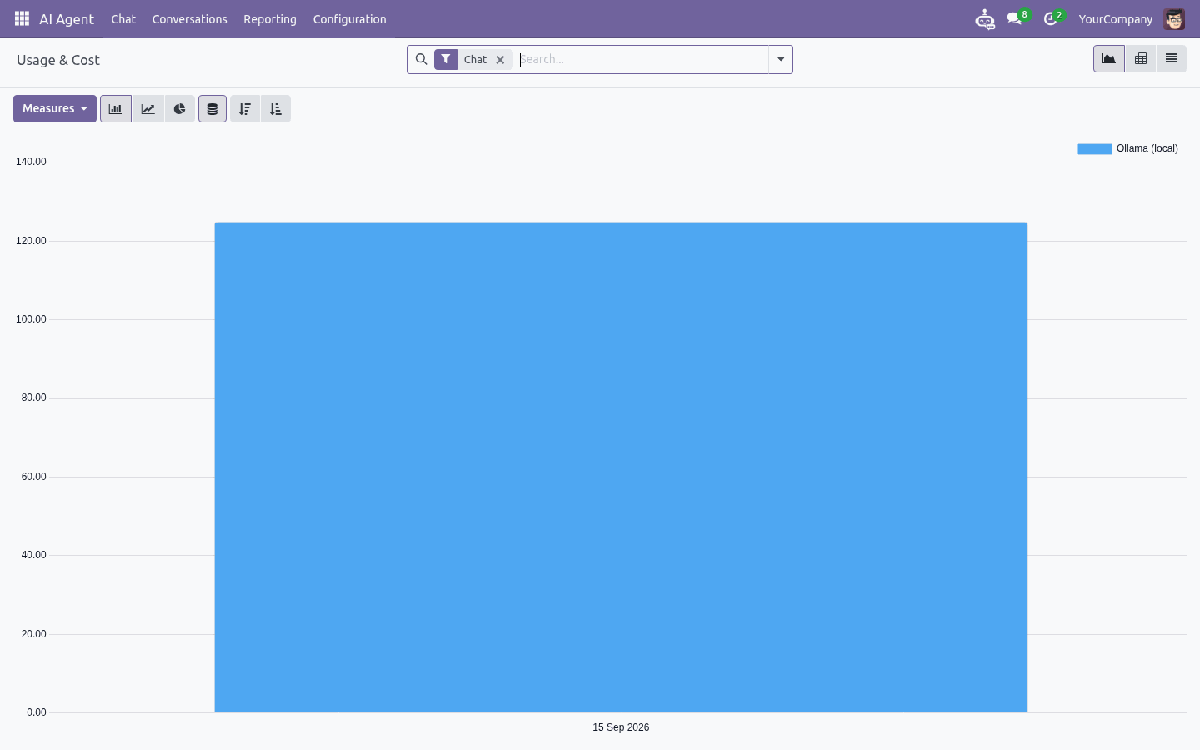
Usage & Cost |
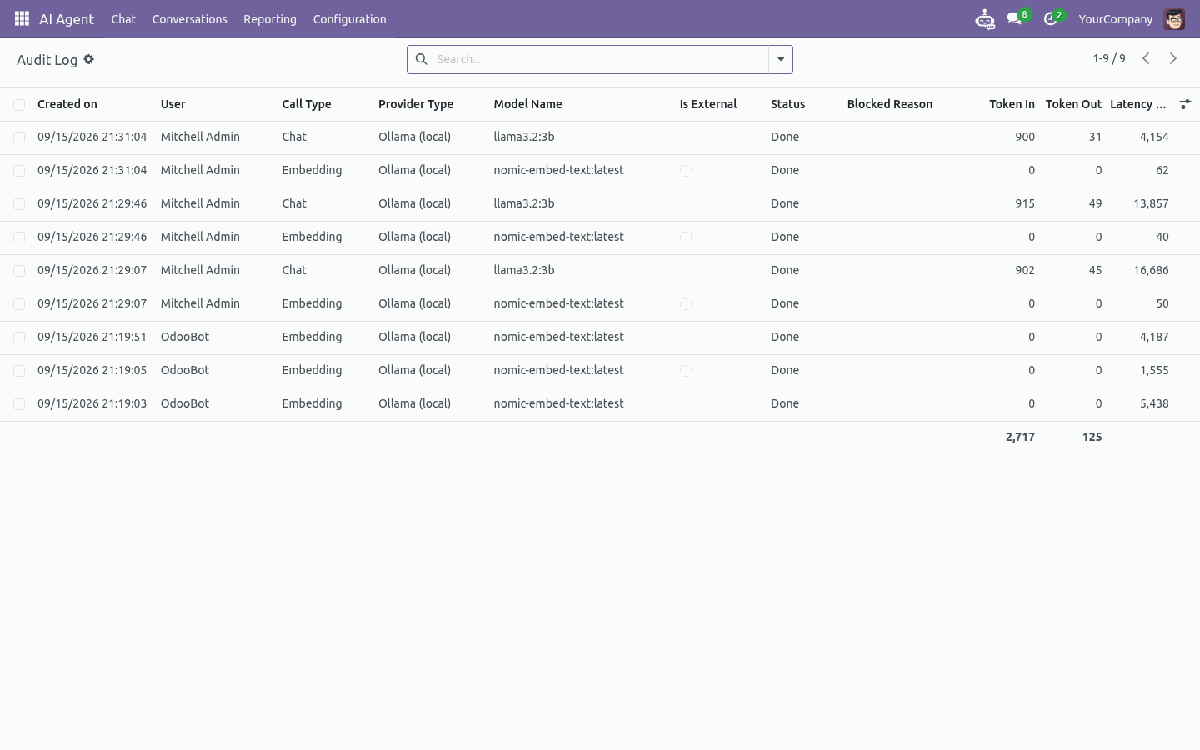
The append-only audit log |
Local or Cloud — Your ChoiceOllama keeps every byte on your own server, and is always allowed to see restricted fields. Chat and embedding models are read from the server's installed list. OpenAI and Anthropic answer in seconds. Restricted fields are redacted before sending, and each call is visible in the audit log. Use different providers for chat and for embeddings, and switch the default at any time. |
|
Three Access Groups, Optional AI Agent Roles — and Your Existing Rights Still Apply
The AI Agent roles decide who may use and configure the agent. What a user can get answers about is decided by the access rights and record rules they already have in Odoo.
| AI Agent — User | Uses the chat and the side panel, sees and archives their own conversations, rates answers, and confirms or discards the record changes they asked for. |
| AI Agent — Administrator | Everything a user can do, plus providers, knowledge sources, settings, re-indexing, prompt templates and reading all conversations. |
| AI Agent Audit — Auditor | Reads the audit log, the usage report and the record changes report only. Nobody can edit or delete audit lines; old lines expire after the retention period. |
| AI Agent Roles (optional) | Configured by administrators per group or user: which records may be created or updated through the chat, and which fields. Without a role the agent is read-only for that user. |
What Happens to Every Question
Each stage can stop the question. Only the last one talks to a language model with data.
1. Scope GuardrailA local rule, no AI call: questions that match none of your indexed models, fields or records are refused. The daily token cap is checked too. |
2. Hybrid RetrievalVector and full-text candidates from the chunks of the active knowledge sources, limited to the user's companies. |
3. ACL FilterCandidate record IDs are re-checked with an ORM search as the asking user. Records they cannot open are dropped. |
4. RedactionRestricted fields are replaced by [REDACTED] for cloud providers; optional PII scrubbing removes e-mails, phones and bank numbers. Context delimiters inside record text are neutralised. |
5. Safe QueriesQuery plans and tool calls go through a strict domain parser: known fields only, no group-protected or blocked fields, no SQL, no |
6. Answer ChecksNumbers not found in the evidence are withheld; an optional grounding verifier double-checks the answer. Everything is written to the audit log. |
Change requests take one more path: role, access rights and record rules are checked and the values converted without saving; the user sees current → new values; on Confirm the change is locked, validated again with the user's current role and saved as that user. Errors from Odoo mark it Failed.
Your Policy, Not OursWhich models and fields are readable, which records and fields each role may change, restricted fields, top-K, similarity threshold, chunk size, conversation history, tool limits, PII scrubbing, prompt storage, daily token cap and retention — all settings, not code. Prompt templates are editable records. |
Secure by DesignNo |
Fast on Ordinary HardwareCompact indexed text, keep-alive, model warm-up when the chat opens, and one short AI call per structured question. Measured on a laptop CPU without a GPU (Ollama, |
Answers in the Question's LanguageThe agent is instructed to reply in the language of the question; quality depends on the model. Interface strings are translatable (a |
Built to Fit Your Odoo
| Edition: Odoo 19 Community |
Dependencies: base, web, bus; Python requests |
Category: Productivity |
License: OPL-1 |
No Enterprise dependency. Knowledge sources work with any installed model (Sales, Purchase, Invoicing, CRM, Project, Inventory…) without depending on them. Optional: the PostgreSQL pgvector extension for fast vector search on large databases (HNSW index from pgvector 0.5.0, IVFFlat on older versions), the Python numpy package for the small-database fallback, and Odoo's attachment_indexation module for PDF and Office attachments. Ollama must be reachable from the Odoo server.
Not together with Easy AI Assistant: Easy AI Agent is a copy of the easy_ai_assistant module under a different name. Both use the same models, so only one of them can be installed in a database; installation is refused while Easy AI Assistant is installed.
Deliberately not included: deleting records, confirming or cancelling documents and other workflow buttons from the chat; changing or removing lines that are already on a document; raw SQL; OCR of scanned documents; and multi-step questions in one message (“what did our top customer order?” answers the first step — ask the second as a follow-up).
AI answers can be wrong. The agent cites its sources so that users can verify important figures; with cloud providers, record data is sent to that provider — review your data-protection obligations before enabling one.
Support & Developer Details
For installation help, Ollama or pgvector setup, custom knowledge sources, customization or implementation support, contact the maintainer.
| Name: Abdullah Al Arafat |
Mobile/Whatsapp: +8801712192445 |
Email: imbipul9@gmail.com |