
Easy Accounting Bookkeeping
Full accounting for Odoo Community — from the first voucher to the year-end closing.
Vouchers, cash and bank books, bank statement import and reconciliation, an all-in-one dashboard, 52 reports, petty cash funds, fixed assets with depreciation books, budgets, loans, deferred revenue and expenses, tax returns, a cash flow forecast, credit limits, voucher approval, currency revaluation, batch deposits, post-dated cheques, follow-ups and period closing in one Accounting app. Everything works on Odoo's own journal entries, so there is no second ledger to keep in step.
Small & Mid-sized Companies
Accountants & Bookkeepers
Finance Managers & Owners
Auditors & Odoo Partners

Watch Easy Accounting Bookkeeping in Action
A 35-minute, step-by-step walk-through with narration: settings and roles, the dashboard, vouchers and approvals, bank reconciliation, cheques, petty cash, assets, loans, budgets, tax returns, period closing and the reports. Chapters let you jump to any feature.
Video link: https://youtu.be/O9M5JSRYKsM
Why This Module
Odoo Community records invoices, bills and payments. An accountant also needs vouchers, a cash book, a balance sheet, a bank reconciliation, depreciation and a way to close the month and the year. This module adds those tools to the same Accounting app and builds them on the same journal entries, so nothing is copied or synchronised.
Bank files import in the bank's own format and are matched in a reconciliation workspace. Report figures open the journal items behind them. Fiscal periods, lock dates and a closing checklist keep closed months closed, and the all-in-one dashboard puts the figures, the alerts and every report in one place.
Screenshots show the module running on Odoo Community with a fictional demo company and fictional transactions.
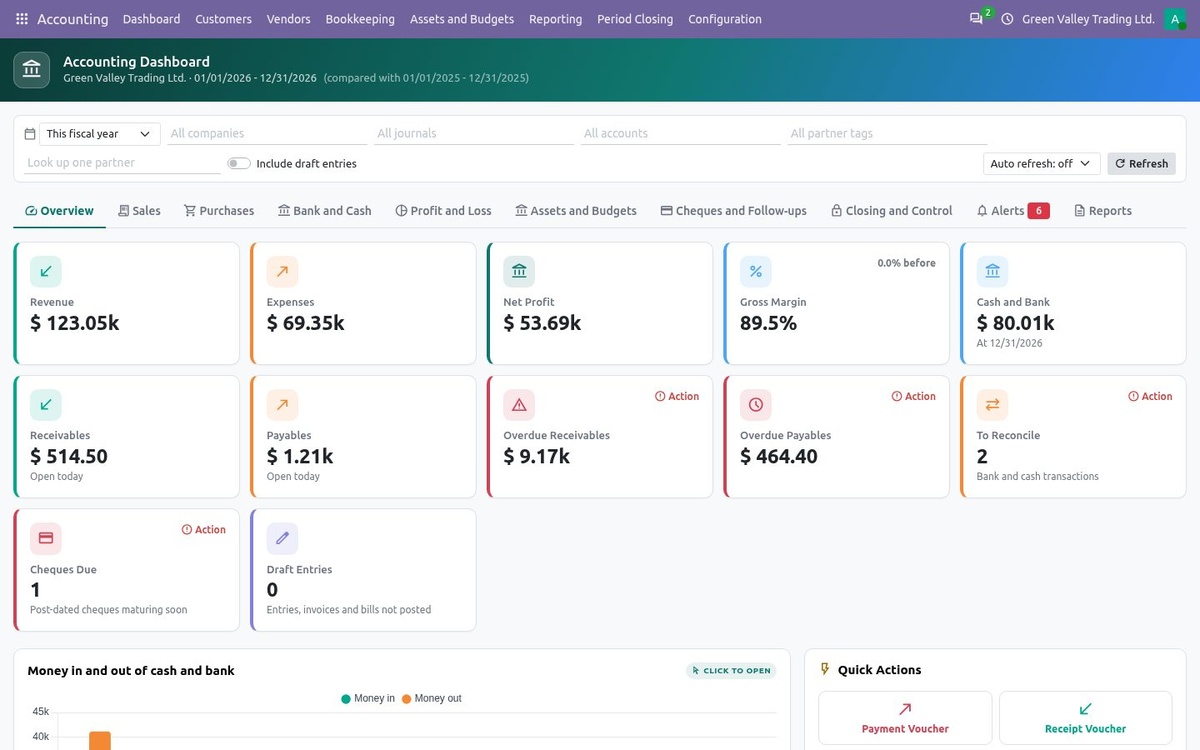
All-in-one dashboard, Overview tab: revenue, expenses, profit, cash and bank, receivables, payables and items needing action
Your Complete Accounting Workspace
Accounting App & Roles
One Accounting menu with Customers, Vendors, Bookkeeping, Assets and Budgets, Reporting, Period Closing and Configuration. Bookkeeper, Accountant, Adviser and read-only Auditor roles build on Odoo's own groups.
Chart of Accounts & Opening Balances
Parent accounts for an account hierarchy, a cash-flow section on balance sheet accounts, journal book types, and an Opening Balance wizard for the go-live entry.
Payment, Receipt, Contra & Journal Vouchers
Separate voucher numbering, the cash or bank line added for you, amount in words and a printed voucher with Prepared, Checked, Approved and Received signatures.
Bank Statement Import
Import CSV, Excel (XLSX), OFX / QFX and CAMT.053 files. Save a column layout per bank, skip duplicate lines and start matching right after the import.
Reconciliation Workspace
Match each bank line with open invoices and payments, use reconciliation models, add write-offs and see what is left on the suspense account before you validate.
Fiscal Years & Period Closing
Monthly or quarterly periods with soft lock and close, Odoo lock dates and lock exceptions, a month-end checklist and a year-end closing to retained earnings.
52 Financial Reports
Books, statements, ledgers, customer and vendor balances, sales and purchase analysis, assets, cheques and control reports, with filters, drill-down, saved variants, PDF and XLSX.
Fixed Assets & Depreciation
Straight line, declining balance or declining then straight line, prorata, a depreciation board posted on schedule, pause, revaluation, disposal and sale.
Budgets & Recurring Entries
Budget positions with planned, actual, variance and achievement. Repeat journal entries, vendor bills and customer invoices on a schedule.
Customer Follow-ups
Follow-up levels by days overdue with email, printed letter or a manual action. A daily job, batch sending, partner statements and a history per customer.
Post-dated Cheques
Received and issued cheques from registration to deposit, clearing, bounce or return, with maturity alerts, a cheque register and cheque printing.
All-in-one Dashboard
Eight tabs of KPIs with the change against the previous period, charts, alerts, quick actions and a Report Centre; every figure opens the records behind it.
Currency Revaluation
Revalue open foreign currency invoices, bills and bank accounts at the closing rate of month-end. The unrealised gain or loss is posted and reversed the next day automatically.
Deferred Revenue & Expenses
Give an invoice or bill line a start and end date: the amount goes to deferred revenue or prepaid expenses and is recognised month by month, prorated by days.
Cash Flow Forecast
Projected cash and bank week by week from open invoices and bills by due date, post-dated cheques and recurring entries, as a report and a 13-week dashboard chart.
Voucher Approval Steps
Maker-checker for vouchers: steps per voucher type from an amount, with named approvers. A voucher is posted only after every step is approved; rejections are logged.
Credit Limits & Monthly Statements
Block invoices that take a customer over the credit limit (Advisers may override), see the Credit Limit Status, and e-mail every customer the statement of last month automatically.
Scheduled Reports & Easy Migration
Receive any saved report as a PDF by e-mail every week or month. Moving from om_account_accountant or base_accounting_kit? Import their assets, budgets and follow-up levels in one click.
Reconcile Any Journal Item
Match an invoice with its credit note or advance, clear a clearing account, write off small differences, match whole accounts automatically and split a journal item over several accounts.
Tax Returns & Tax Closing
One return per month, quarter or year with a due date and checks. Closing moves the tax accounts to tax payable or receivable, locks the period, and the payment is registered from the return.
Batch Deposits
Group the payments and cheques taken to the bank on one slip, print the deposit slip, and match the whole batch with the single bank line.
Loans & Allocation Models
Loan schedules split into principal and interest, posted every period with short-term reclassification and early repayment; allocation models split account balances by percentage every period.
Ledgers, Depreciation Books & Asset Groups
Keep tax or IFRS adjustments in their own ledger, depreciate an asset a second way in a tax book, group assets and depreciate day by day.
Imports & Inter-company
Guided Excel or CSV import of journal items and the chart of accounts, QIF bank files, and vendor bills created automatically from invoices between your companies.
Petty Cash Funds
Run petty cash on the imprest system: each fund is a cash journal with a float, a custodian and a limit per voucher. A payment larger than the limit or than the cash in the fund is refused.
Cash Counts & Top-ups
Count the box by notes and coins; a shortage or surplus is posted to the cash short or cash over account. One click drafts the top-up from the bank that brings the fund back to its float.
Petty Cash Statement & Dashboard
The Petty Cash Statement shows opening cash, top-ups, payments by account, cash over or short and the amount to top up; the dashboard shows each fund against its float and warns when a top-up or a count is due.
Follow the Work, Screen by Screen
Set up the company and its fiscal year, record the daily work, reconcile the bank, then close the month and read the reports.
1 |
Set up the accounting policies of your companyConfiguration → Settings → Accounting gathers the closing accounts, post-dated cheque accounts and printing options of each company. |
Choose the Retained Earnings account for the year-end closing and the Opening Balance Difference account that balances an uneven opening entry.
Let the closing checklist warn while the bank suspense accounts are not zero, and make posted entries inalterable with Odoo's hash chain when you are ready (this cannot be undone).
Set the PDC Receivable and PDC Payable holding accounts and how many days before maturity a cheque is flagged on the dashboard.
Pick the numbering of amounts in words (international thousand / million or South Asian lakh / crore) and the header of printed reports and books.
Under Configuration you also maintain journals, voucher layouts, statement layouts, cheque layouts, asset categories, budget positions and follow-up levels.
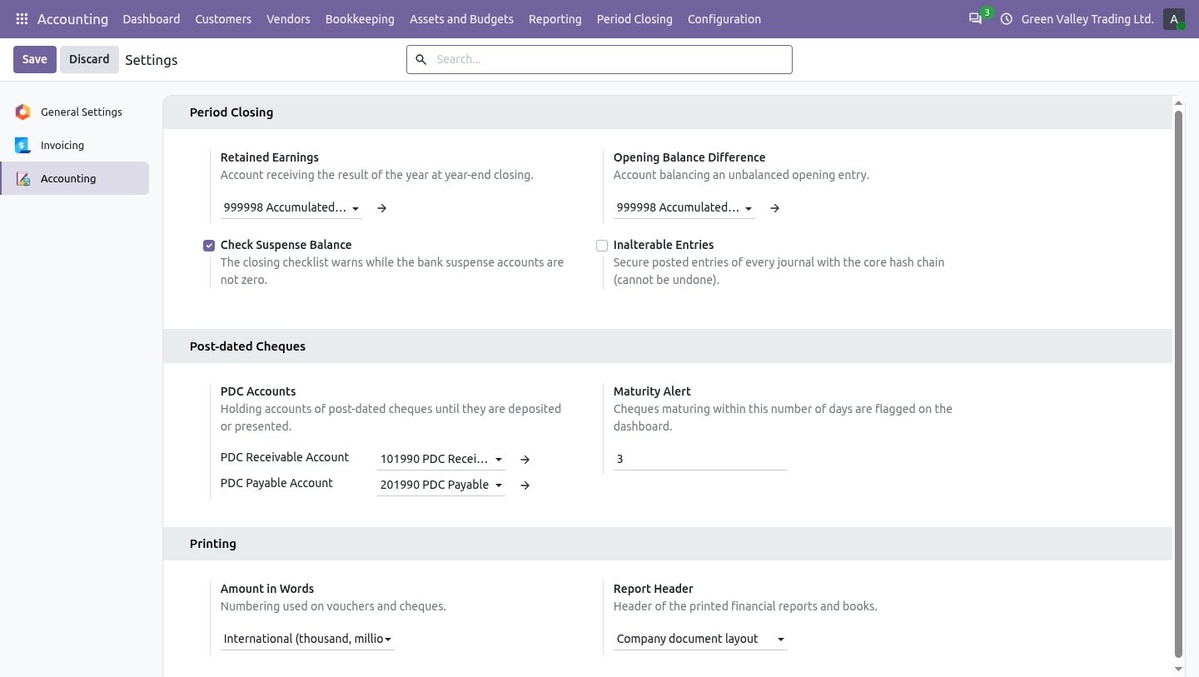
Accounting settings: period closing, post-dated cheques and printing
2 |
Open the fiscal year, enter opening balances and set lock datesPeriod Closing holds fiscal years, opening balances, lock dates, lock exceptions, the closing checklist and the year-end closing. |
Create a fiscal year and generate its monthly or quarterly periods. Each period can be soft-locked or closed; a closed period refuses new postings.
Use Opening Balances to post the go-live balances of every account; any difference goes to the configured Opening Balance Difference account.
Lock Dates sets Odoo's global, sales, purchase and tax return lock dates, where lock exceptions can reopen a period for a user or a time.
The hard lock date applies to all users and can only move forward.
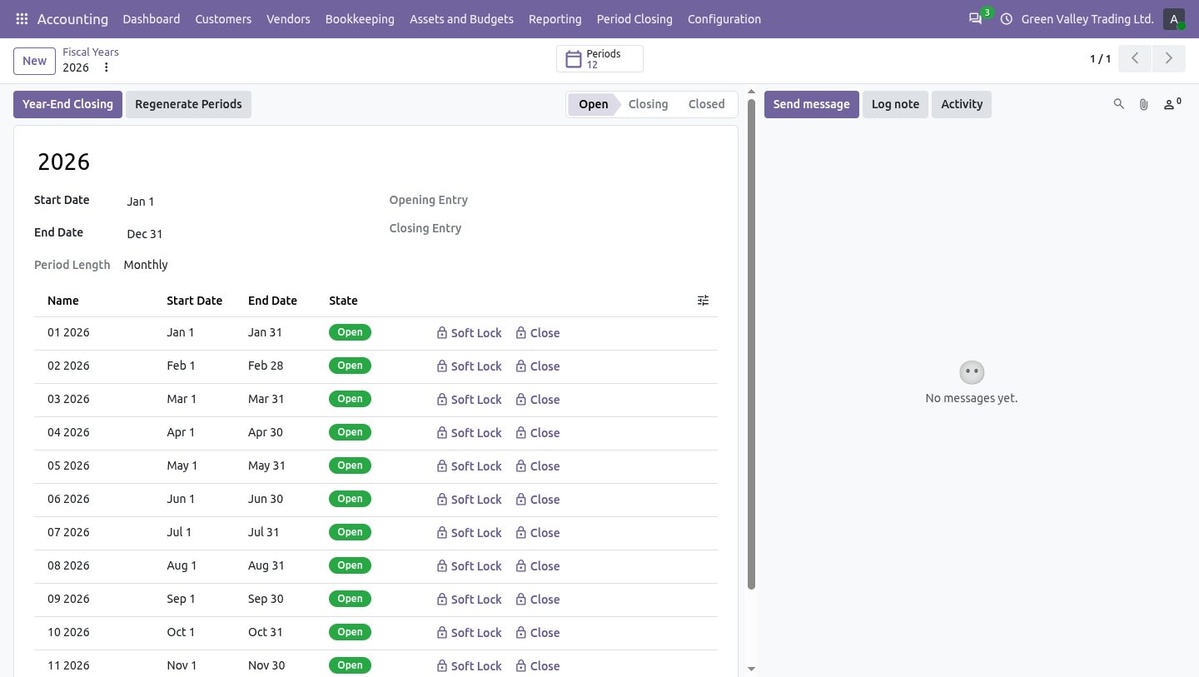
Fiscal year 2026 with its monthly periods, soft lock and close actions
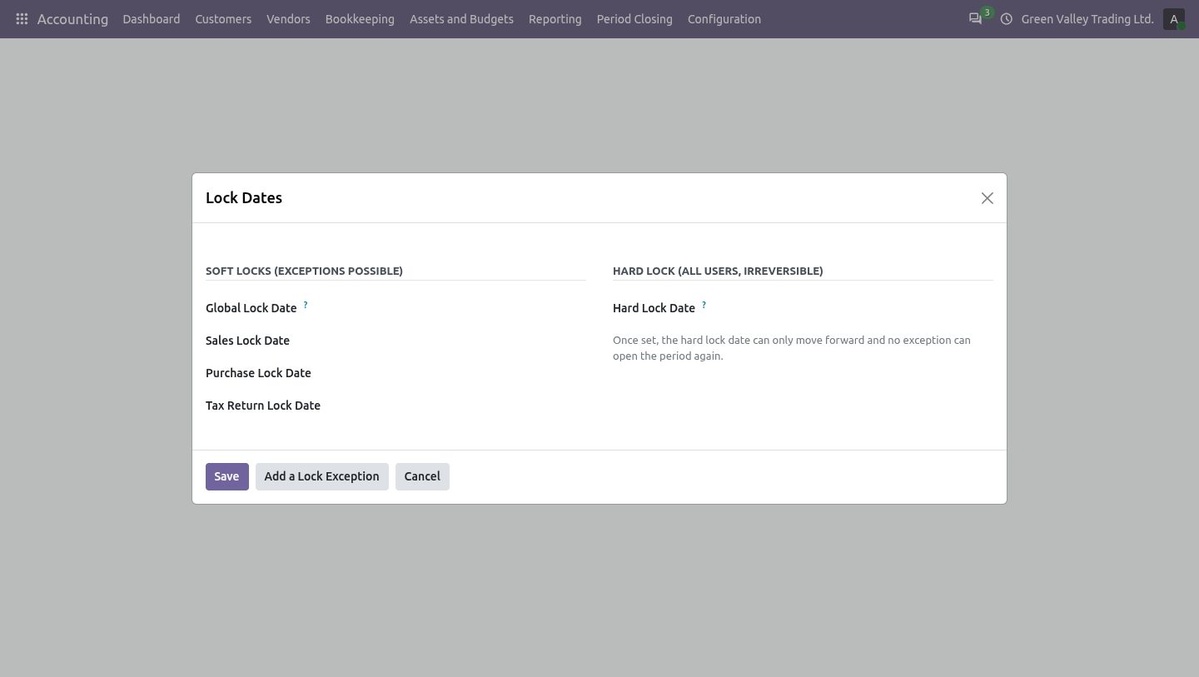
Lock Dates: soft locks with exceptions, and the irreversible hard lock date
3 |
Record payments and receipts as vouchersBookkeeping → Vouchers offers Payment, Receipt, Contra and Journal vouchers on top of ordinary journal entries. |
Pick the cash or bank journal, the payee or payer, a reference and the voucher lines with account, partner, description and taxes.
The contra line on the journal's cash or bank account is added for you; taxes are computed by Odoo's tax engine.
Each journal numbers its vouchers in its own sequence (for example CSH1/V/2026/00001), next to the journal entry number.
A Bookkeeper enters vouchers and an Accountant posts them; the poster is recorded as the approver. Print Voucher produces the signed voucher.
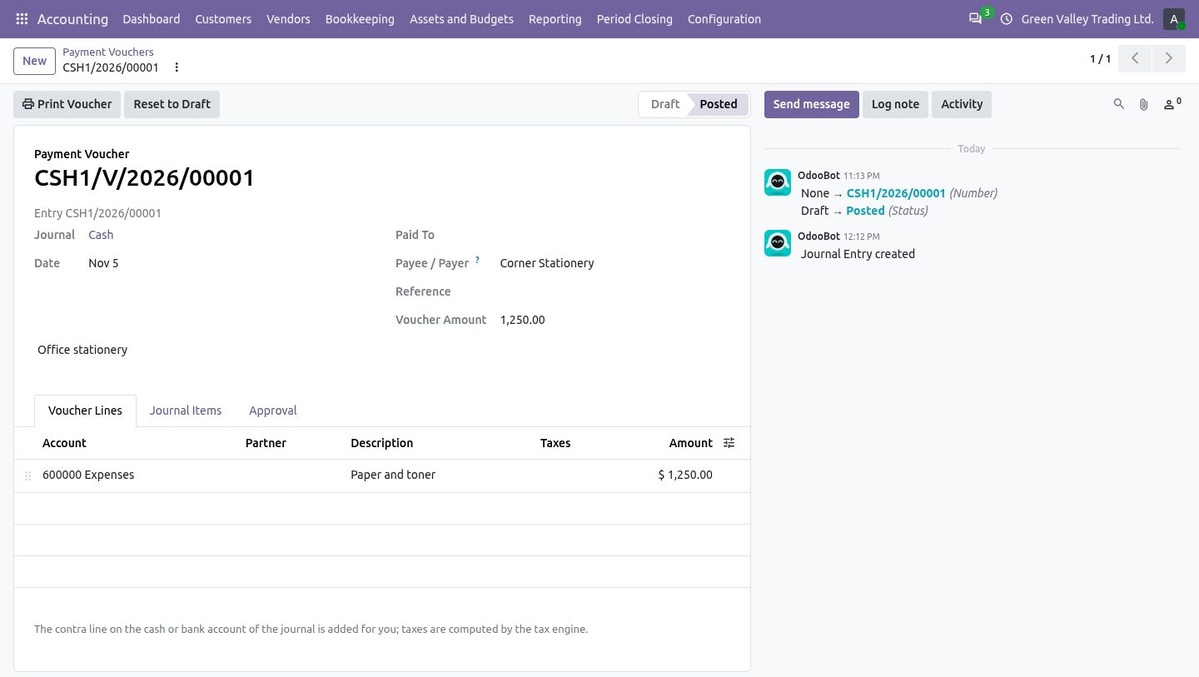
Payment voucher: payee, voucher amount, lines and posting status
4 |
Import the bank statement fileBookkeeping → Bank and Cash → Import Statement reads the file your bank already gives you. |
Select the bank journal and the file: CSV, Excel (XLSX), OFX / QFX or CAMT.053 (ISO 20022).
For CSV and Excel, a saved Column Layout names the date, description, partner and reference columns and either one signed amount or separate withdrawal and deposit columns, with the delimiter, encoding, date format and decimal separator of that bank.
Lines already imported, and zero lines, are skipped and counted, so the same file can be imported twice without doubling transactions.
With Run Automatic Matching ticked, the reconciliation rules run on the new lines as soon as they are imported.
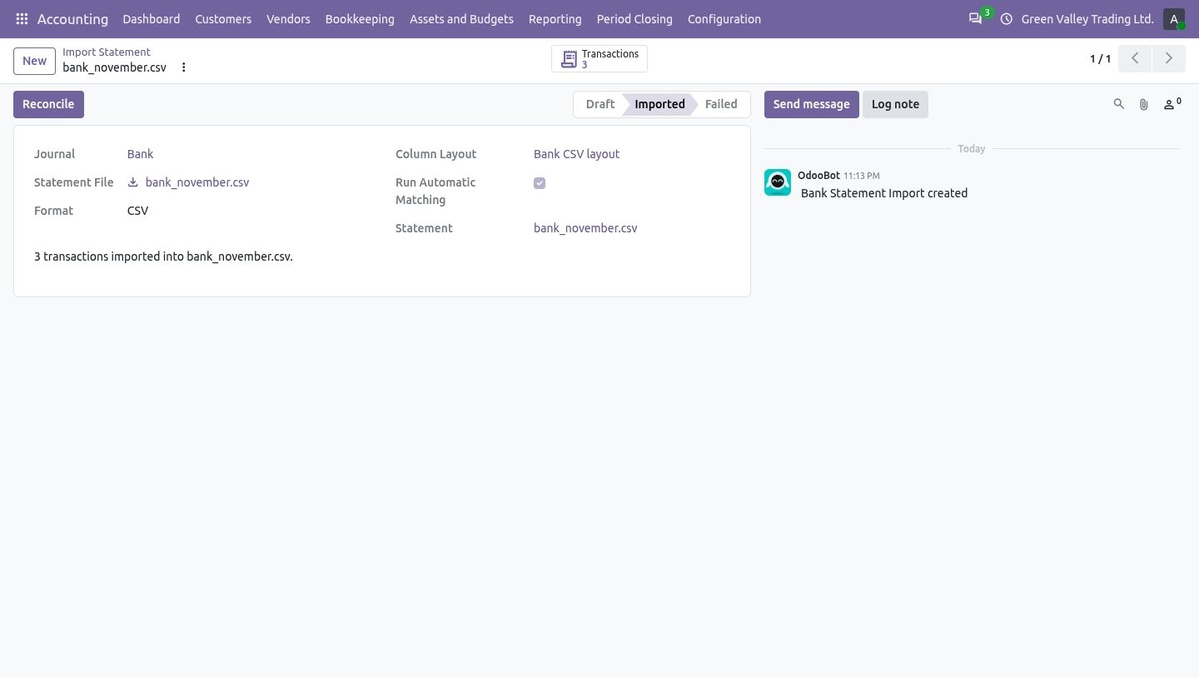
Statement import: journal, file, format, column layout and the imported transactions
5 |
Reconcile the bank in one workspaceBookkeeping → Bank and Cash → Reconcile lists the bank lines on the left and the matching work on the right. |
Filter by journal and show lines to reconcile, reconciled lines or all. Search by label, partner or amount.
Suggested matches come first; any other open invoice, bill or payment can be searched and ticked under Open Items.
Apply a reconciliation model or add write-off lines for bank fees and small differences. The amount still left on the suspense account is shown before you validate.
Auto runs the reconciliation rules over all open lines. Matching a deposited post-dated cheque marks it Cleared.
The Bank Reconciliation report explains the difference between the book balance and the statement balance.
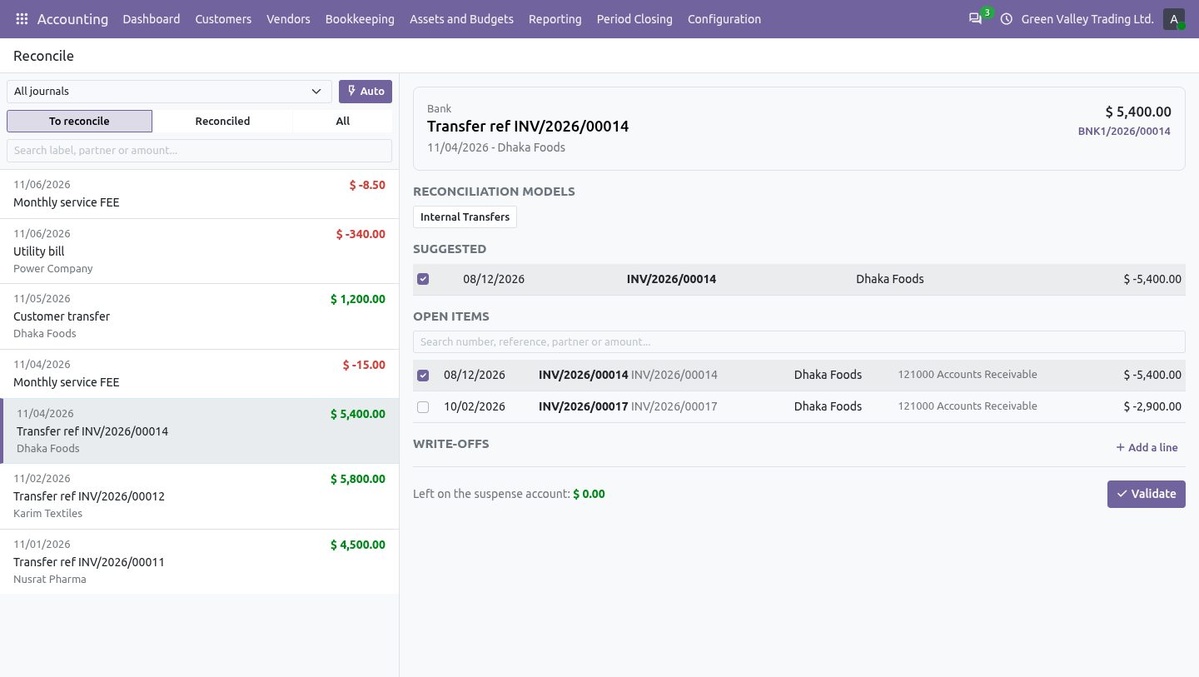
Reconciliation workspace: bank lines, suggested match, open items, write-offs and suspense balance
6 |
Read the cash book and the bank bookReporting → Books gives the classic books kept by hand in many companies, built from posted entries. |
Cash Book: opening balance, each movement with voucher number, contra account, partner and narration, receipts, payments and the running balance.
Bank Book adds the cheque number and whether each line is already on a bank statement.
Switch on daily totals, choose one journal or all, and use More filters for accounts, partners or draft entries.
Day Book, Sales Register and Purchase Register complete the books.
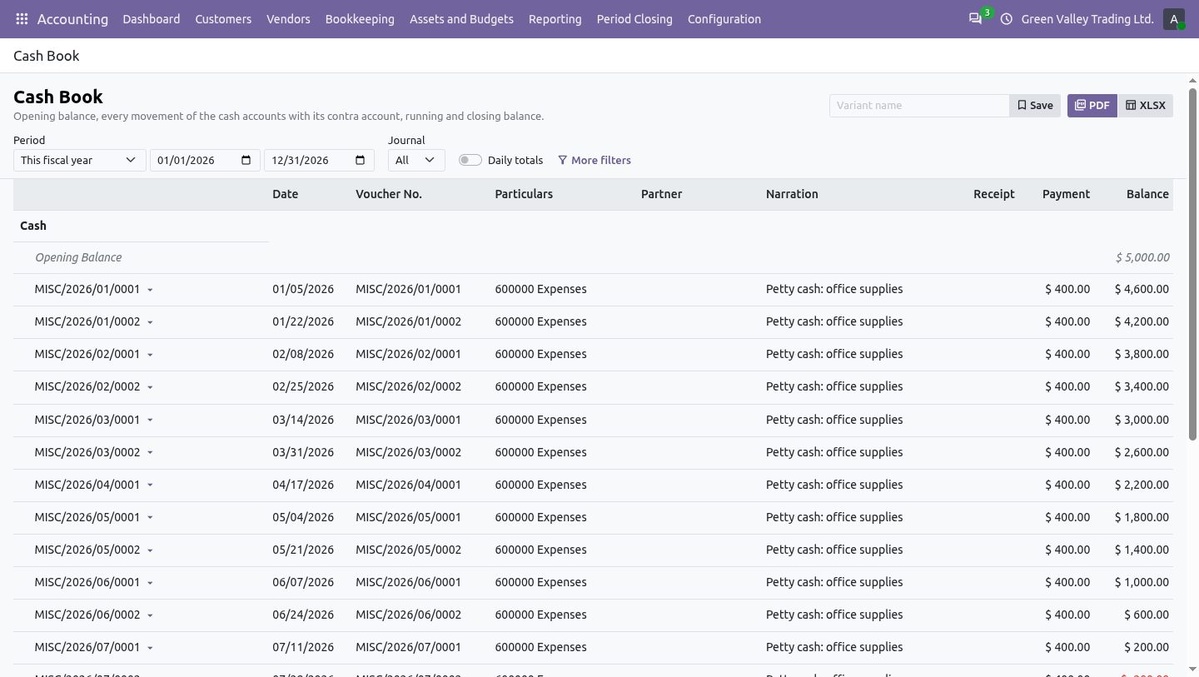
Cash Book: opening balance, vouchers, contra accounts and running balance
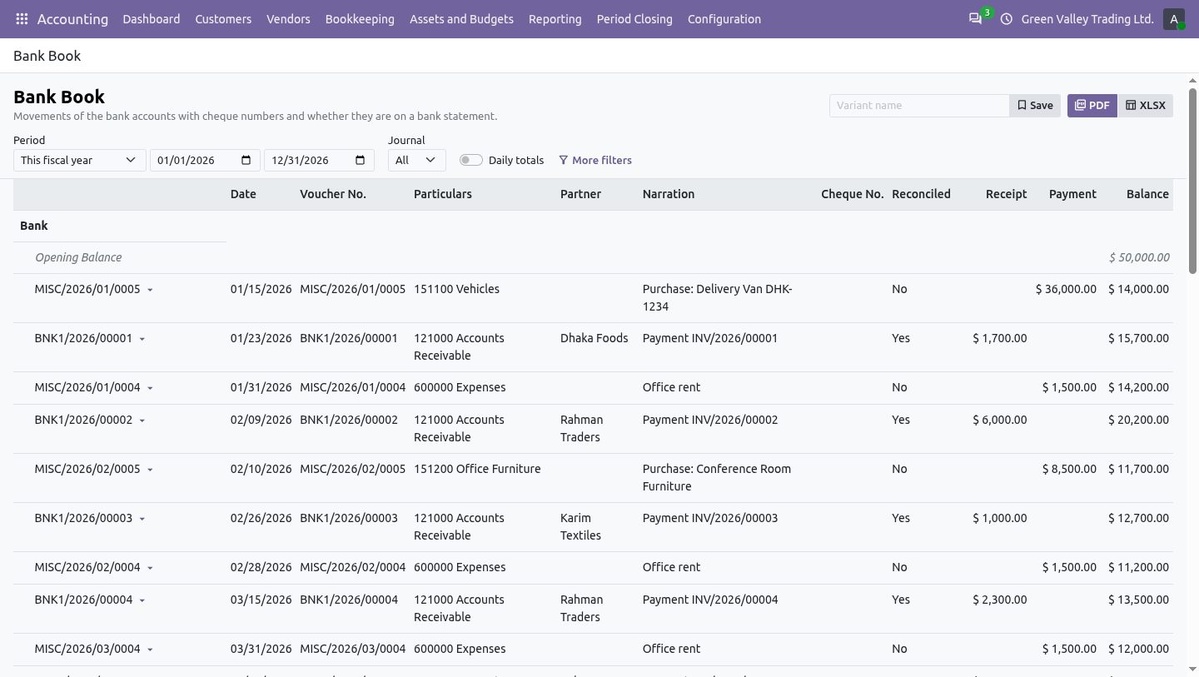
Bank Book: cheque numbers, reconciled flag, receipts, payments and balance
7 |
Follow post-dated cheques until they clearBookkeeping → PDC keeps Cheques Received from customers and Cheques Issued to vendors. |
Record the partner, drawn-on bank, cheque number, cheque date, maturity date, amount and the invoices or bills the cheque settles; the amount in words is filled in.
Register posts the cheque to the PDC holding account. Deposit moves it to the bank's outstanding account, ready for the bank reconciliation.
Mark Cleared by hand or by matching the bank line; Bounce and Return reverse the cheque entries and keep the history.
Cheques maturing within the alert days appear on the dashboard; the Cheque Register report lists every cheque by state.
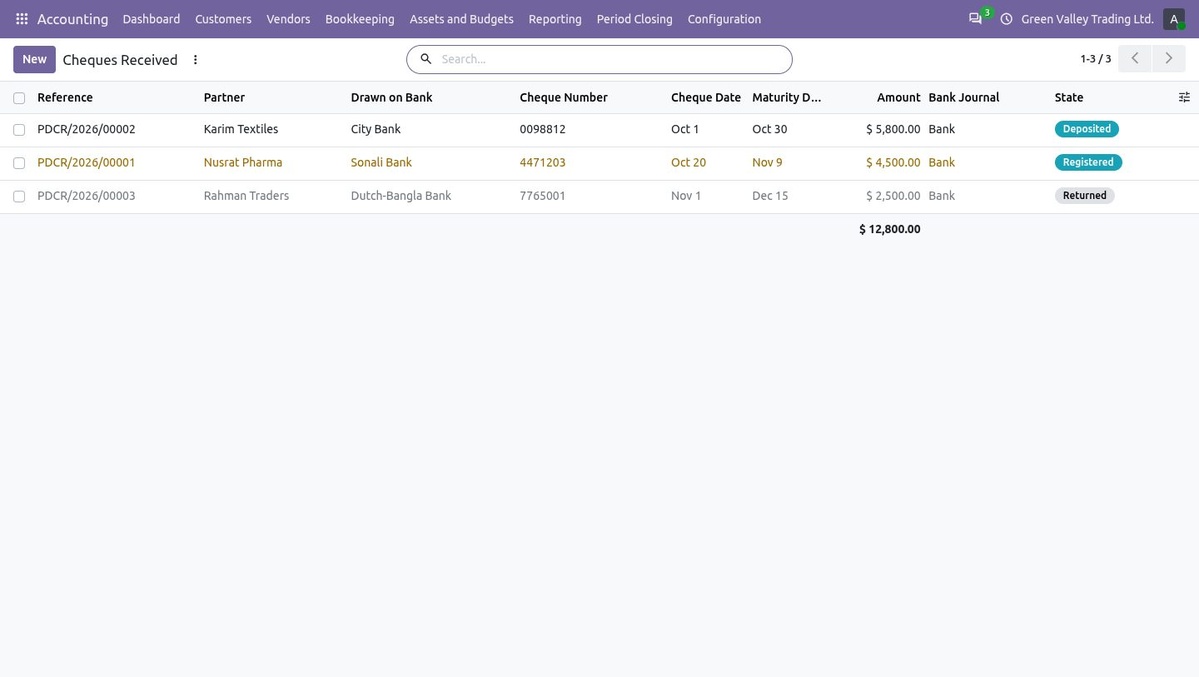
Cheques Received: drawn-on bank, cheque and maturity dates, amount and state
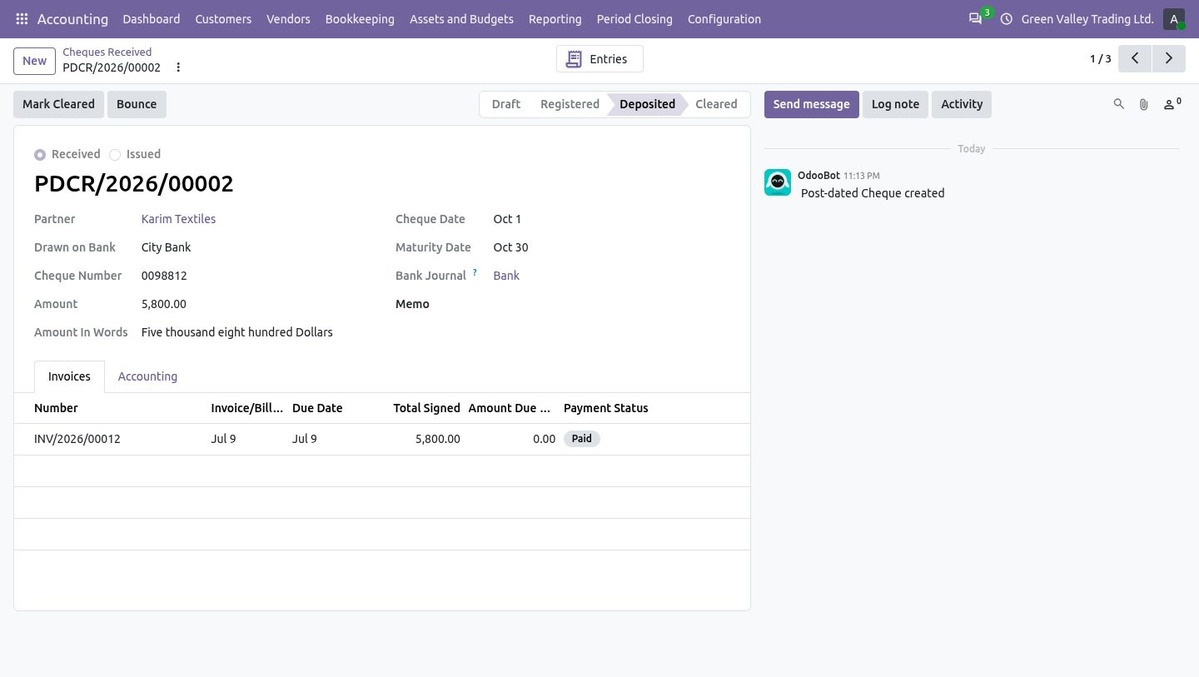
Post-dated cheque: registration, deposit, clearing and the invoice it settles
8 |
Depreciate fixed assetsAssets and Budgets → Assets keeps each asset with its depreciation board and accounting entries. |
An asset category supplies the method, duration, period (months, quarters, half-years or years), prorata and the asset, depreciation and expense accounts.
Compute Board plans the depreciation; confirmed assets are depreciated by a scheduled job, and every line links to its journal entry.
Pause an asset, revalue it, or dispose of it or sell it; a sale uses the sale invoice line and books the gain or loss.
Posting a vendor bill on an asset account proposes the asset in draft. The Asset Register report shows cost, additions, disposals, depreciation and book value.
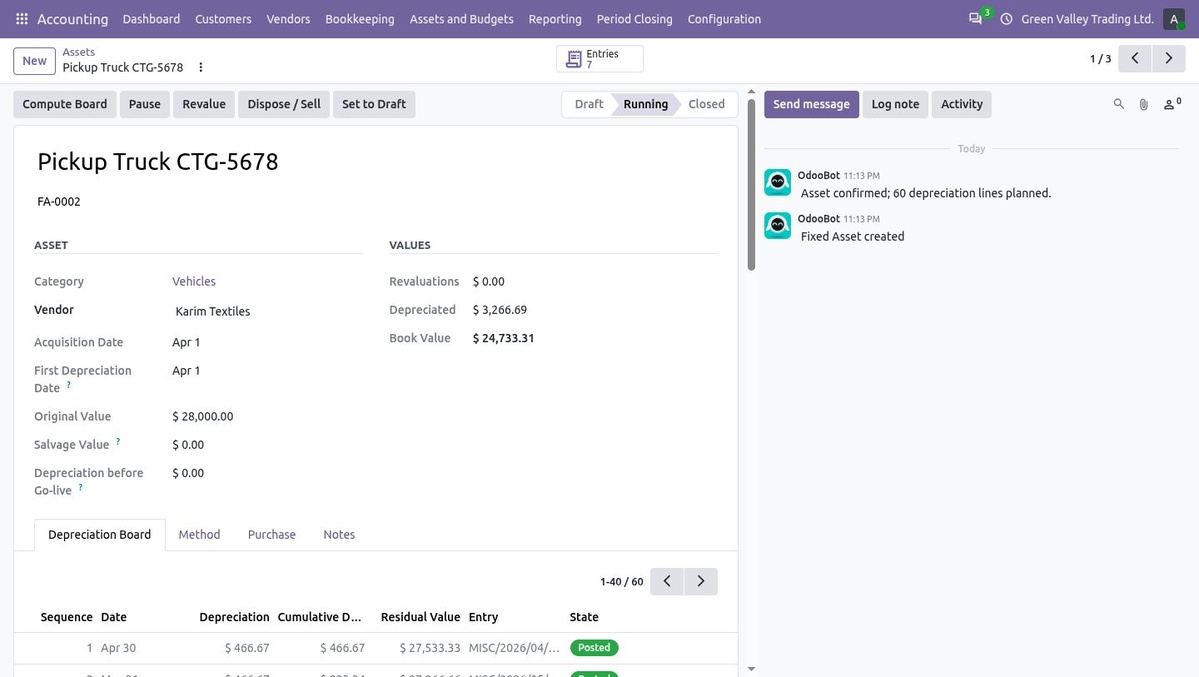
Fixed asset: values, depreciation board and actions to pause, revalue, dispose or sell
9 |
Plan budgets and automate repeating entriesAssets and Budgets → Budgets compares plan with actual; Bookkeeping → Recurring Entries generates repeating documents. |
Budget positions group the accounts of a budget line; a line may also be limited to an analytic account.
Each line shows the planned and actual amounts, the variance and the achievement percentage. Budget vs Actual opens the report for the budget.
A recurring template creates journal entries, vendor bills or customer invoices every N days, weeks, months or years, until a date, after a number of entries, or without end.
Entries can be posted automatically. A template started on the 31st stays on the last day of each month.
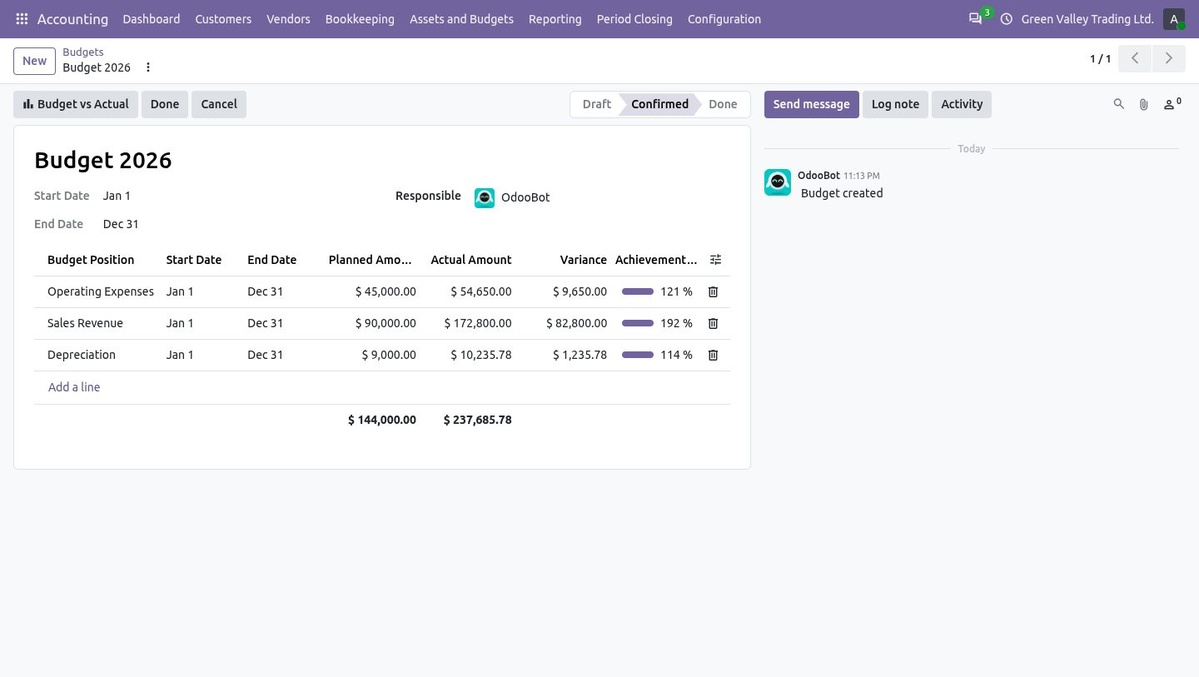
Budget 2026: planned, actual, variance and achievement per budget position
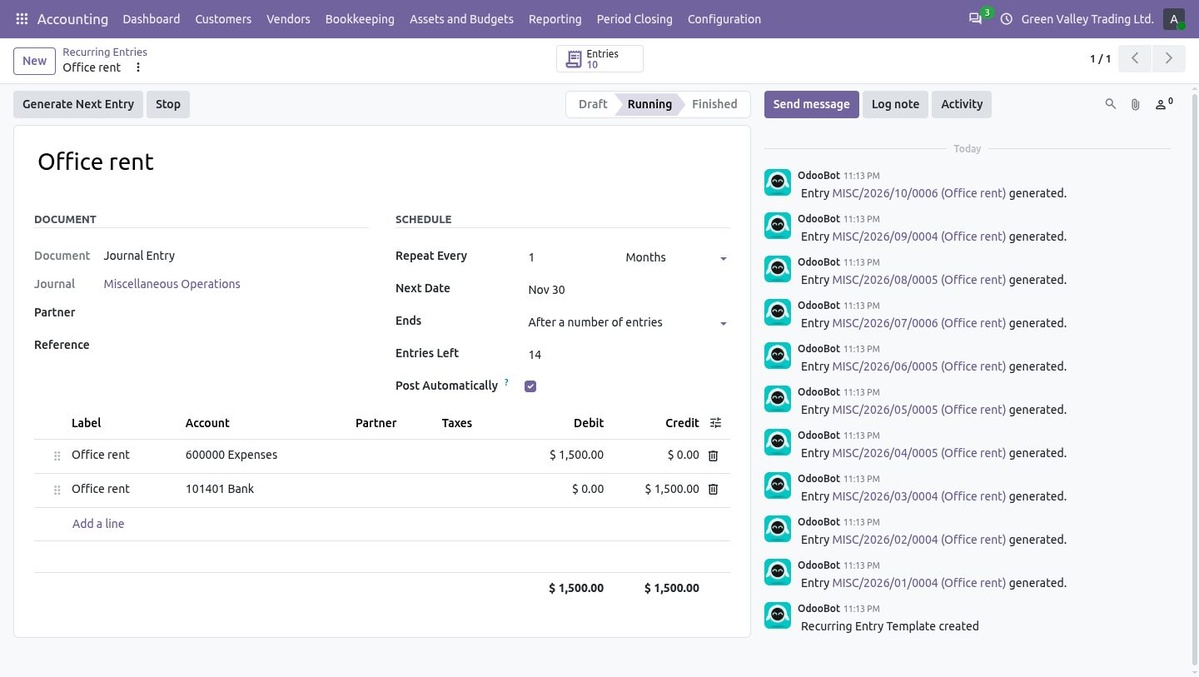
Recurring entry: monthly office rent with the generated entries in the chatter
10 |
Chase overdue customers with follow-upsCustomers → Follow-ups lists the customers who have overdue invoices and the next action for each. |
Follow-up levels set the days overdue and whether to send an email, print a letter or assign a manual action to a user.
A daily job moves customers to their next level; you can also send the follow-ups of several customers at once.
Each customer shows the total due, total overdue, days overdue, follow-up level, next date and responsible person; the history keeps what was sent.
The partner statement PDF lists every invoice and payment with a running balance.
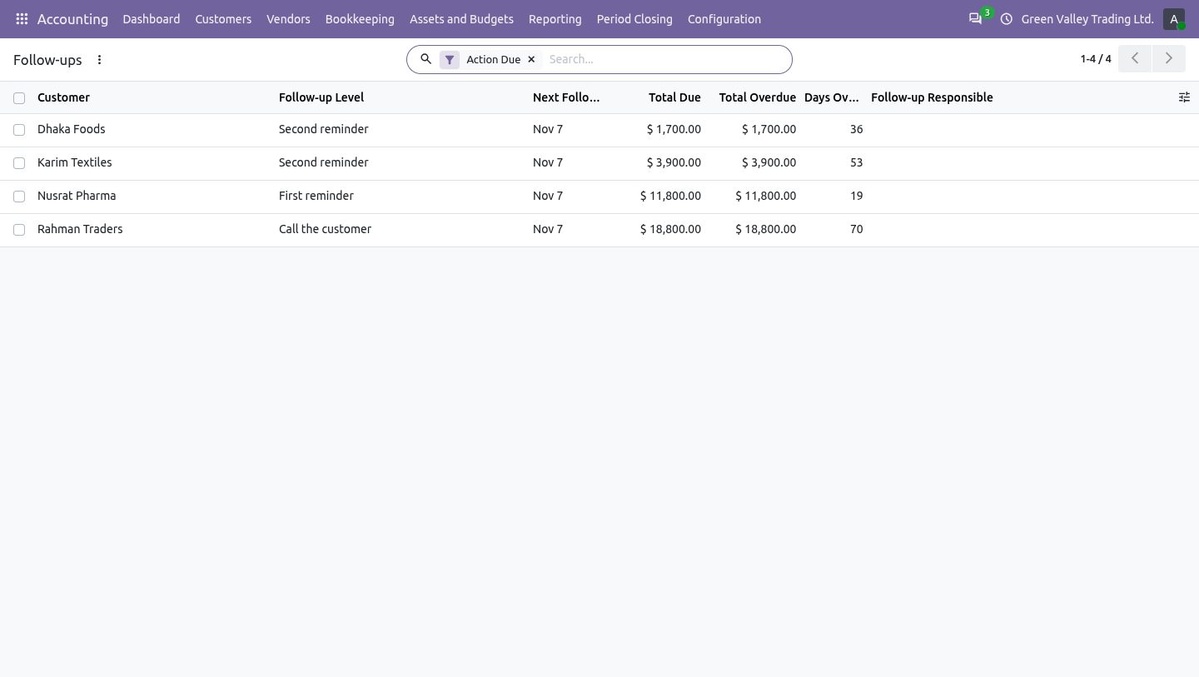
Follow-ups: level, next date, total due, overdue amount and days overdue per customer
11 |
Close the month and the yearPeriod Closing → Closing Checklist checks a period before it is locked. |
Run Checks counts draft entries, unreconciled bank and cash lines, depreciation not posted, recurring entries not generated, a non-zero suspense balance and matured cheques not deposited.
When every check is OK, Soft-Lock the Period. The Adviser sets the hard lock date later from Lock Dates.
Year-End Closing moves the result of the year to the Retained Earnings account. Closing entries are left out of reports by default, so the closed year's profit and loss still shows its result.
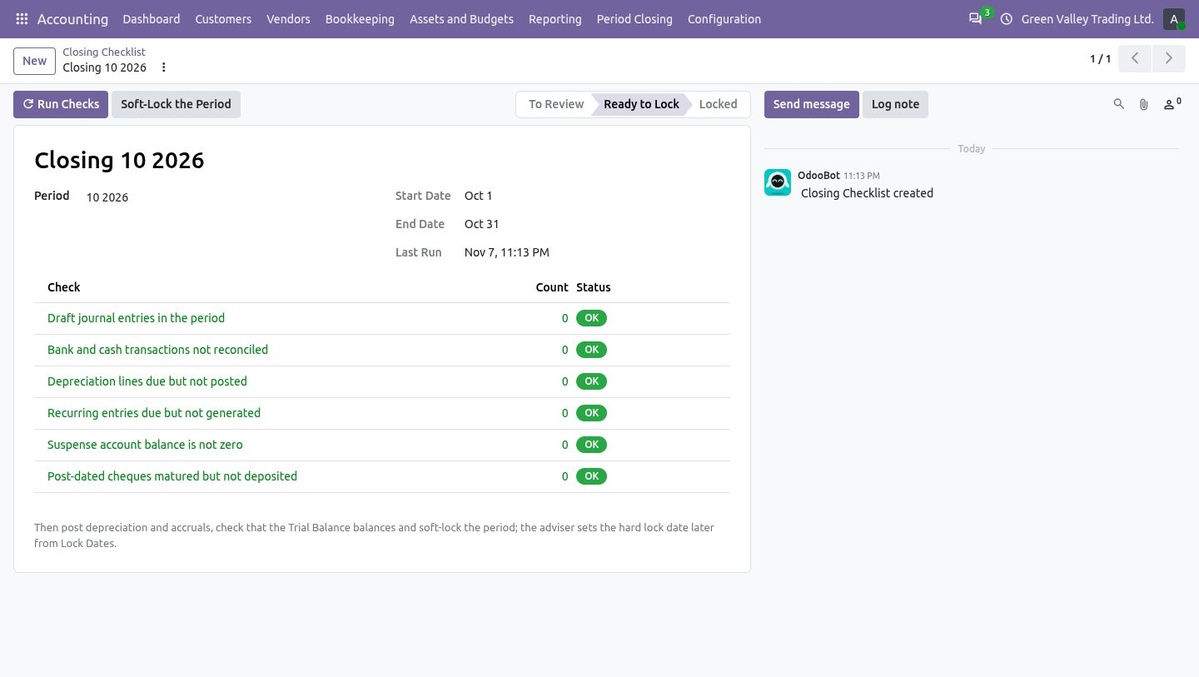
Closing checklist: six checks per period, then soft-lock the period
12 |
Filter, save and export any reportEvery report opens in the same viewer with the filters that report supports. |
Choose a period preset or dates, an as-of date, or comparison columns with previous periods or previous years.
More filters adds journals, accounts, partners, analytic accounts, draft entries and companies. Hide zero lines, unfold all, and open the journal items behind a figure.
Save the filters as a variant for yourself or share it with every user of the report.
Print to PDF or download Excel with the red PDF and green Excel buttons; the general ledger, partner ledger, day book and trial balance also export to CSV (blue). Exports above 20,000 rows run in the background under Report Exports.
Report Designer lets an Adviser change the lines of a report: accounts by domain, tags or parent accounts, sums of other lines and arithmetic formulas, plus PDF paper and orientation.
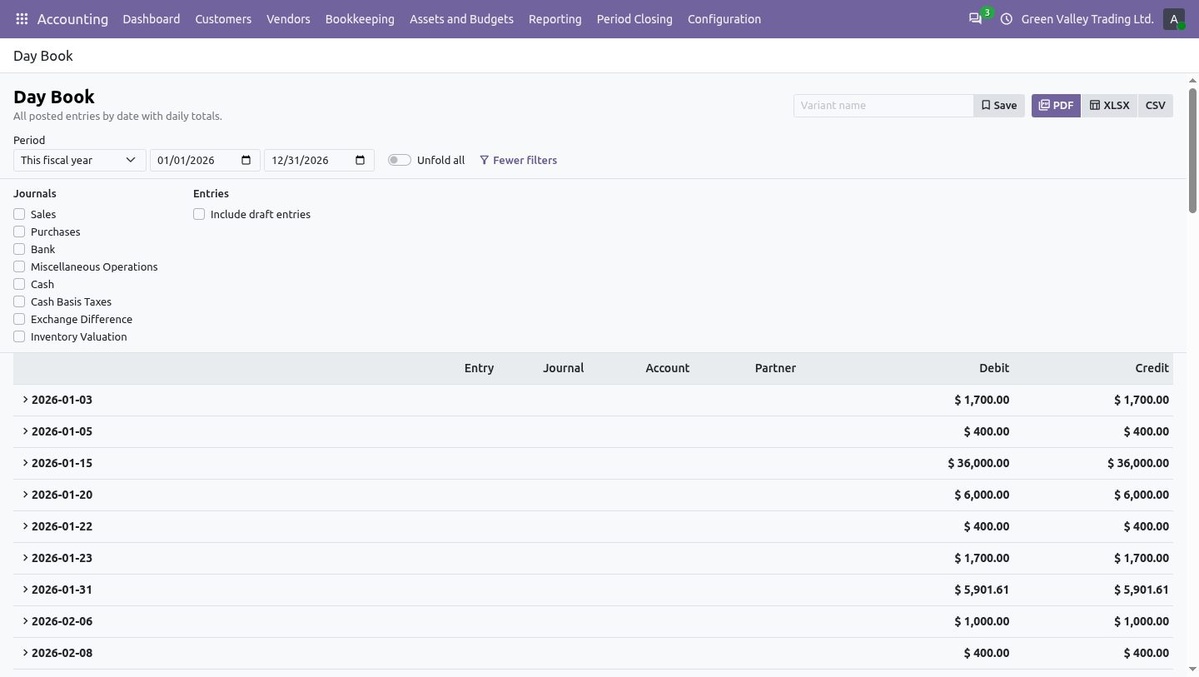
Day Book with more filters: journals and draft entries, grouped by date
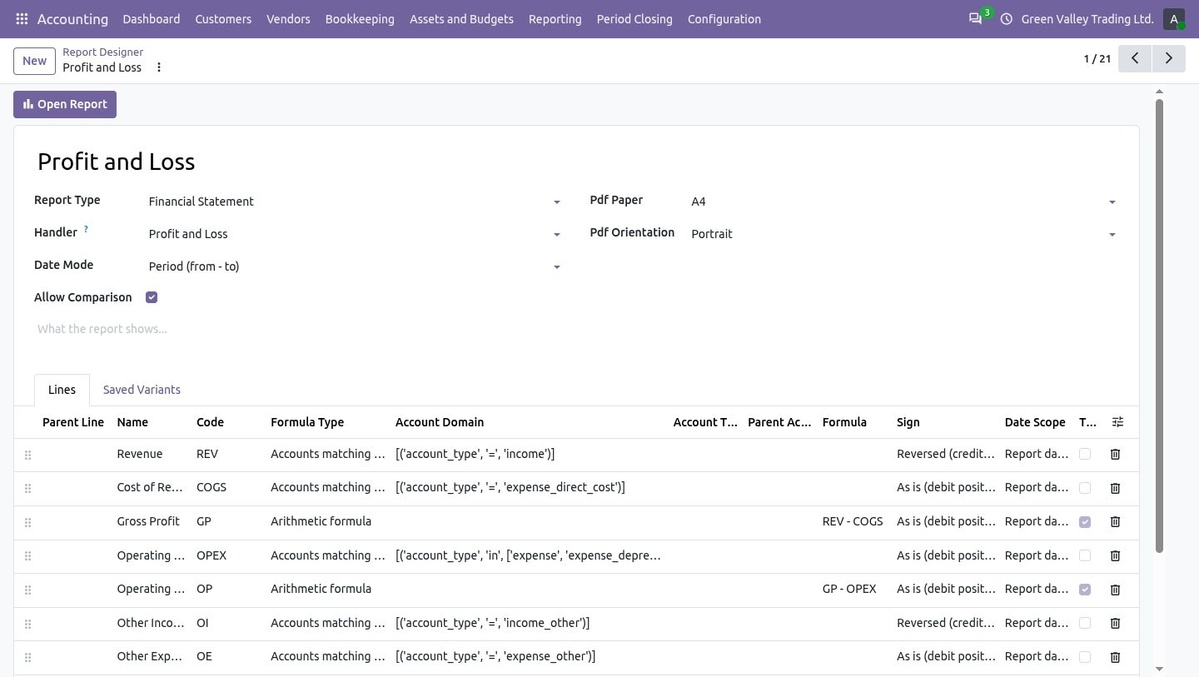
Report Designer: the lines and formulas of the Profit and Loss
13 |
Watch the whole business on one dashboardAccounting → Dashboard opens on the tab you used last, with one filter bar for every tab and every report. |
Tabs: Overview, Sales, Purchases, Bank and Cash, Profit and Loss, Assets and Budgets, Cheques and Follow-ups, Closing and Control, Alerts and Reports.
All filters stay on screen: period (this month, quarter or fiscal year, last month or year, rolling 30, 90 or 365 days, or your own dates), companies, journals, accounts, analytic accounts, partner tags, one partner (with that partner's receivable, payable and open documents) and a switch to include draft entries. The Report Centre uses the same filters.
KPI tiles show the change against the previous period; tiles, chart bars, alert rows and table rows open the journal items or records behind them.
Alerts list what needs action: overdue invoices and bills, cheques maturing, transactions to reconcile, vouchers to post, follow-ups due, depreciation and recurring entries not done, periods to close. Quick actions start vouchers, invoices, bills, imports and cheques.
Auto refresh every minute, 5 or 15 minutes keeps a wall screen current.
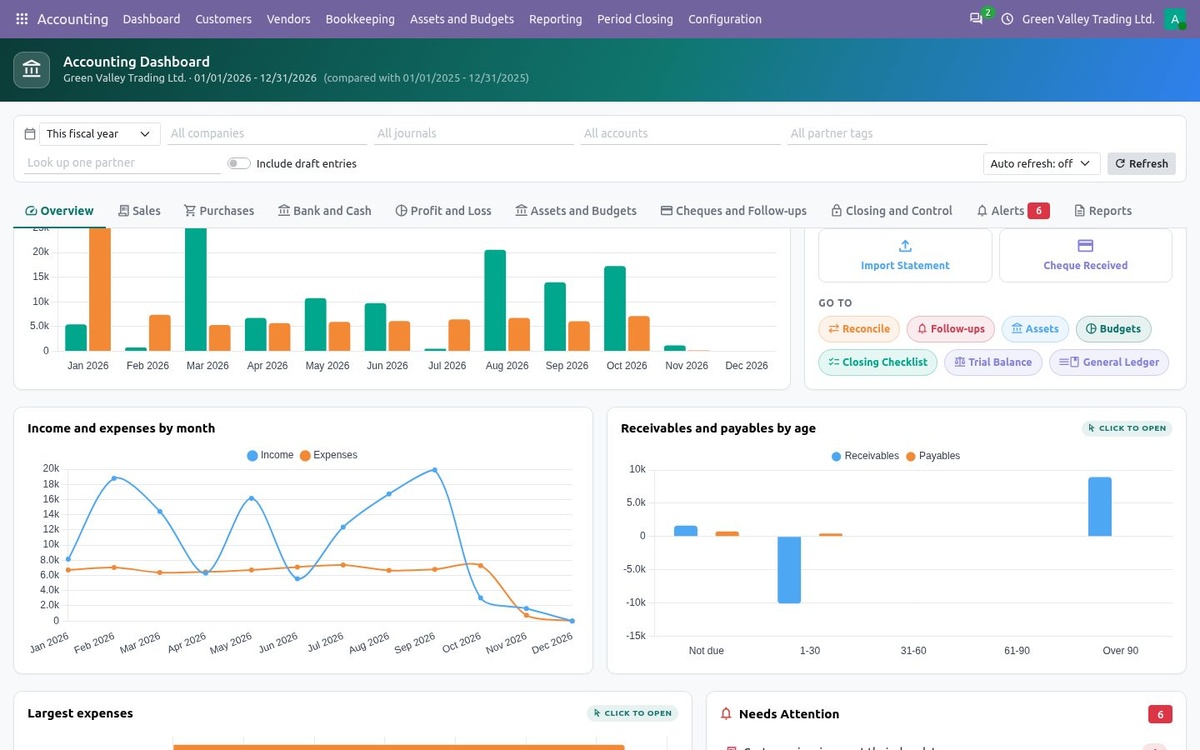
Overview charts: money in and out, income and expenses, receivables and payables by age, largest expenses and alerts
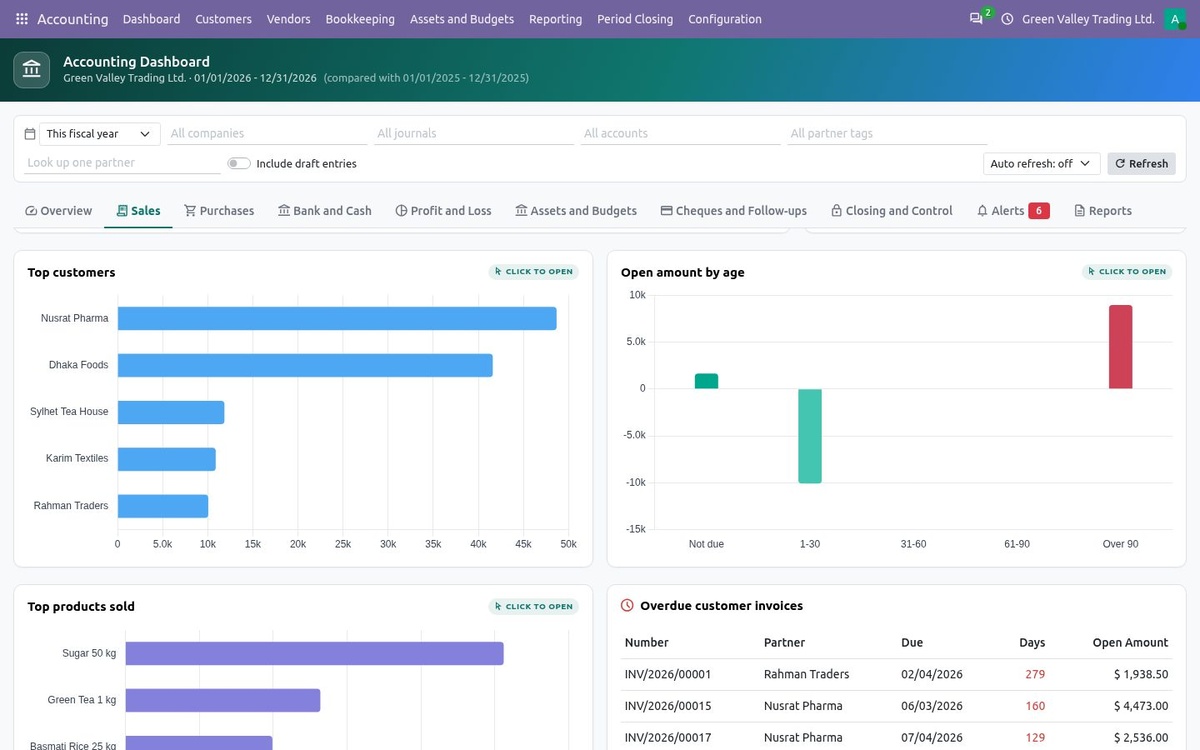
Sales tab: top customers, open amount by age, top products and overdue customer invoices
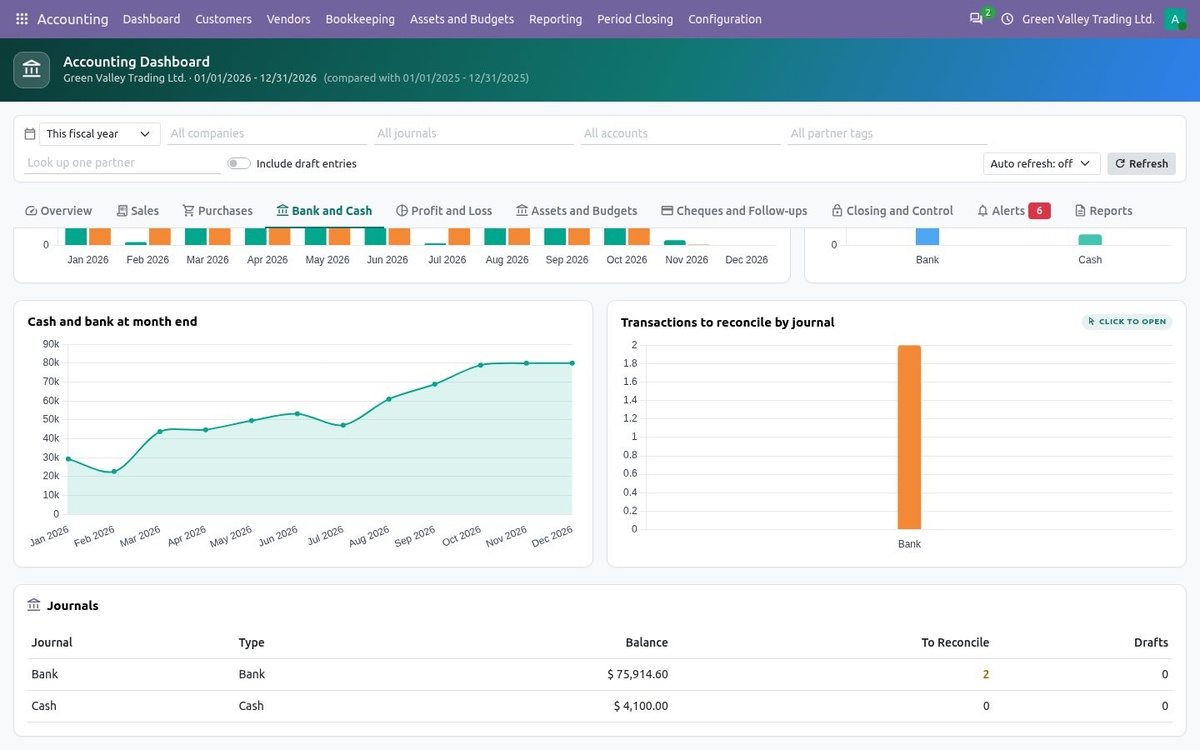
Bank and Cash tab: cash and bank at month end, transactions to reconcile and the journal list
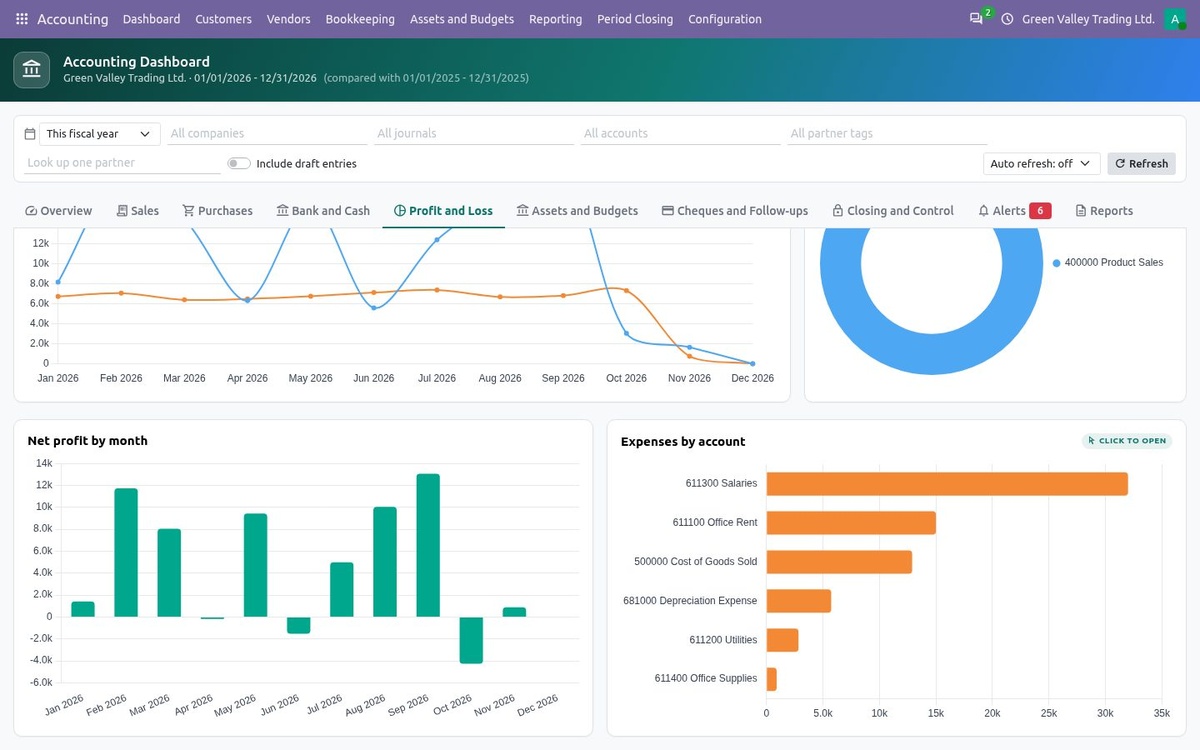
Profit and Loss tab: income and expenses, revenue by account, net profit by month and expenses by account
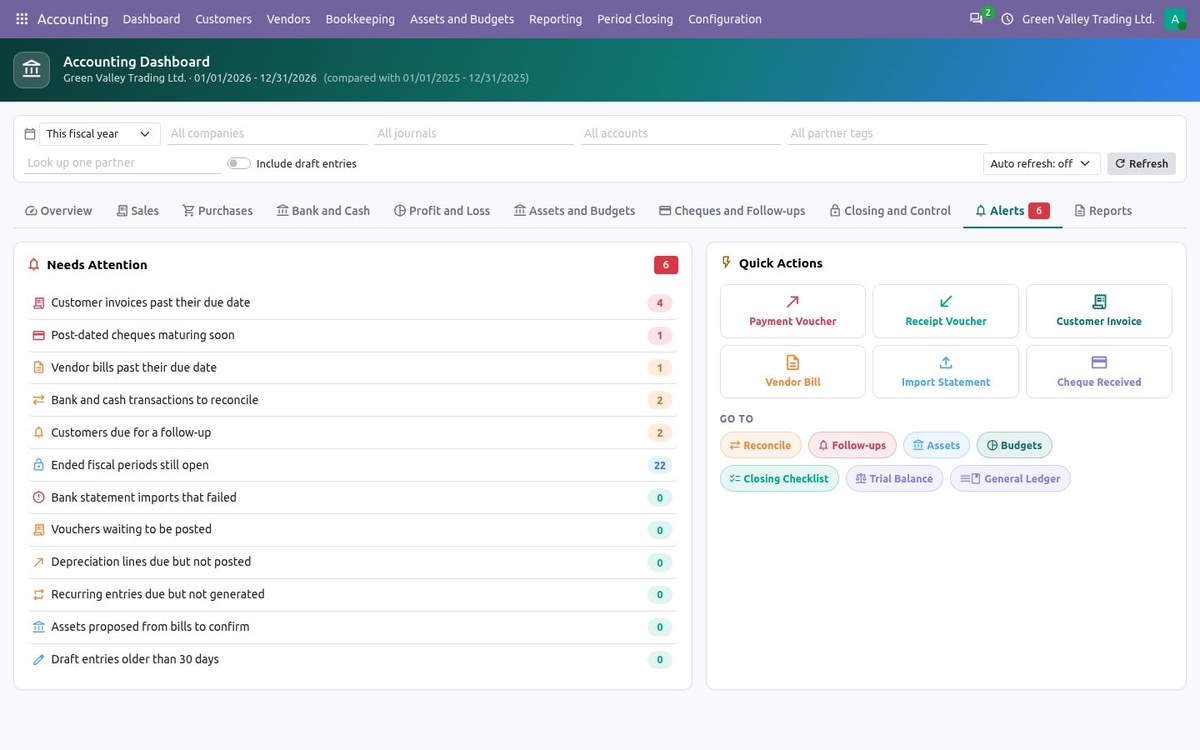
Alerts tab: everything that needs attention, with quick actions
14 |
Reconcile journal items outside the bankBookkeeping > Reconcile Journal Items lists the open items of every reconcilable account, grouped by account and partner. |
Select an invoice with its credit note, advance or payment and press Reconcile: keep a difference open or write it off to an account of your choice.
Automatic Reconciliation matches pairs with exactly opposite amounts, or clears every account and partner whose open items sum to zero.
Split moves part of a journal item to other accounts: a draft entry is edited, a posted one gets a reclassification entry.
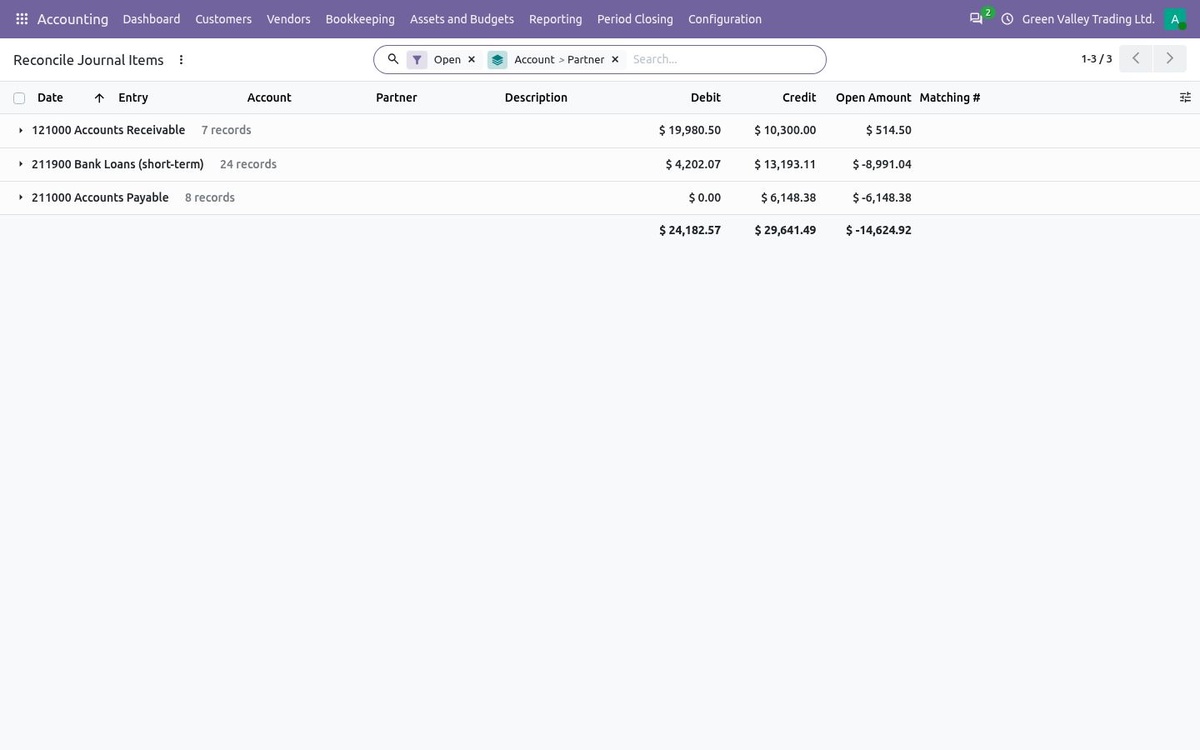
Reconcile Journal Items: open items grouped by account and partner
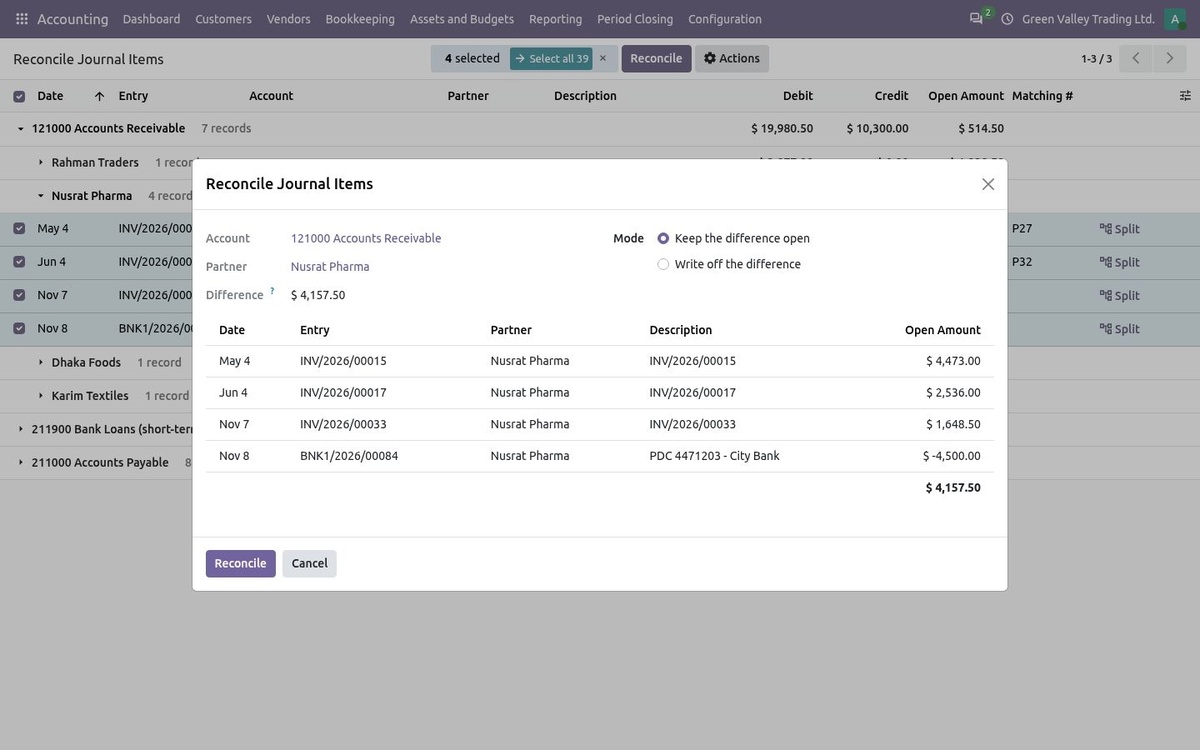
Three invoices and a payment of one customer reconciled together
15 |
Close the tax period and file the returnPeriod Closing > Tax Returns creates one return per month, quarter or year with its due date. |
Run the checks: draft entries with taxes, unreconciled bank lines and missing closing accounts are listed with a link to fix them.
Close the Period posts the tax closing entry (tax accounts to tax payable or receivable) and moves the tax lock date to the end of the period.
Mark it submitted with the reference of the tax authority, then register the payment or refund from the return. Late returns appear in the dashboard alerts.
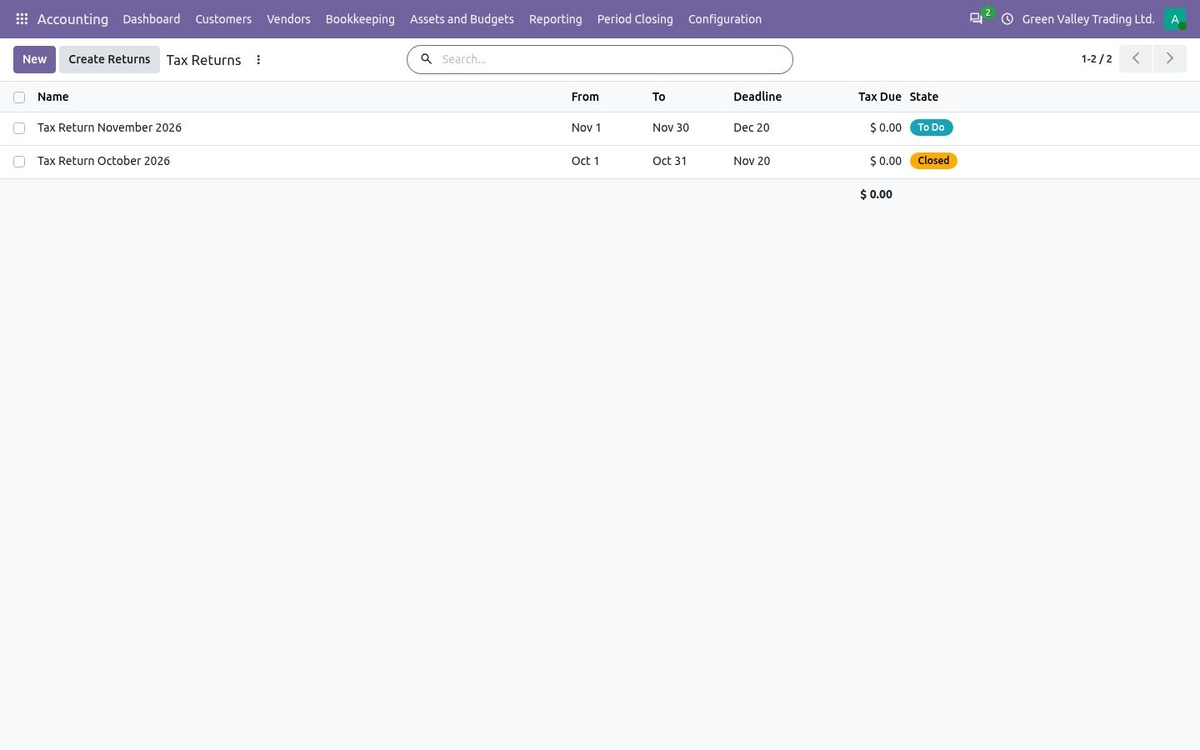
Tax returns with their deadlines and status
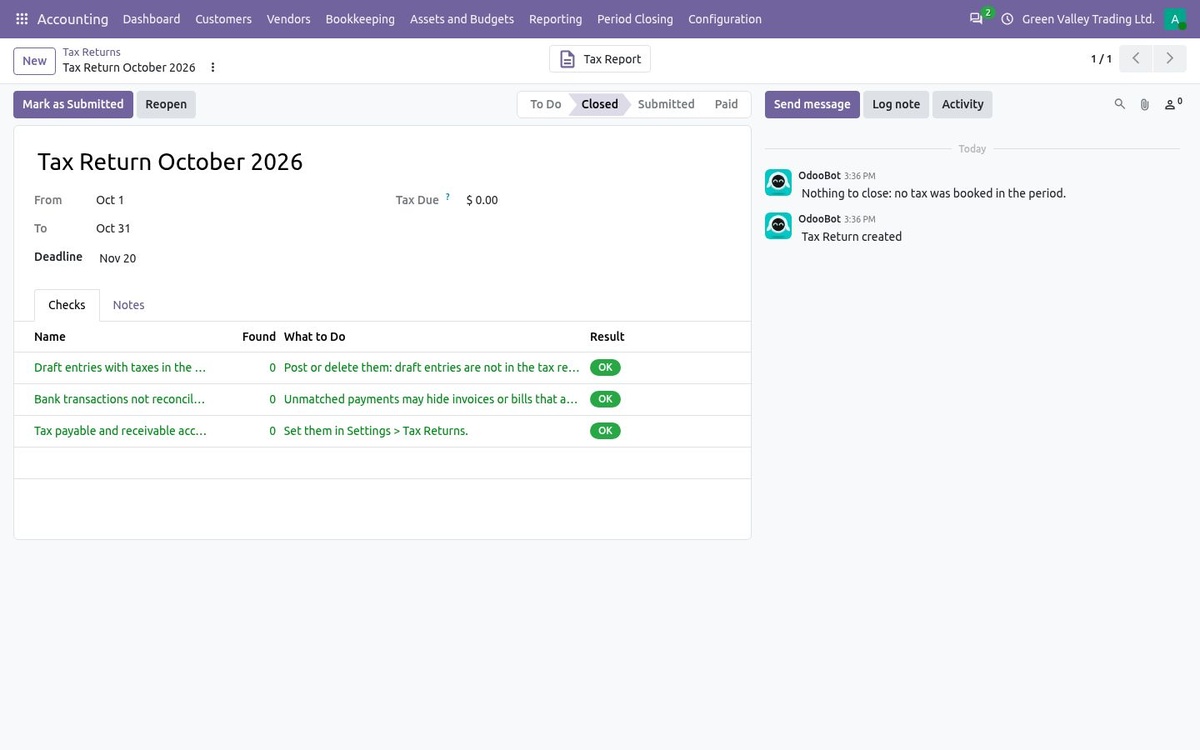
A closed return with its checks
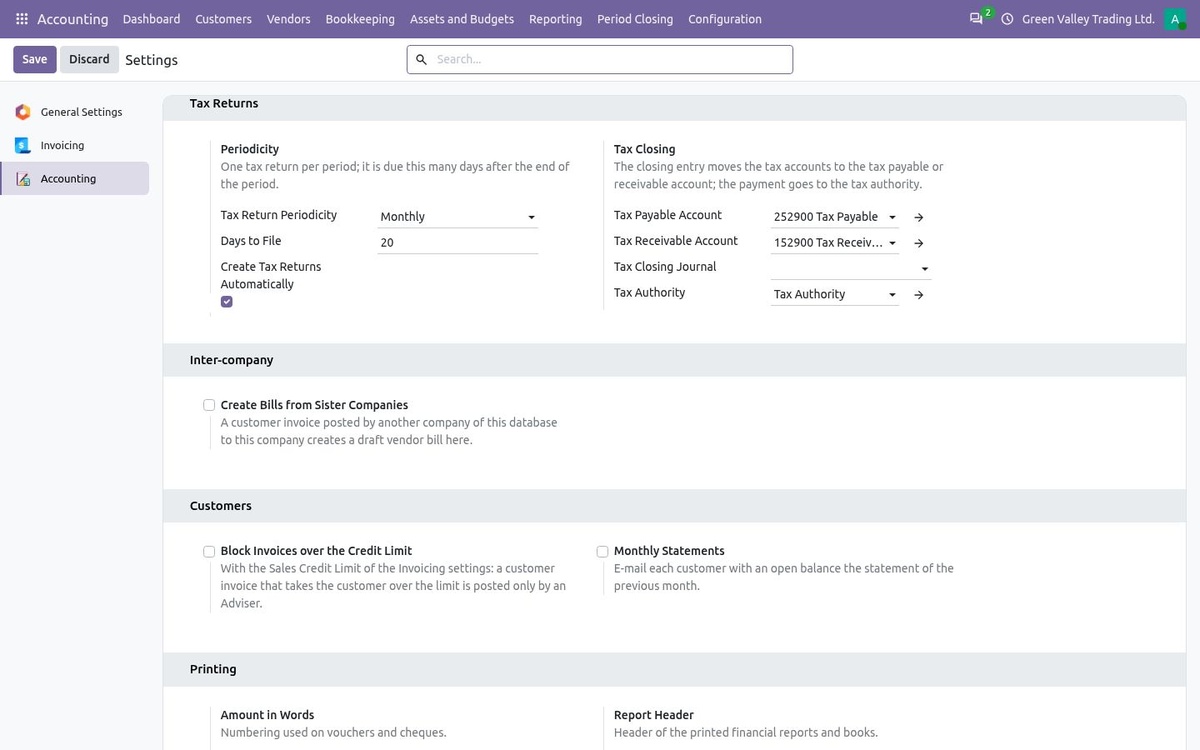
Settings: periodicity, days to file, closing accounts, tax authority and inter-company bills
16 |
Deposit cheques and payments in one batchBookkeeping > Bank and Cash > Batch Deposits groups everything taken to the bank on one slip. |
Add customer payments and registered post-dated cheques of one bank journal; Deposit presents the cheques on the batch date.
Print the deposit slip for the bank counter.
When the bank line arrives, the reconciliation workspace offers the whole batch as one match.
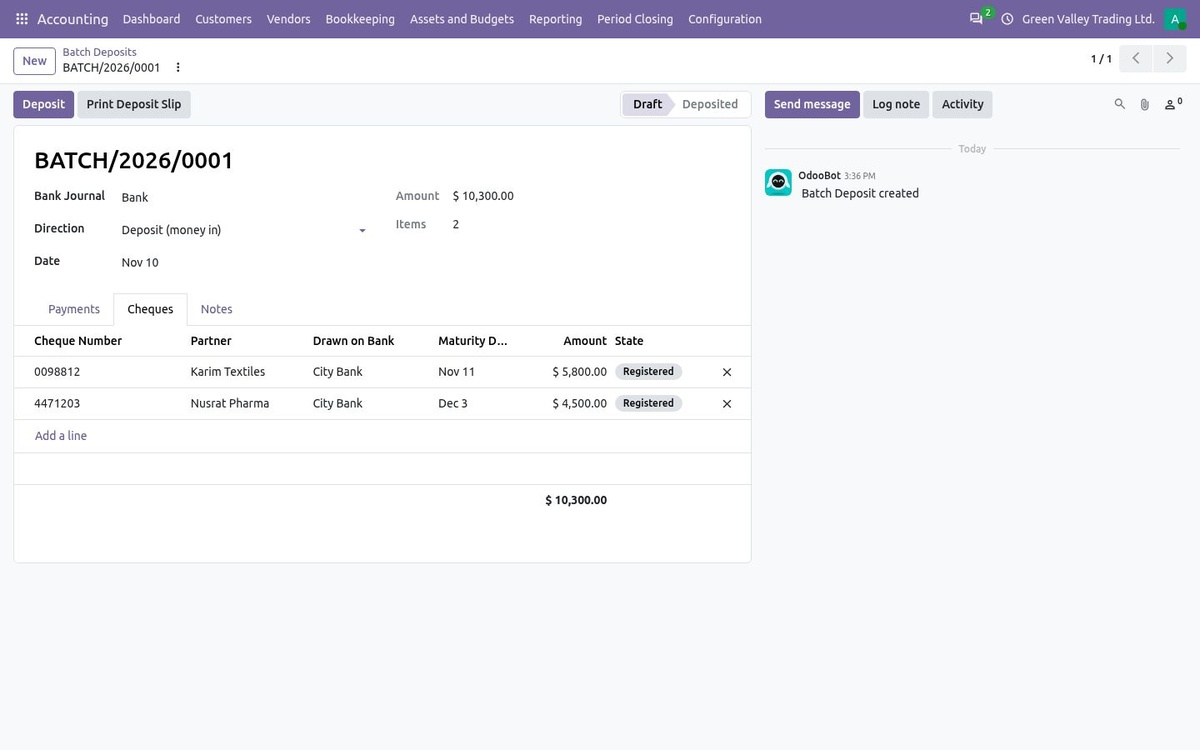
A batch deposit of two received cheques
17 |
Record loans and their repaymentsBookkeeping > Loans keeps the repayment schedule and posts it. |
Enter the amount, yearly interest rate, duration and frequency: equal installments or equal principal, every line split into principal and interest.
Confirm to post the money received; each installment is posted on its date to the lender as a payable, and the principal due within twelve months moves to the short-term loan account.
Repay Early books the remaining principal and an optional fee; the Loan Schedule report lists the installments of any period.
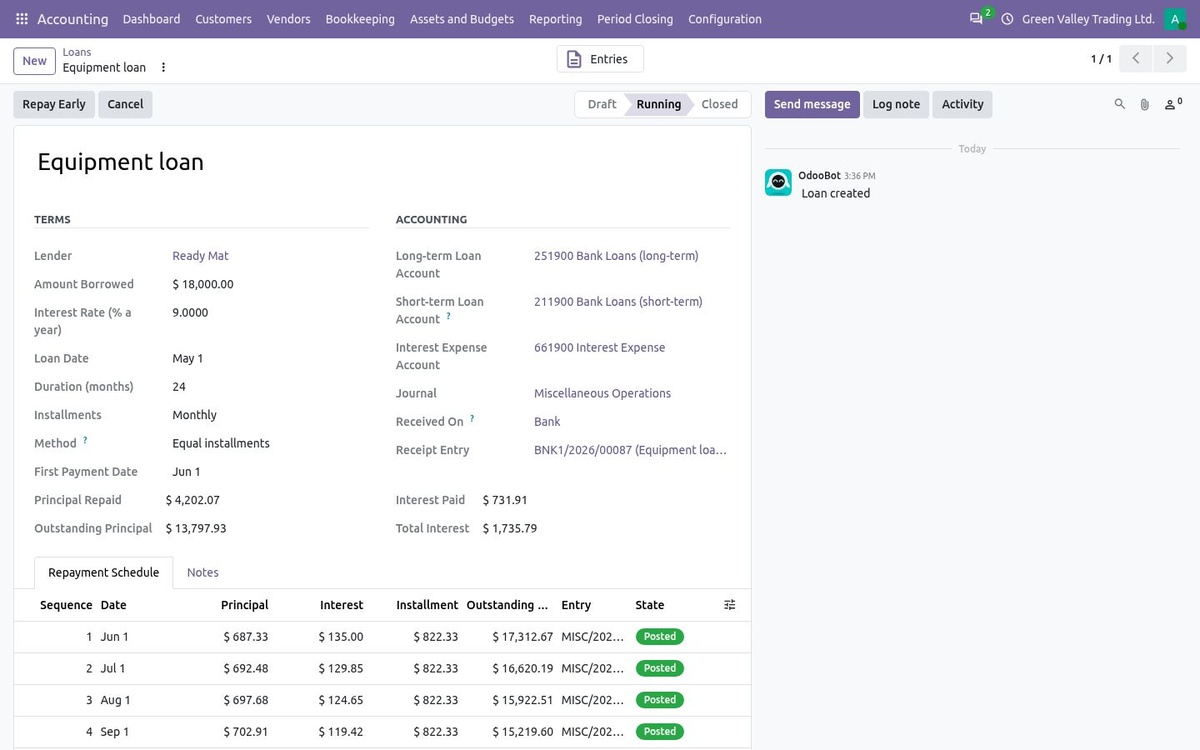
An equipment loan with its repayment schedule
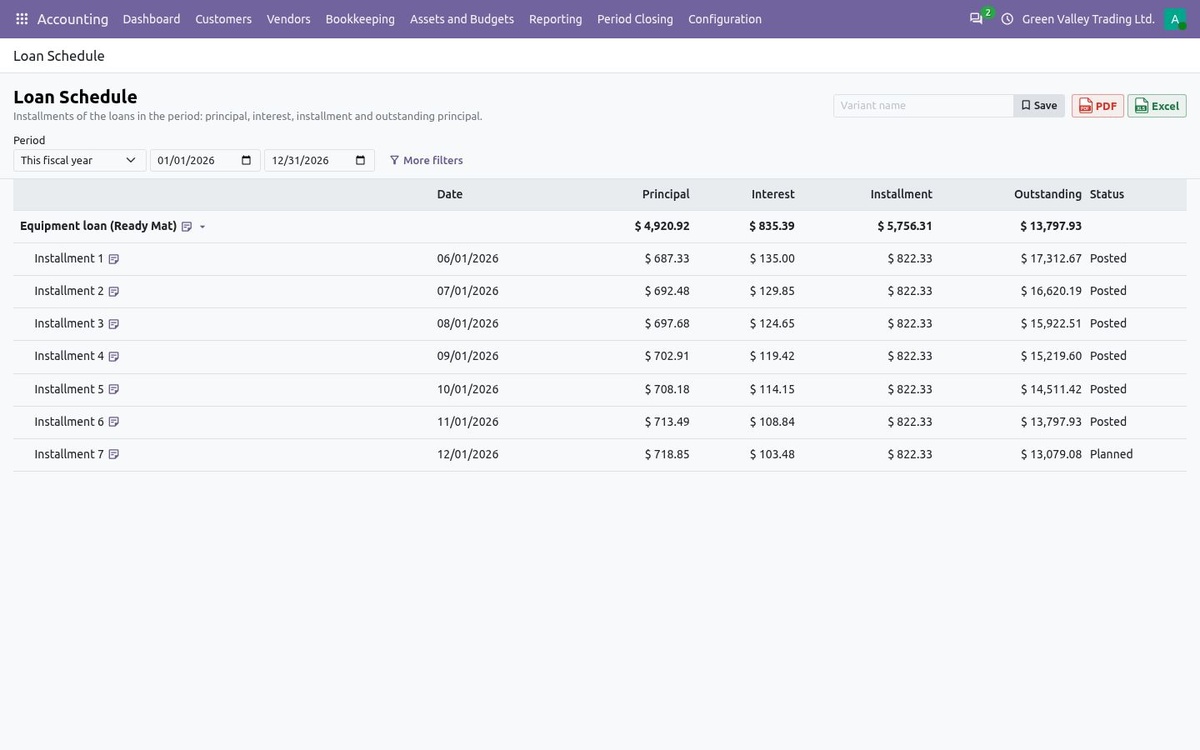
Loan Schedule report
18 |
Split costs every period with allocation modelsBookkeeping > Allocation Models moves account balances to other accounts by percentage. |
Choose the source accounts, the target accounts with their percentage (and analytic distribution) and the frequency.
At the end of every month, quarter or year the movement of the period is allocated in one entry; below 100 % the rest stays on the source.
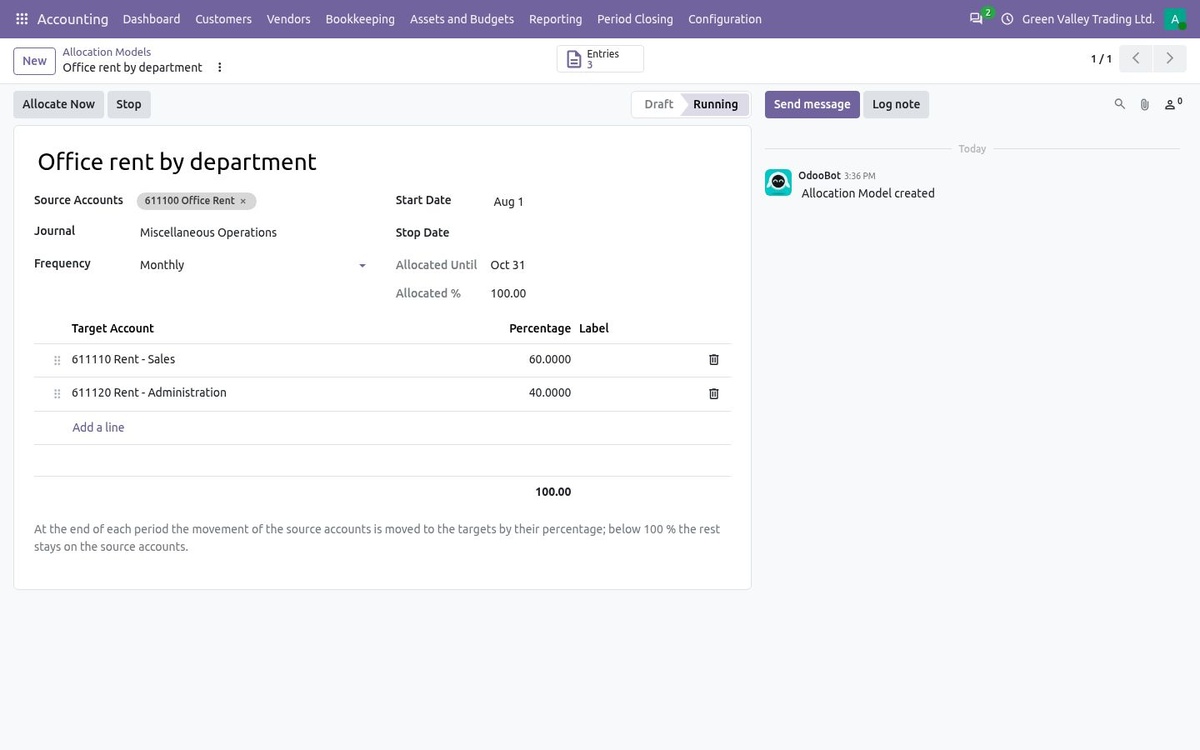
Office rent split between two departments every month
19 |
Depreciation books, asset groups and ledgersAssets can be grouped, depreciated day by day and depreciated a second way in another ledger. |
Add Depreciation Book gives an asset a tax book (or any other) with its own method and a journal of a ledger such as Tax.
Journals without a ledger form the statutory books shown by default; choose a ledger in the report filters to see its adjustments too.
Daily Computation depreciates every period in proportion to its days; asset groups organise the asset list and register.
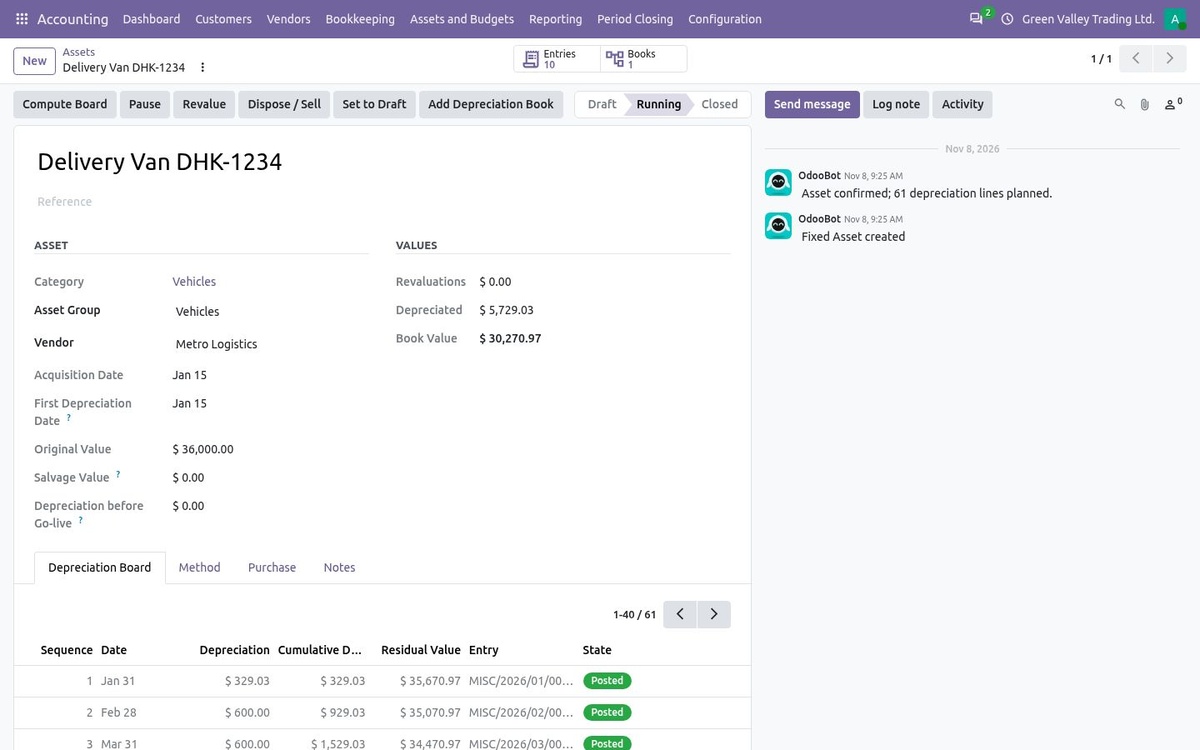
A delivery van in the Vehicles group with a tax depreciation book
20 |
Read the reports your wayThe Profit and Loss and Balance Sheet gain new ways to look at the figures. |
Cash basis counts invoices and bills when they are paid (also on the tax report); Columns by splits the statement per journal, account group or company.
Budget column puts a confirmed budget next to the actual figures with the achievement; the Analytic Profit and Loss shows one column per analytic account of a plan.
Write a note on any report line: it is numbered in the viewer and printed as a footnote in the PDF and Excel files.
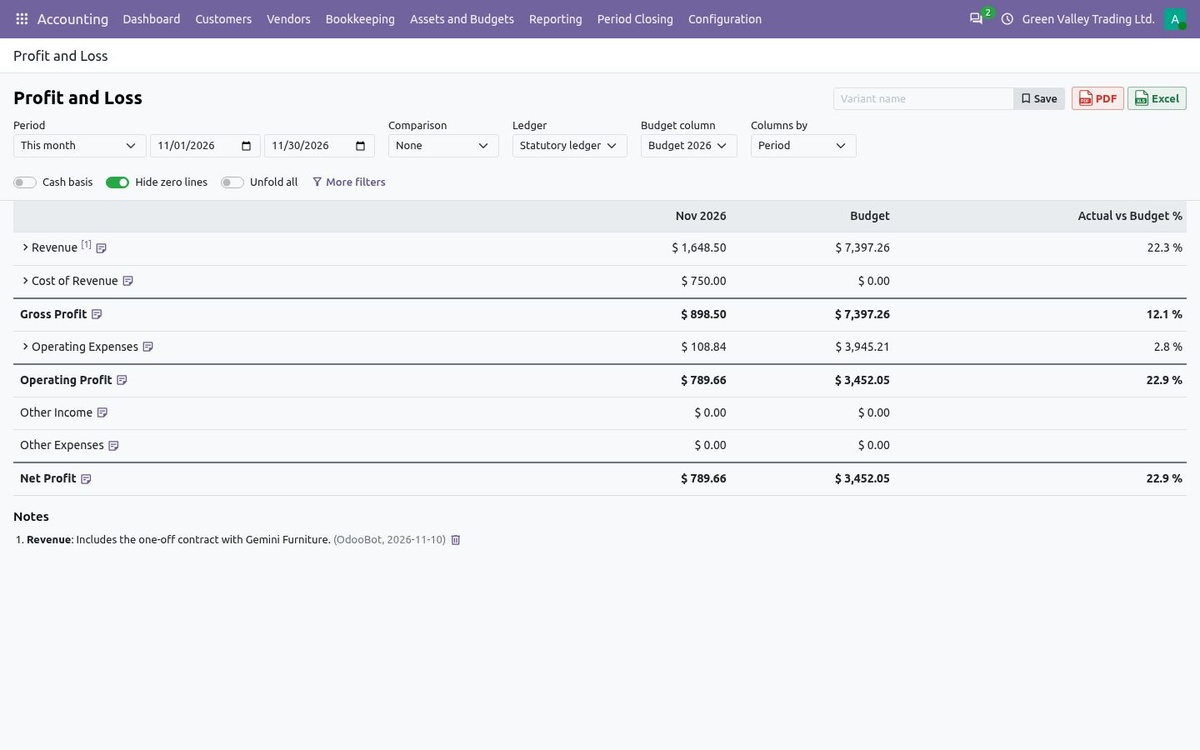
Profit and Loss with the budget column and a note on Revenue
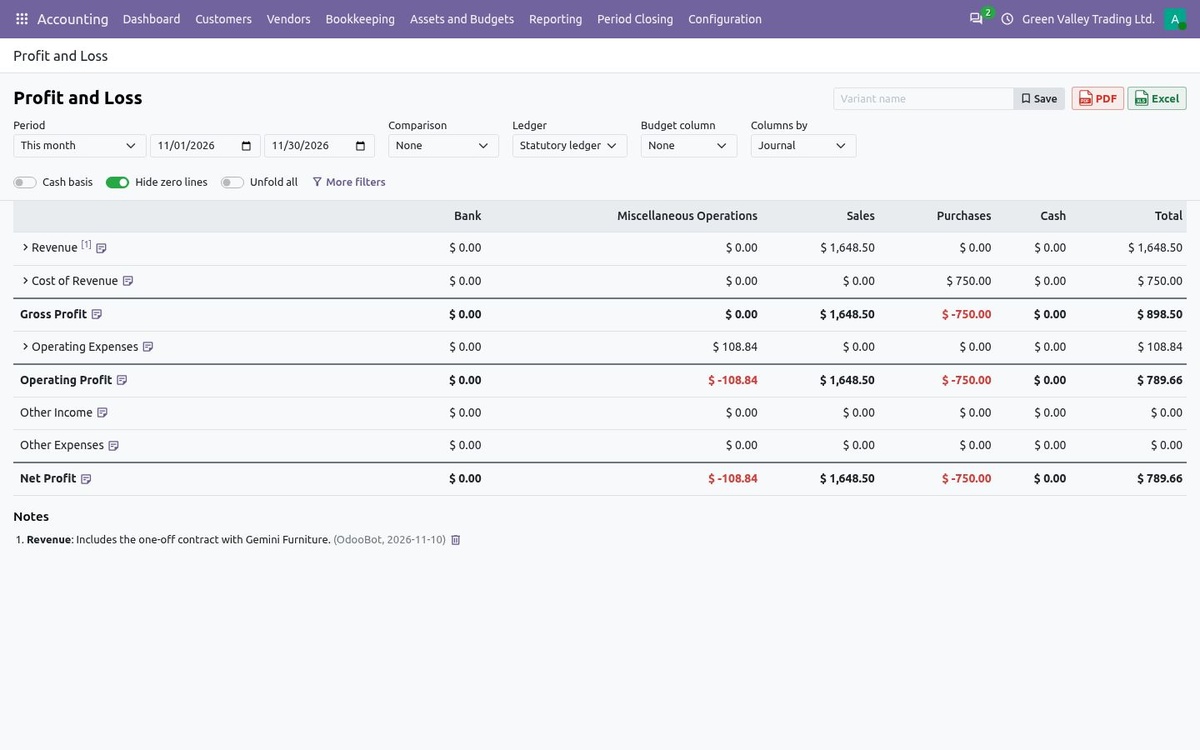
Profit and Loss in columns by journal
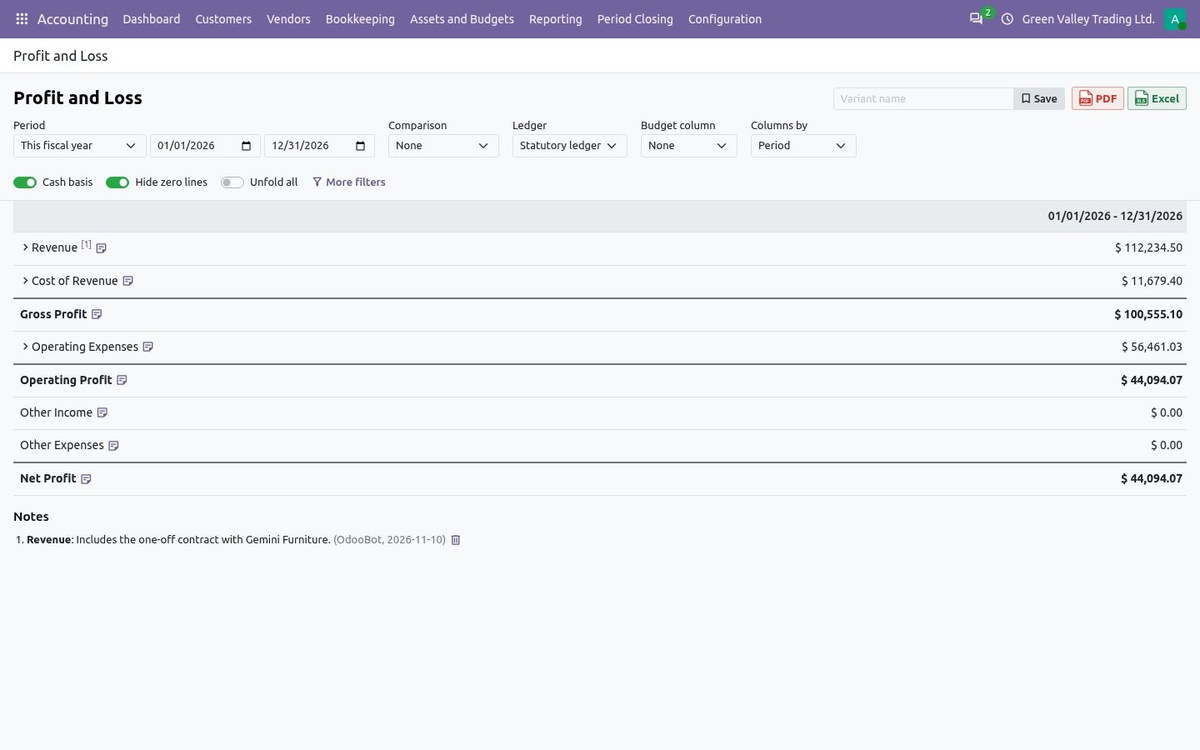
Profit and Loss on cash basis for the fiscal year
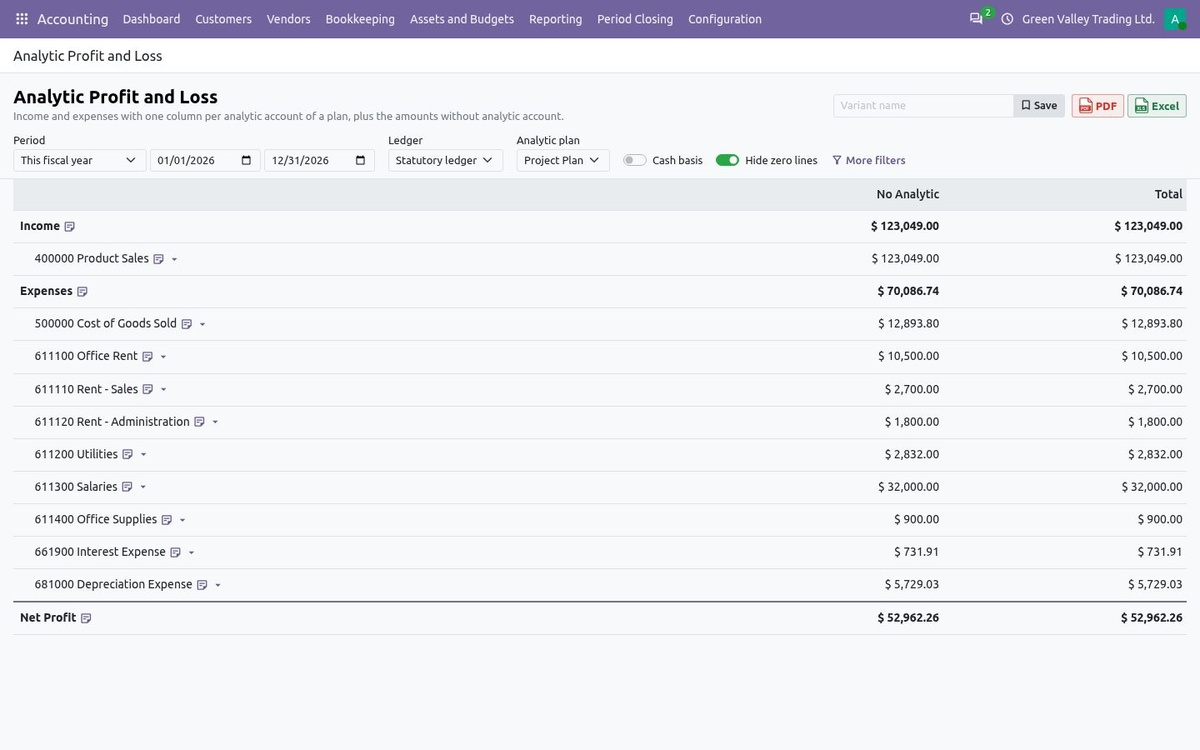
Analytic Profit and Loss
21 |
Review every account at year-endPeriod Closing > Account Review lists every account with a balance or a movement in the year. |
Mark each account reviewed or flag an anomaly with a note; the progress bar shows what is left.
Open the journal items of an account from its line; the review is marked done when nothing is left to review.
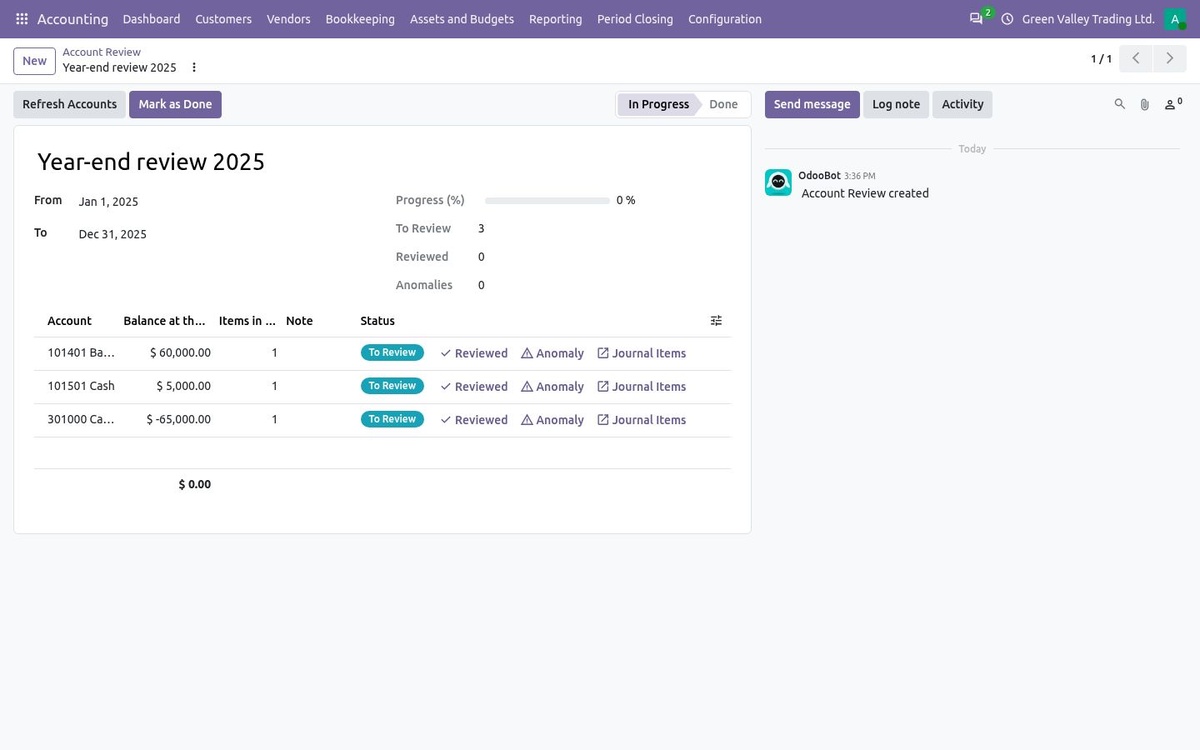
Year-end account review
22 |
Remind earlier, import fasterFollow-ups, imports and sister companies take less manual work. |
Follow-up levels can now run days before the due date and send an SMS; the send wizard lists customers without email or phone.
Configuration > Import Journal Items or Accounts reads Excel or CSV, proposes the column mapping and reports every skipped row; bank statements also import from QIF files.
With Create Bills from Sister Companies, an invoice to another company of the database creates its draft vendor bill there.
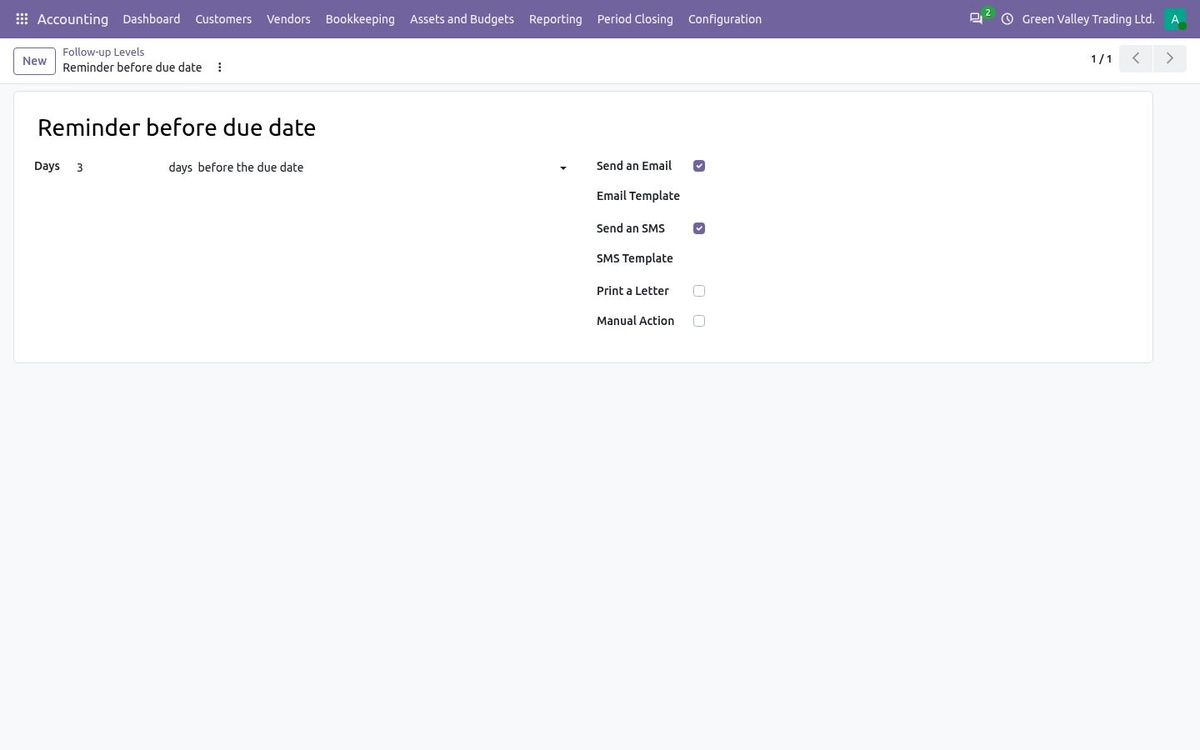
A reminder three days before the due date, by email and SMS
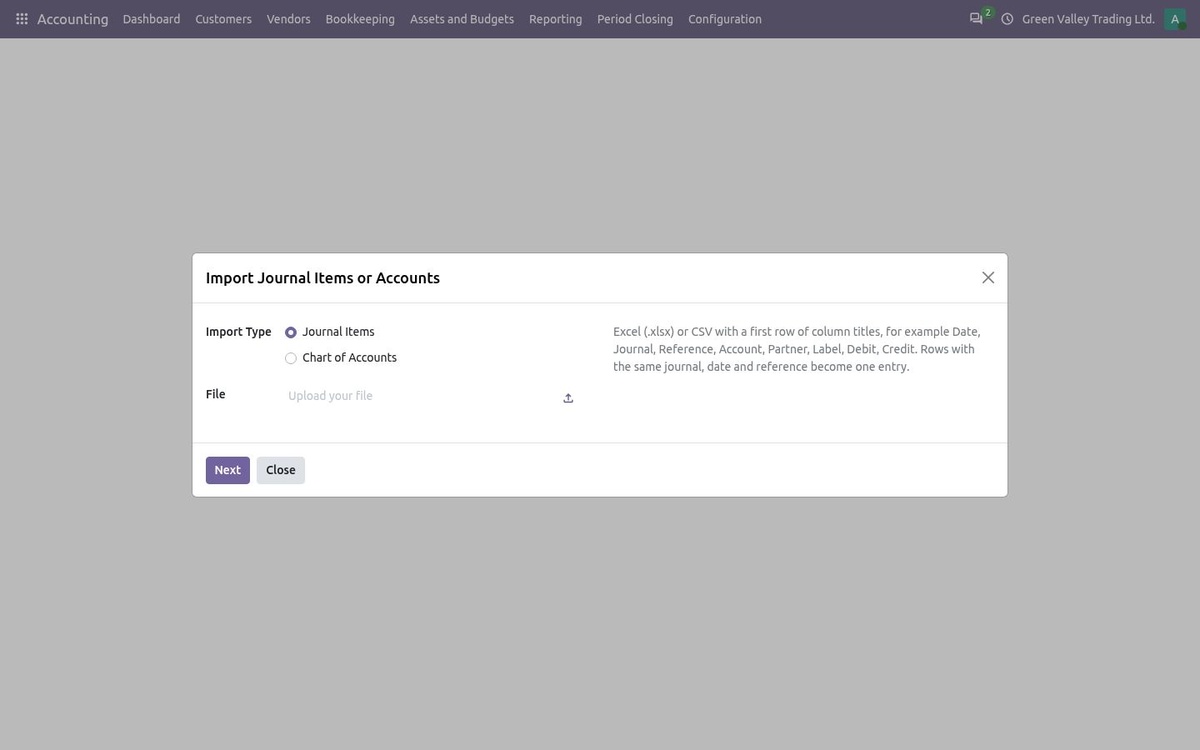
Guided import of journal items or the chart of accounts
23 |
Keep petty cash under controlBookkeeping > Petty Cash > Funds: one fund per cash box, each on its own cash journal. |
Give the fund its float (for example 500), the custodian who keeps the box, a limit per voucher, the bank journal it is topped up from and the cash over and cash short accounts.
New Payment opens a payment voucher on the fund's journal. A voucher over the limit, or larger than the cash left in the box, cannot be posted: pay it from the bank instead.
Top Up drafts a contra voucher from the bank for the float minus the cash balance, so the box is back to its float once it is posted.
Count Cash lists the notes and coins of your currency (Configuration > Bank and Cash > Notes and Coins); type how many of each are in the box. Confirming posts any difference as cash over or cash short.
Reporting > Books > Petty Cash Statement shows each fund's opening cash, top-ups, payments by account, cash over or short, closing cash, float and the amount to top up. The Bank and Cash tab of the dashboard shows each fund against its float, and the alerts list the funds to top up or to count.
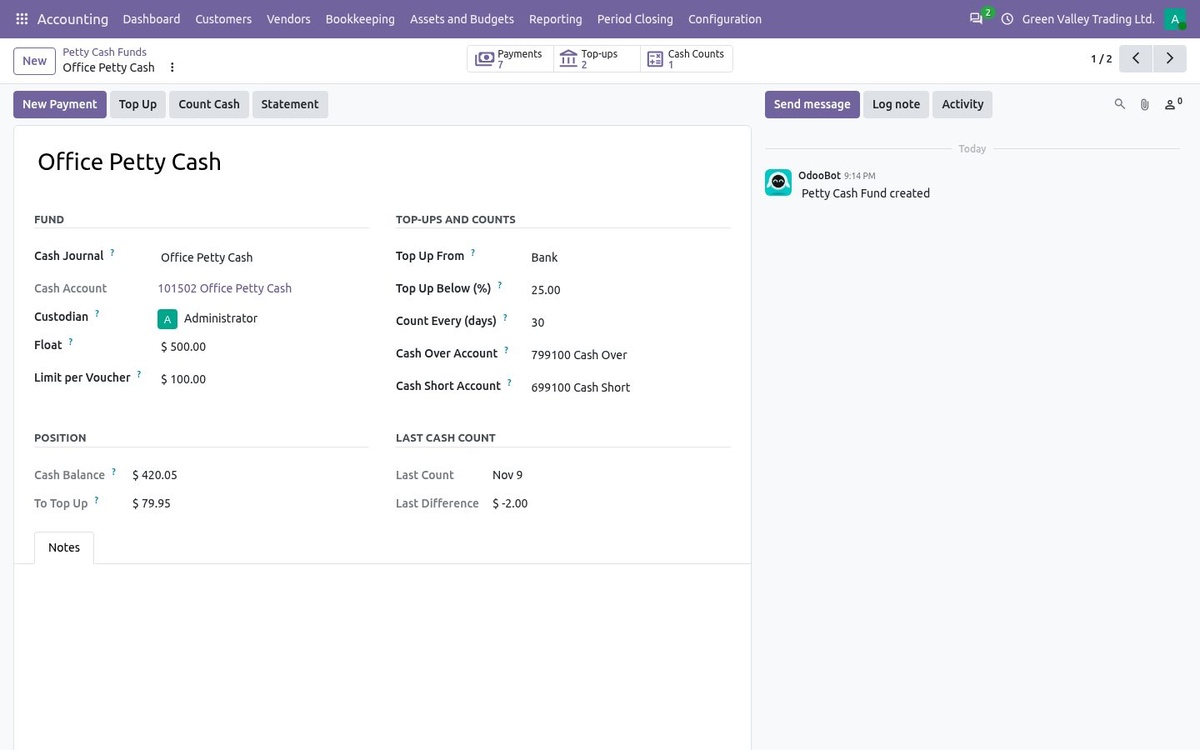
A petty cash fund with its float, custodian, limit per voucher and last count
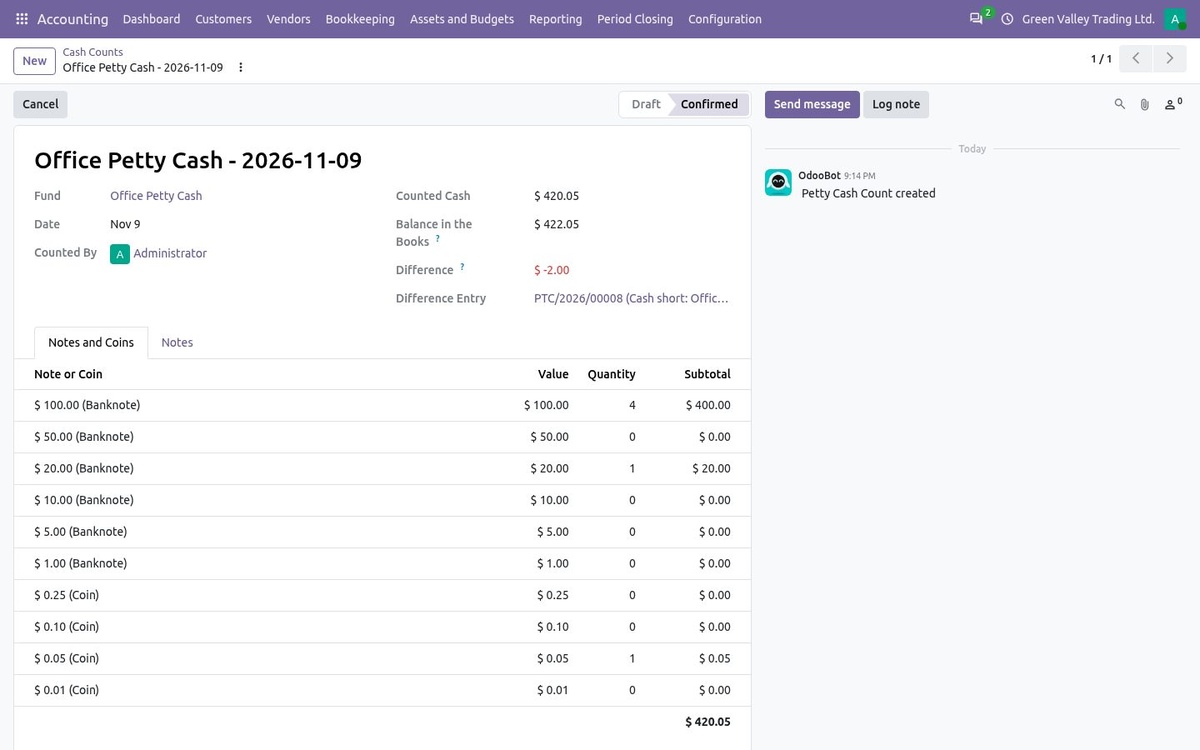
Cash count by notes and coins: a shortage of 2.00 is posted to Cash Short
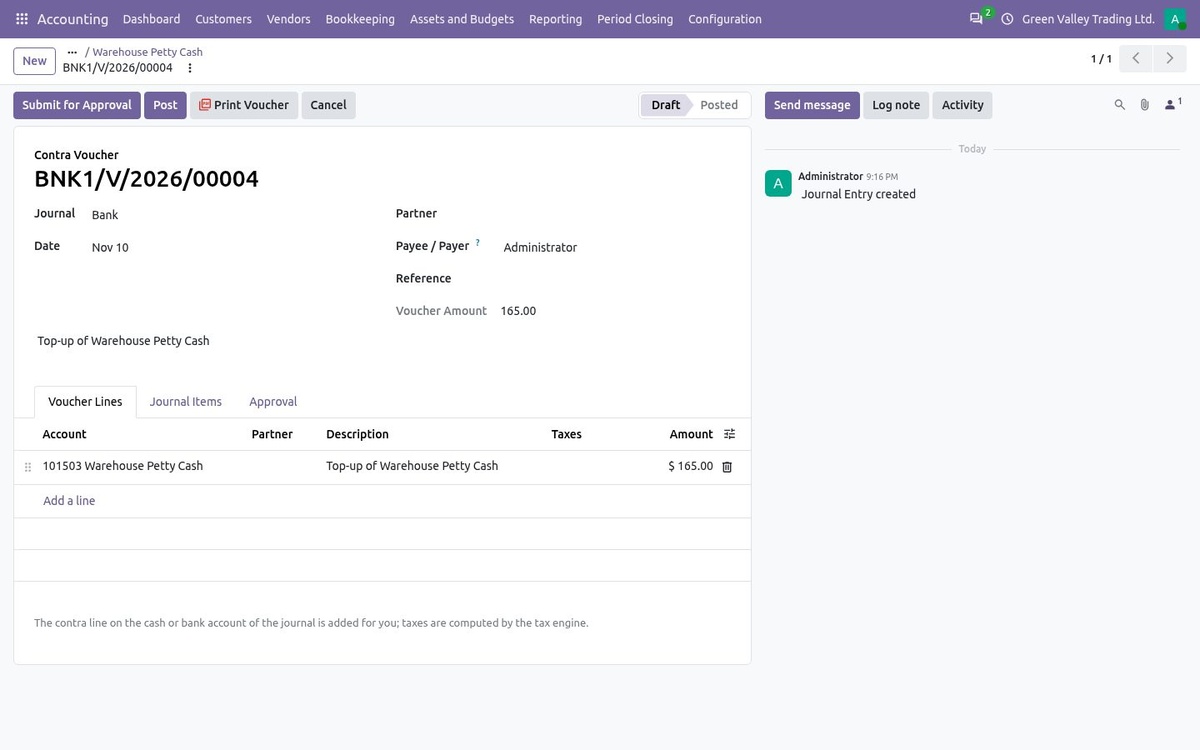
Top Up drafts the contra voucher from the bank that brings the fund back to its float
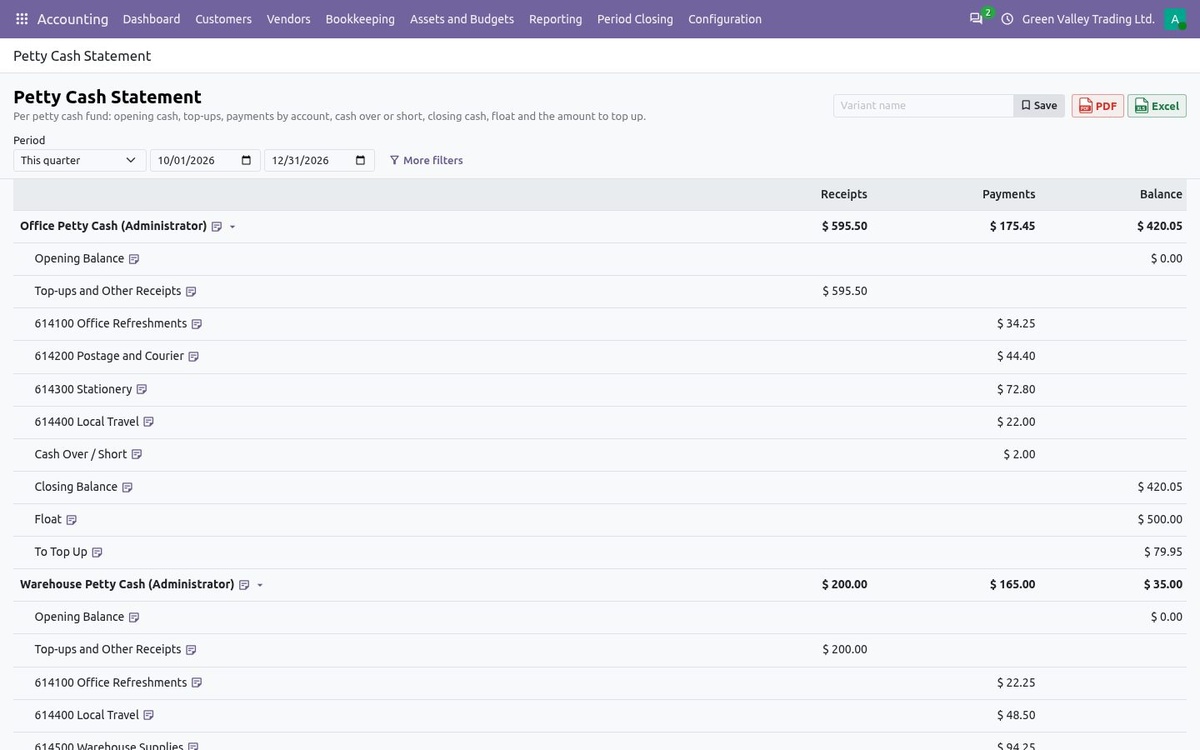
Petty Cash Statement for the quarter
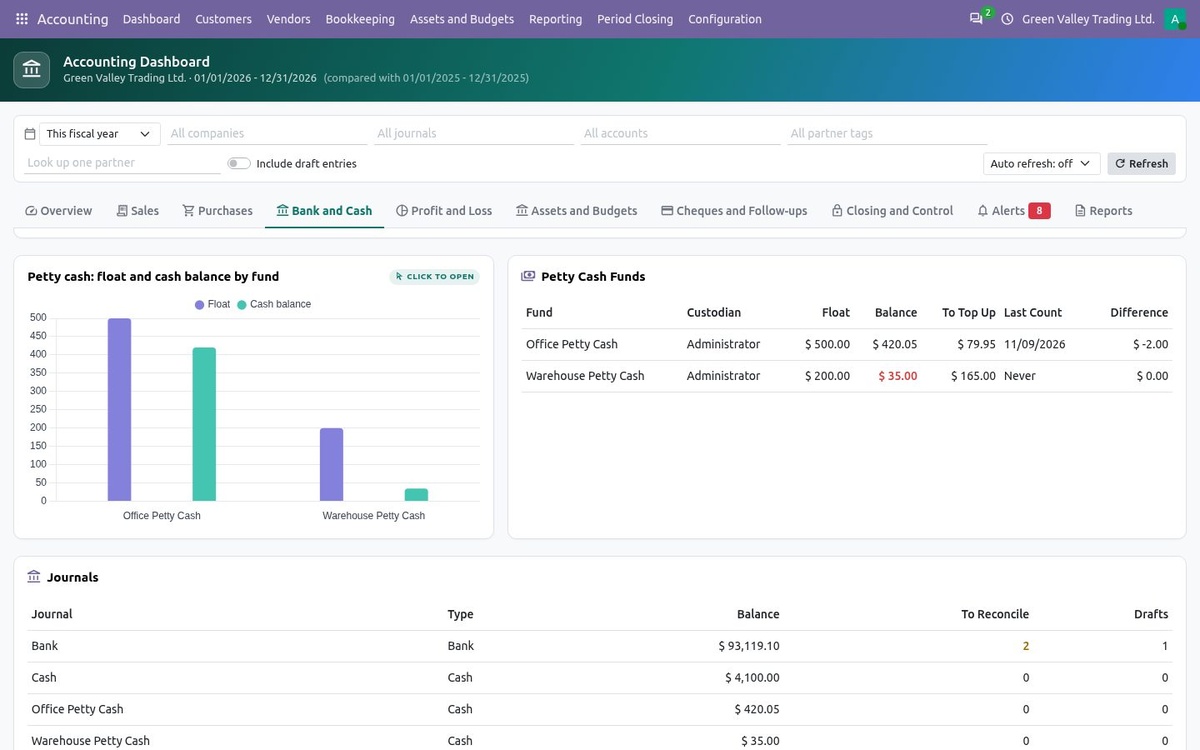
Dashboard, Bank and Cash tab: each fund against its float, the low fund in red
52 Reports — View, PDF and Excel
Open a report from Reporting, or from the Report Centre tab of the dashboard with View, PDF and Excel buttons that use the dashboard's period, journals and partner. Each report shows its own filters, unfolds to journal items and prints the same rows to PDF or XLSX. Reports can cover several companies of the user at once.
Books
Cash Book; Bank Book; Day Book; Sales Register; Purchase Register; Voucher Register; Receipts and Payments; Cash and Bank Summary; Journal Summary; Petty Cash Statement.
Financial Statements
Profit and Loss; Balance Sheet; Cash Flow Statement (indirect method); Trial Balance; Monthly Profit and Loss; Executive Summary with key ratios; Cash Flow Forecast; Analytic Profit and Loss.
Ledgers
General Ledger; Partner Ledger; Account Statement; Chart of Accounts.
Customers & Vendors
Aged Receivable; Aged Payable; Partner Statement; Customer Balances; Vendor Balances; Open Customer Invoices; Open Vendor Bills; Payment Register; Follow-up Status; Follow-up History; Credit Limit Status.
Sales & Purchases
Sales by Customer; Purchases by Vendor; Sales by Product; Purchases by Product.
Assets, Budgets & Cheques
Budget vs Actual; Asset Register; Depreciation Schedule; Cheque Register; Cheque Maturity Schedule; Recurring Entries Schedule; Deferral Schedule; Loan Schedule.
Tax & Control
Tax Report; Tax Audit; Journal Audit; Bank Reconciliation; Unposted Entries; Unreconciled Bank Transactions; Intercompany Balances.
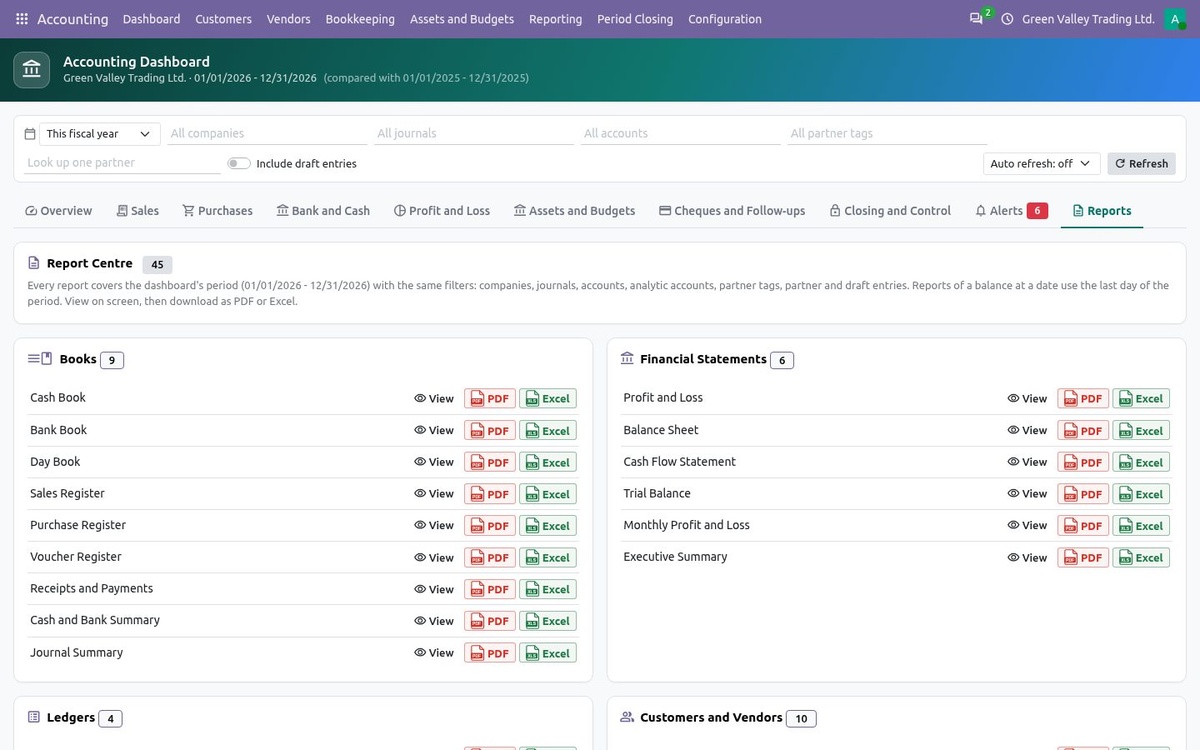
Report Centre: every report in seven groups, each with View, PDF and Excel
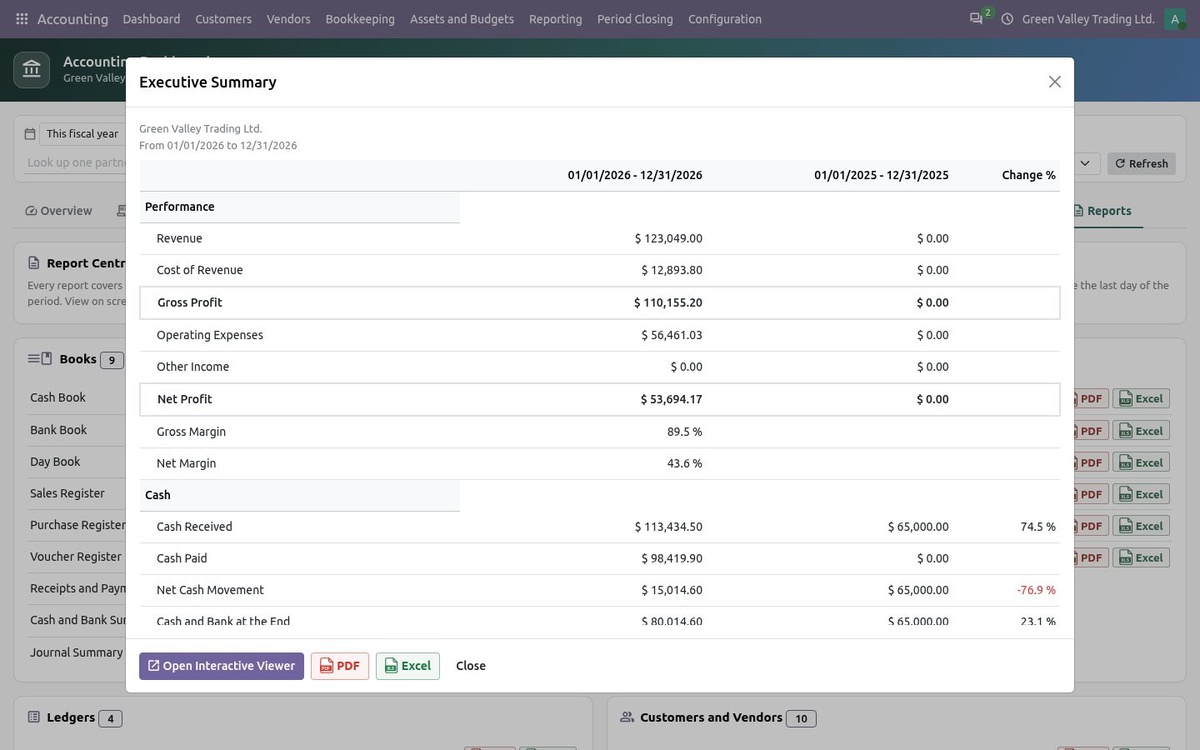
View of the Executive Summary on the dashboard's period, with PDF, Excel and the interactive viewer
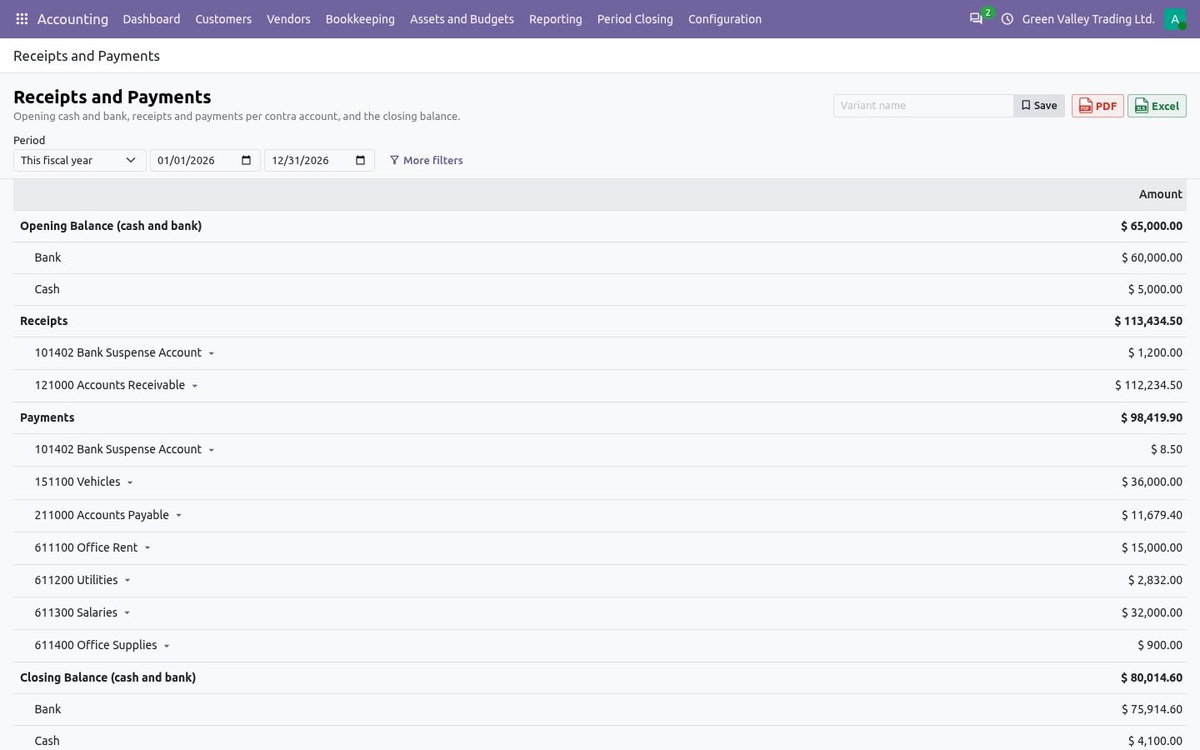
Receipts and Payments: opening cash and bank, receipts and payments per contra account, closing balance
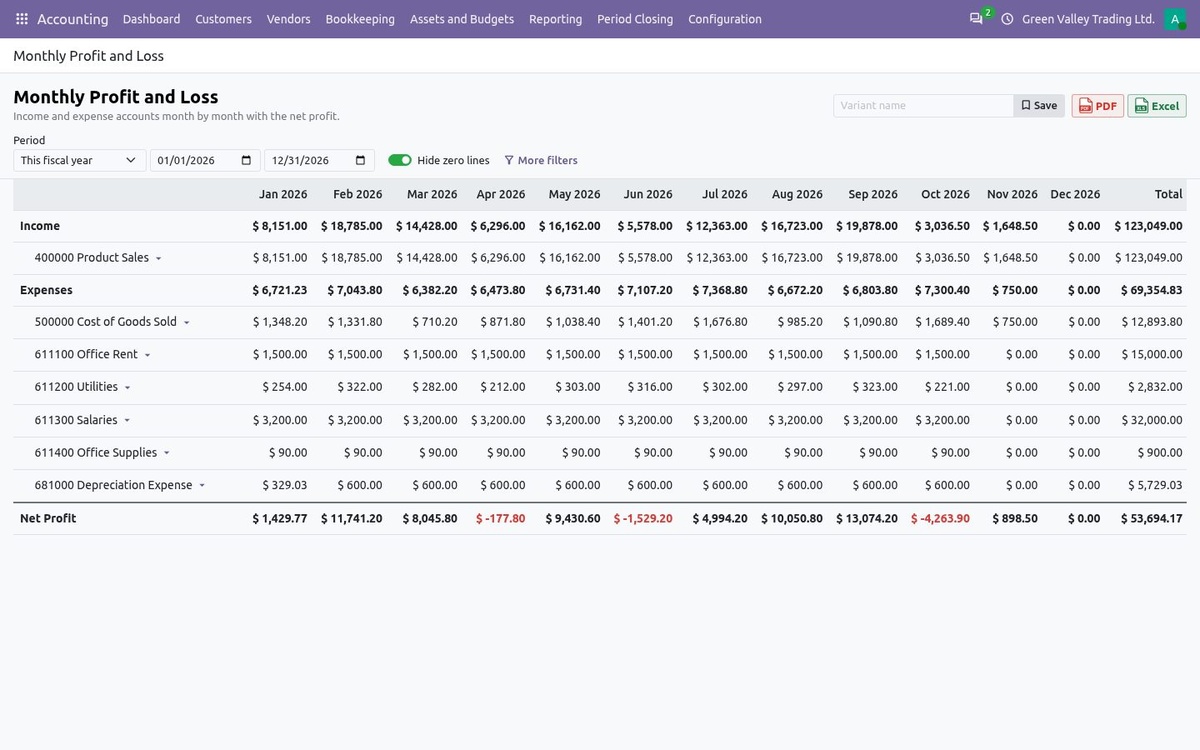
Monthly Profit and Loss: income and expense accounts month by month
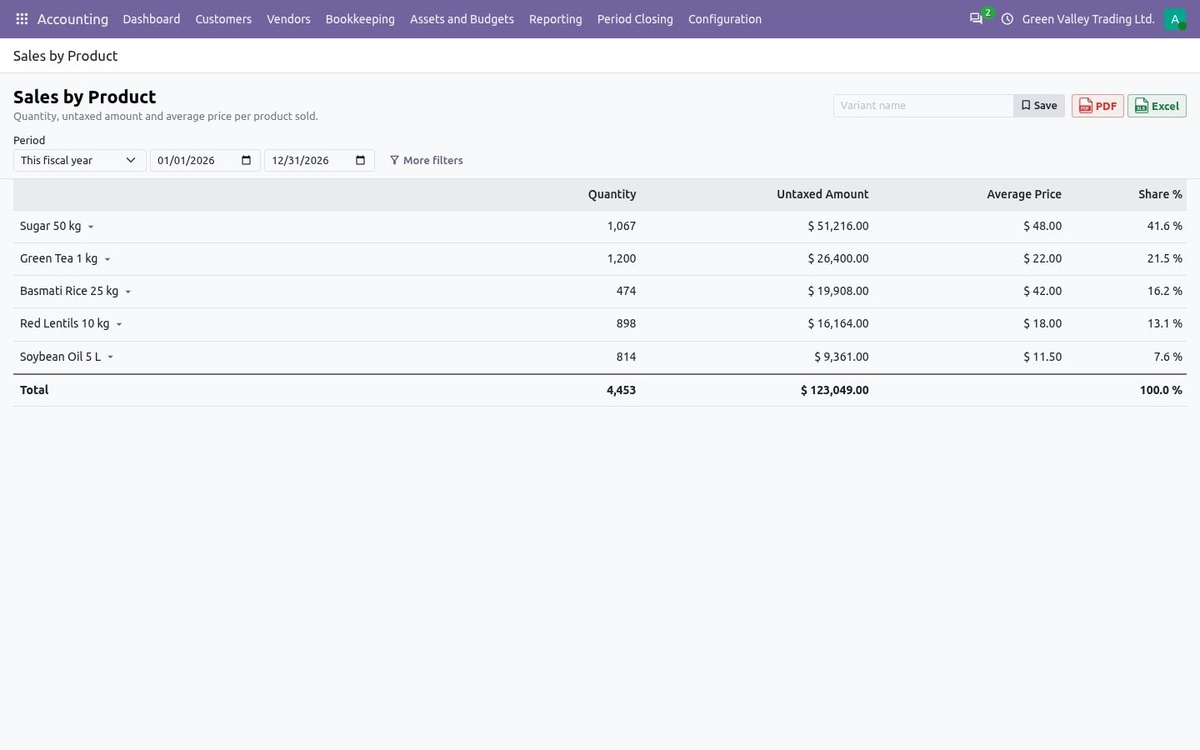
Sales by Product: quantity, untaxed amount, average price and share
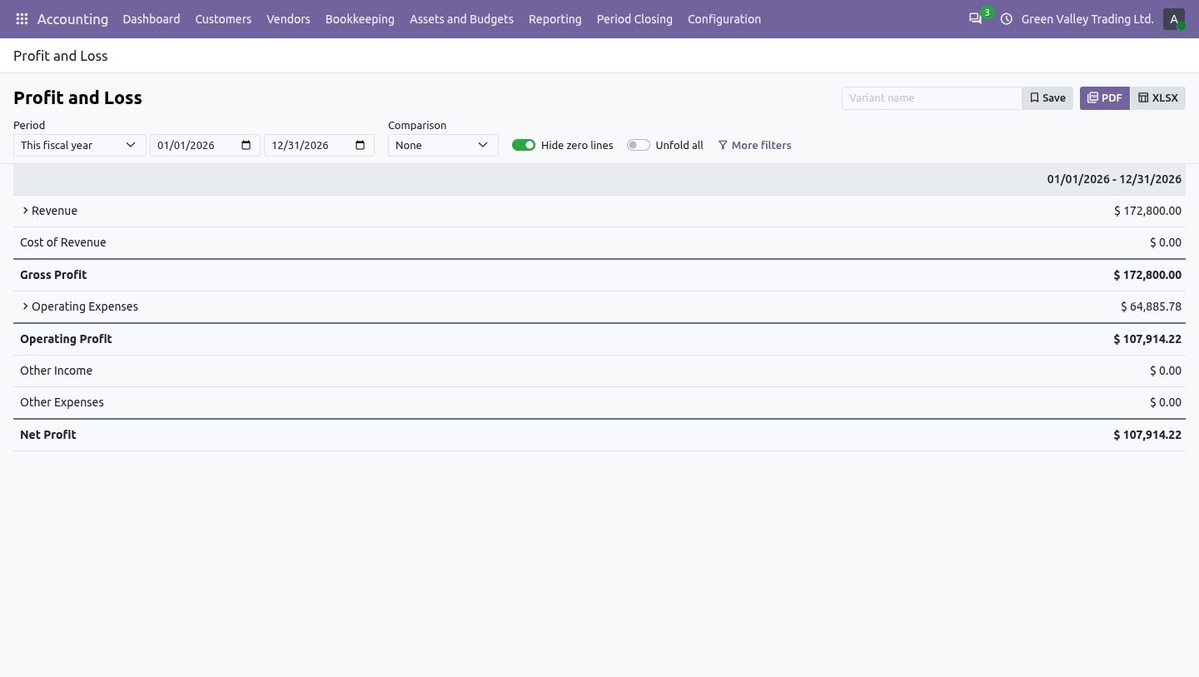
Profit and Loss: revenue, gross profit, operating profit and net profit
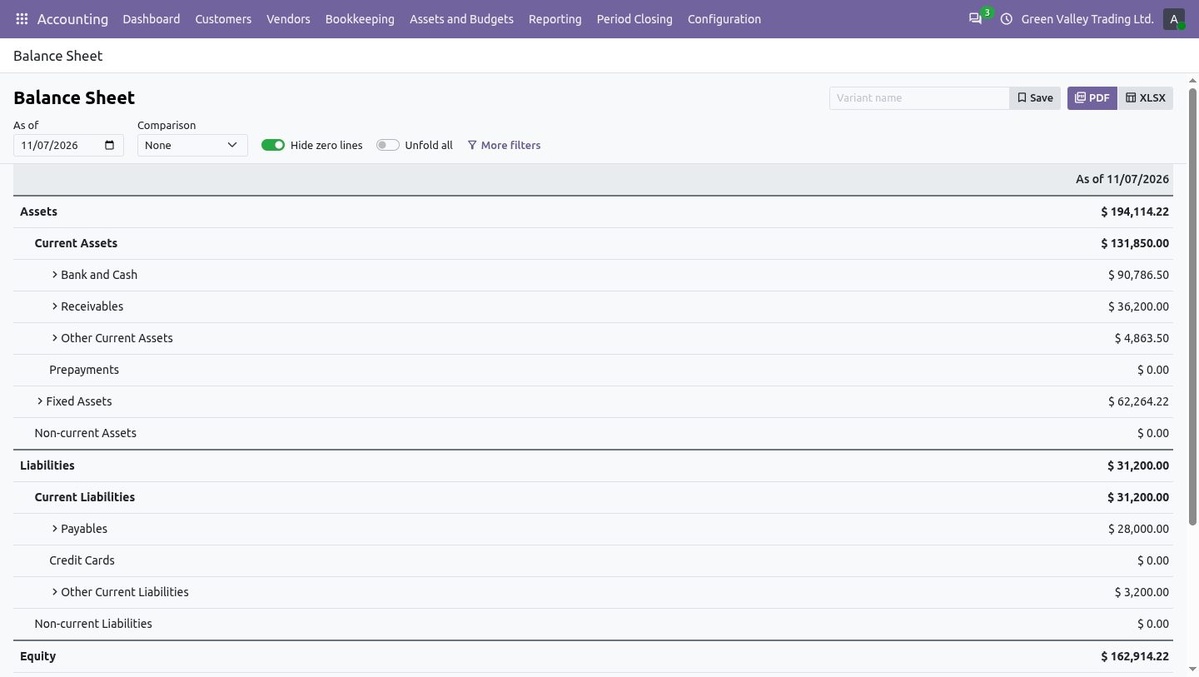
Balance Sheet as of a date: assets, liabilities and equity
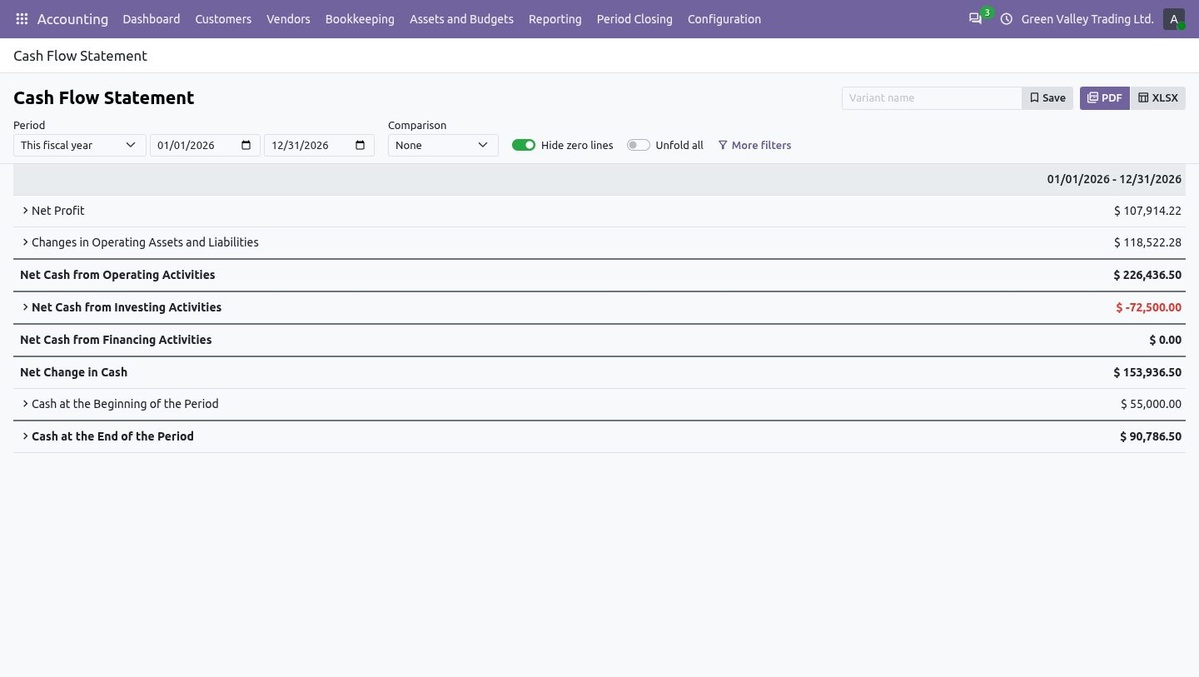
Cash Flow Statement: operating, investing and financing activities
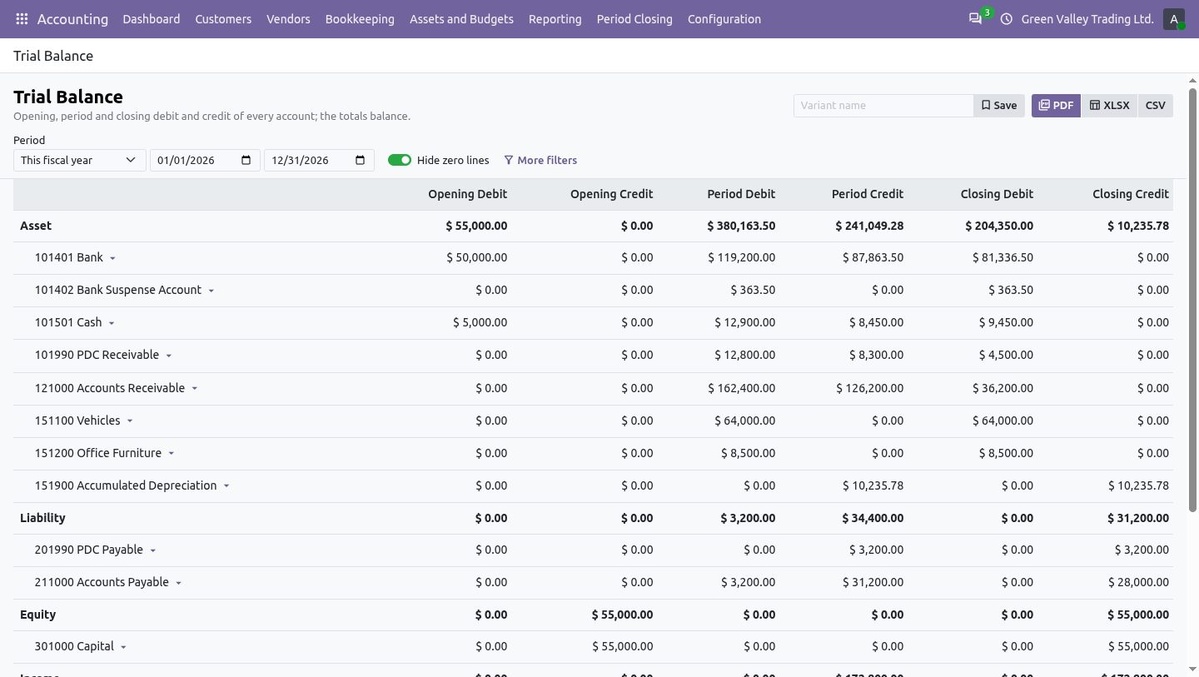
Trial Balance: opening, period and closing debit and credit per account
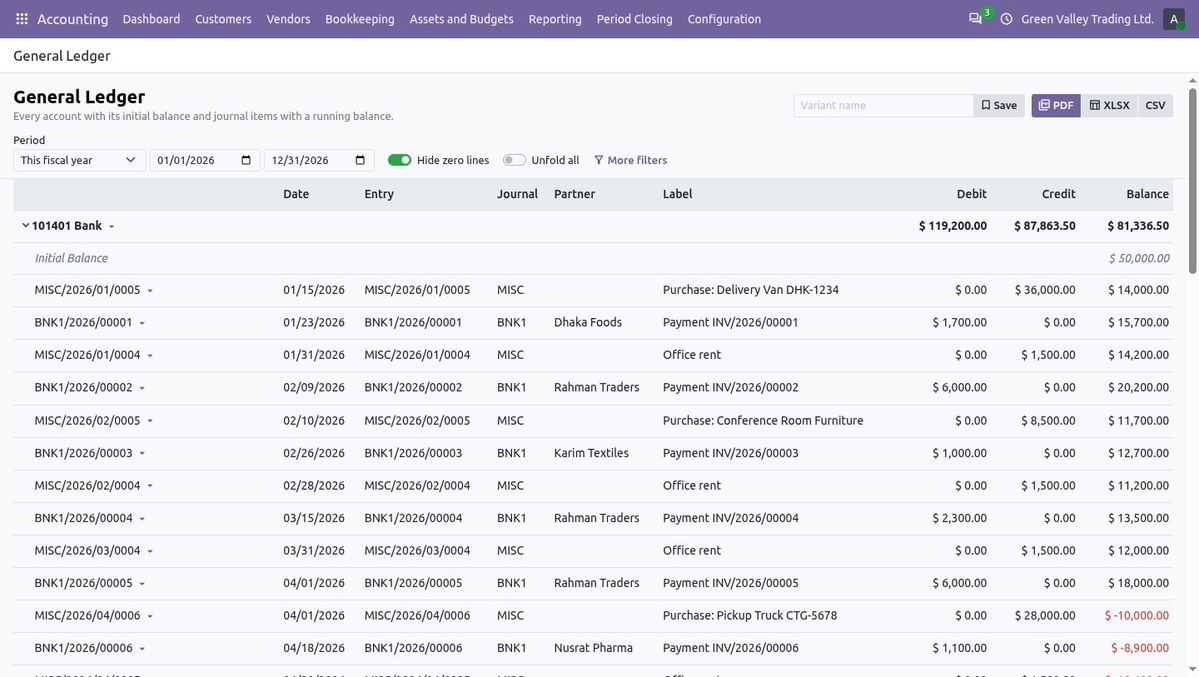
General Ledger: initial balance, journal items and running balance
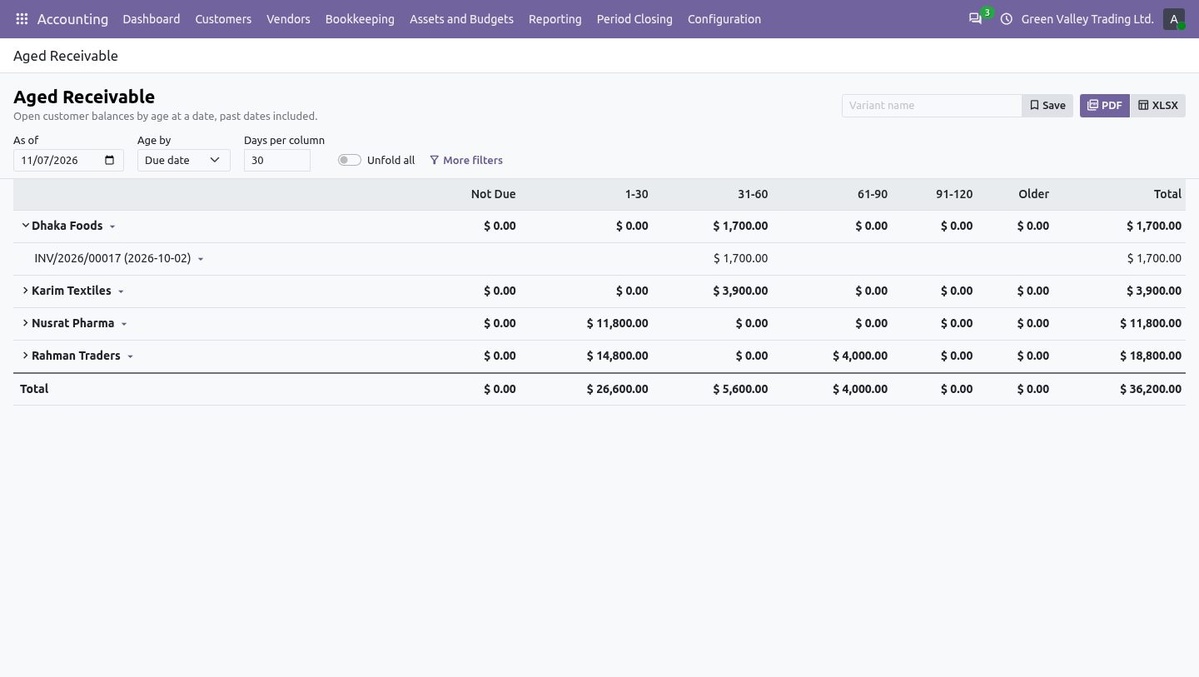
Aged Receivable: open balances by age, unfolded to the invoice
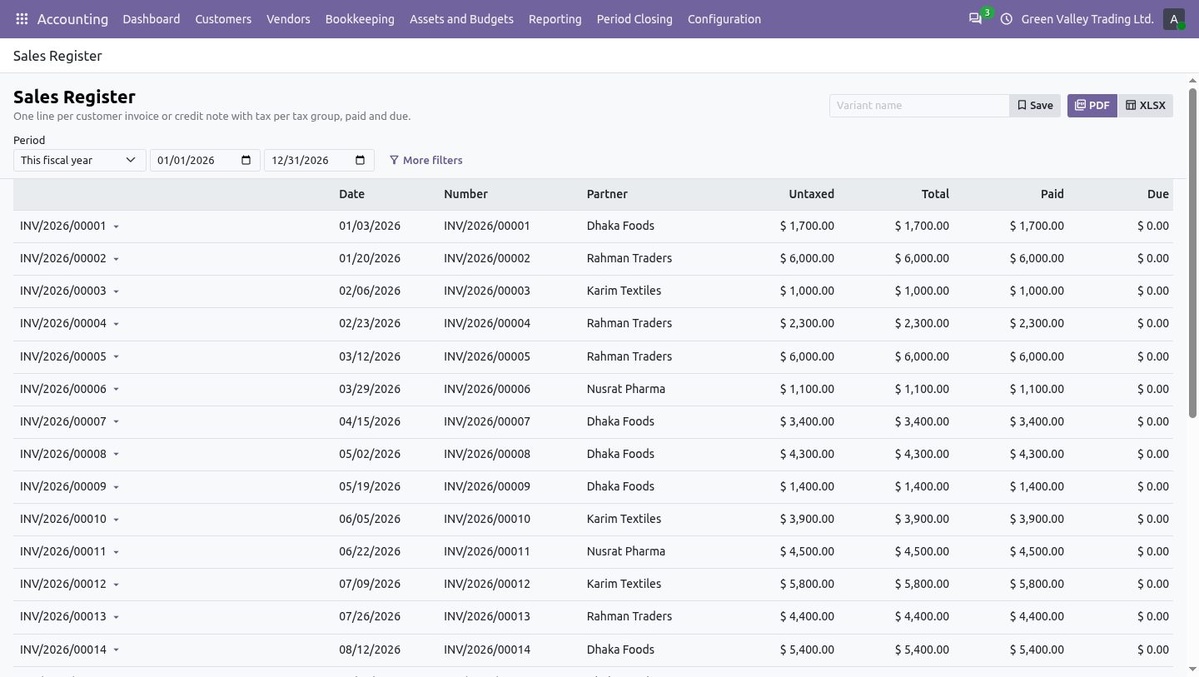
Sales Register: one line per invoice with untaxed, total, paid and due
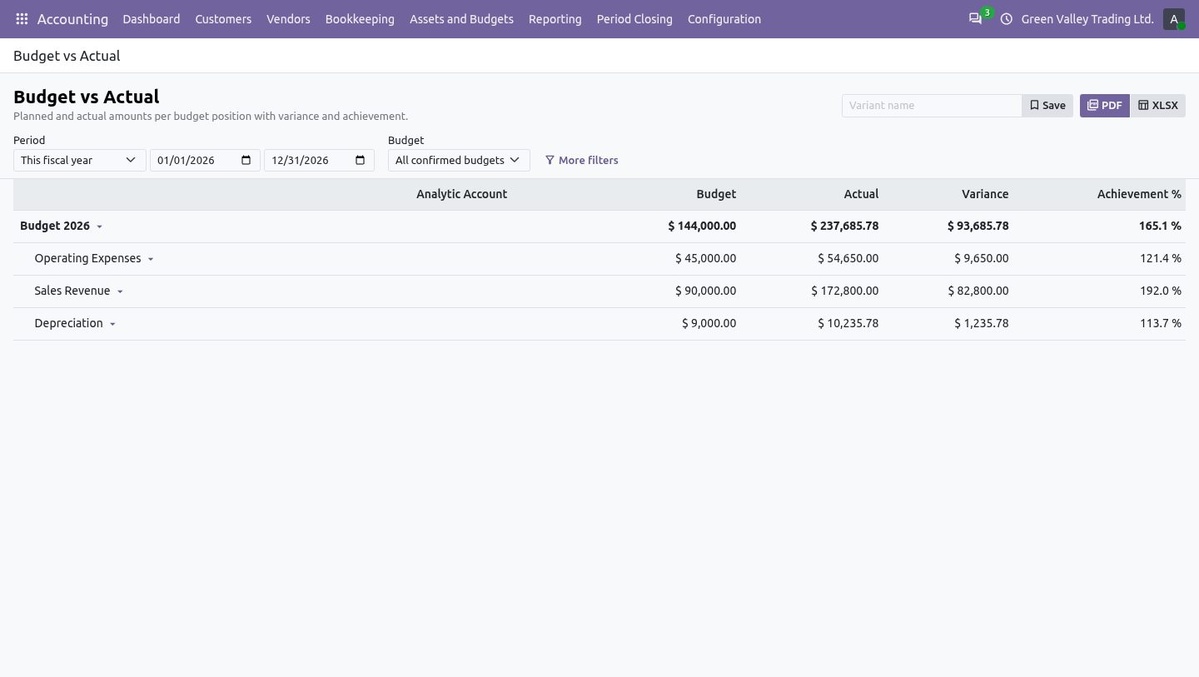
Budget vs Actual: budget, actual, variance and achievement
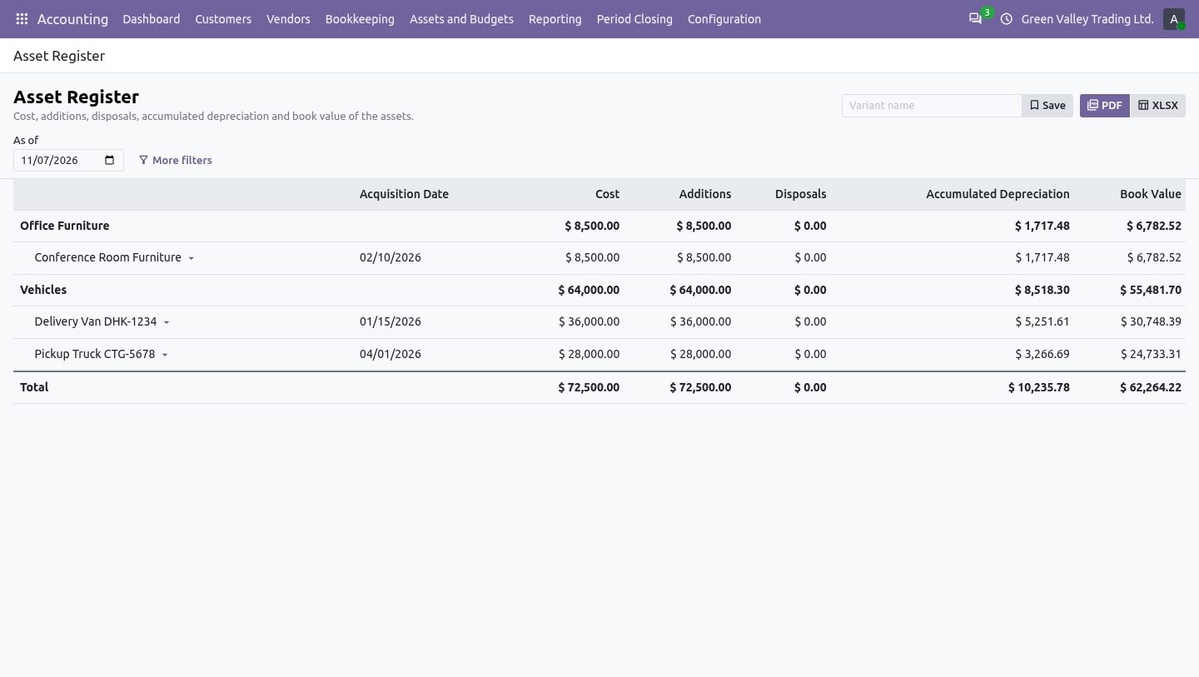
Asset Register: cost, additions, disposals, accumulated depreciation and book value
Vouchers, Cheques and Statements on Paper
Vouchers print with the company header, the debit and credit lines, the amount in words, the narration and signature blocks; a voucher layout sets the title and signature labels. Cheques print on a cheque layout that places the date, payee, amount in words and figures and the account-payee crossing for your bank's cheque leaf. Partner statements list invoices and payments with a running balance. Every report also prints to PDF.
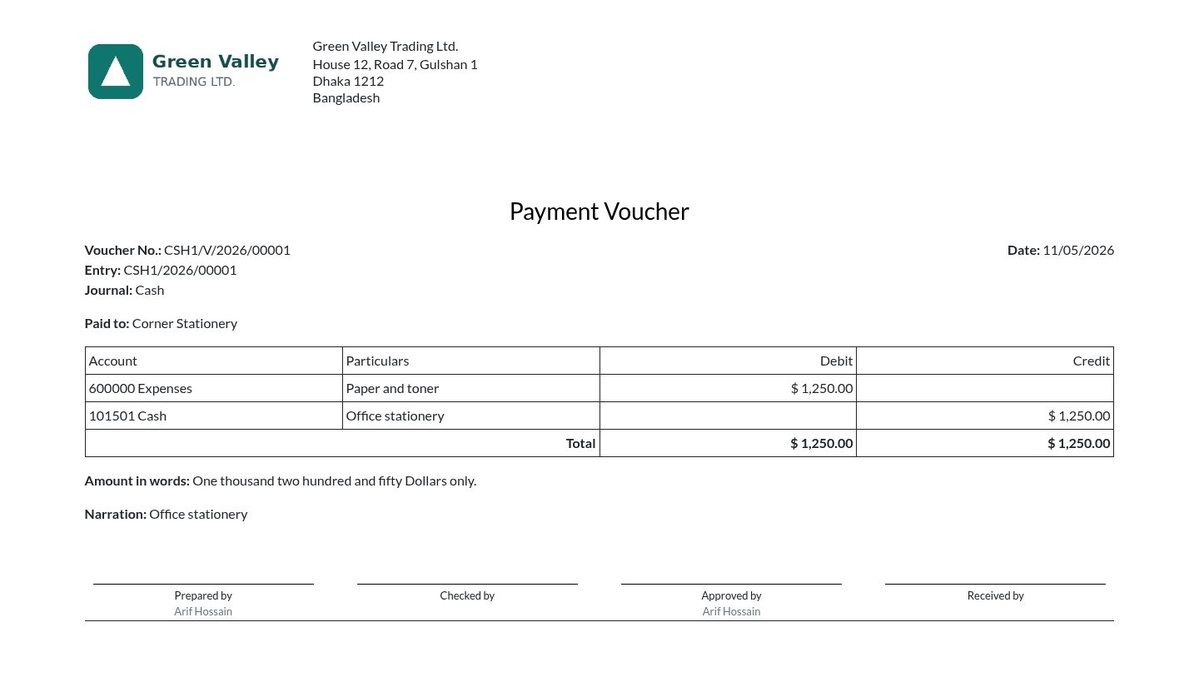
Printed payment voucher: lines, amount in words, narration and signatures
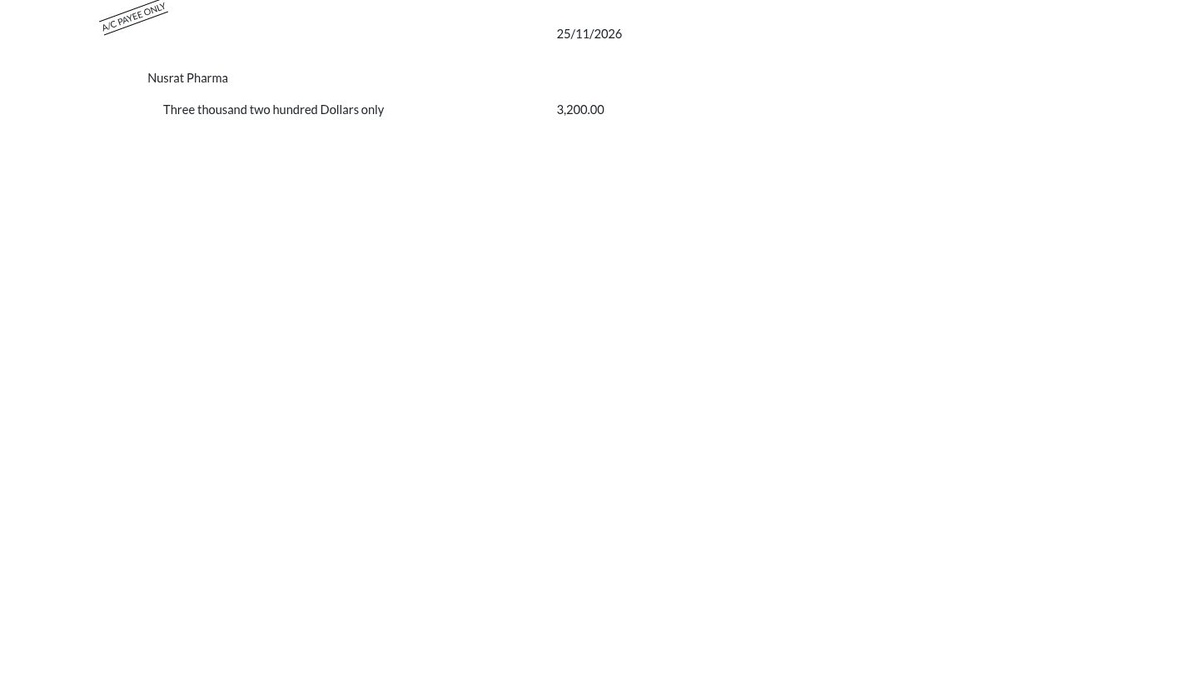
Cheque print: account-payee crossing, date, payee and amount in words and figures
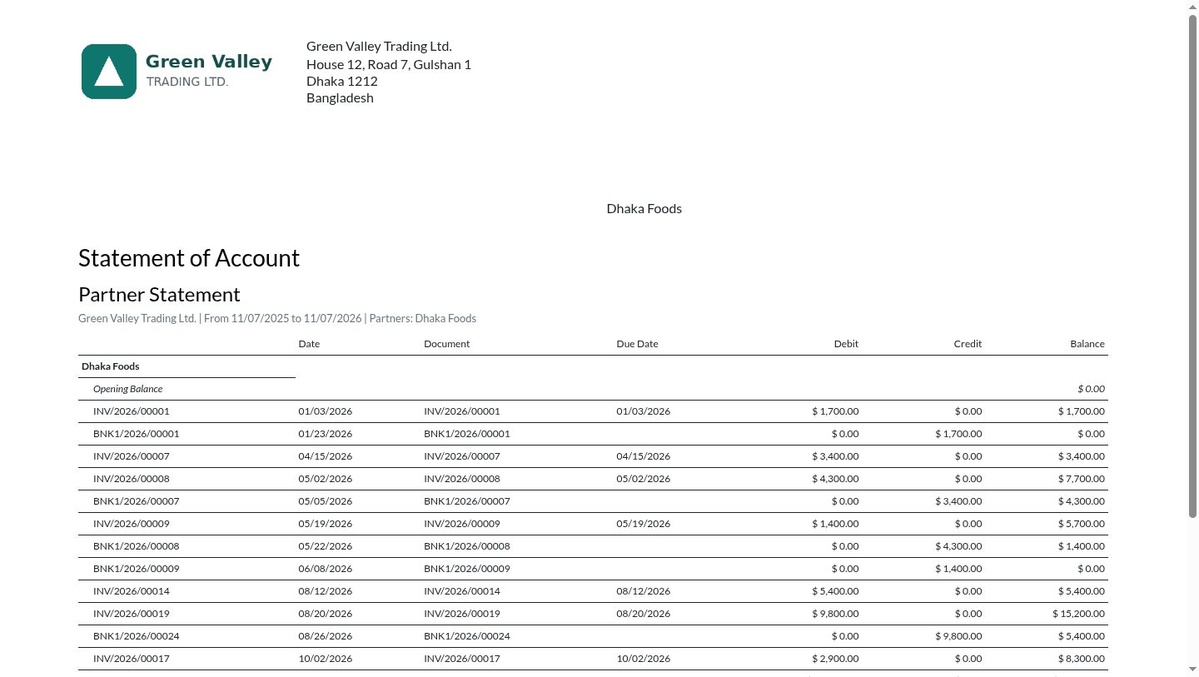
Partner statement: invoices, payments and running balance of a customer
Roles That Match the Work
| Role | What it covers |
|---|---|
| Invoicing | Odoo's own invoicing rights: customer invoices, vendor bills and their payments. |
| Bookkeeper | Enters vouchers, imports bank statements, reconciles, views books and ledgers. Cannot post vouchers or change the configuration. |
| Accountant | Posts and reverses entries, runs every report, manages assets, budgets, follow-ups, cheques and recurring entries. |
| Adviser (Administrator) | Odoo's accounting Administrator: everything an Accountant does, plus settings, the report designer, lock dates and the year-end closing. |
| Auditor (read-only) | Reads every accounting record and exports reports; cannot create, change or delete anything. |
The roles build on Odoo's accounting groups, so standard Invoicing users and other Community modules keep working. Settings, sequences and accounts are kept per company.
Closed Periods Stay Closed
Closed fiscal periods refuse postings. Odoo's soft lock dates move a late entry to the first open day, lock exceptions reopen a period for a user or for a limited time, and the hard lock date only moves forward. Posted entries can be made inalterable, vouchers keep who prepared and who approved them, and cheques, assets, budgets and checklists keep their history in the chatter.
Multiple Language Support
English, Bengali, Arabic, Simplified Chinese, French, German and Spanish catalogs cover menus, screens, messages, report labels and printed documents. Each user selects a language; report month columns follow it, Arabic is shown right to left, and amounts in words use the user's language where a converter exists. Review the accounting wording of the supplied catalogs before operational use.
Built to Fit Your Odoo
Odoo Community
Invoicing, Analytic Accounting and Discuss
Accounting / Accounting
OPL-1
Vouchers, cheques, assets and recurring documents create ordinary Odoo journal entries, invoices and bills, so your chart of accounts, taxes, localization and other Community modules stay in use. The tax report reads the tax report of your installed localization.
Install it instead of another accounting kit, not next to one: om_account_accountant, base_accounting_kit and account_accountant add the same menus and are reported as conflicting in the server log. XLSX files use the xlsxwriter package that Odoo already requires. Review your accounts, journals and printed layouts during implementation.
Support & Developer Details
For installation, chart of accounts and opening balance setup, bank statement layouts, cheque layouts, additional reports or implementation support, contact the maintainer.